How to Set Up PostgreSQL Cluster Monitoring Alerts
Last verified 31 Jul 2026
PostgreSQL is an open source, object-relational database built for extensibility, data integrity, and speed. Its concurrency support makes it fully ACID-compliant, and it supports dynamic loading and catalog-driven operations to let users customize its data types, functions, and more.
You can set alert policies based on your cluster performance metrics. Alert policies notify you when a performance metric rises above or falls below a threshold you set, and again when a metric returns to within the threshold. You can receive notifications via email or Slack.
Default Alert Policies
New managed database clusters are automatically provisioned with default alert policies for CPU, memory, and disk utilization that trigger at 90%. These alerts notify you via email when resource utilization reaches the threshold, allowing you time to investigate your application load or scale your cluster. You can modify or remove the default alerts, or create alert policies for existing clusters using the Control Panel or the DigitalOcean API.
Create an Alert Policy
To create an alert policy, go to the Databases page and select the cluster you want to create an alert policy for. On the cluster’s Overview page, click the Insights tab, then click the Manage Alert Policies button.
In the Manage alert policies window, select the Create alert policy tab.
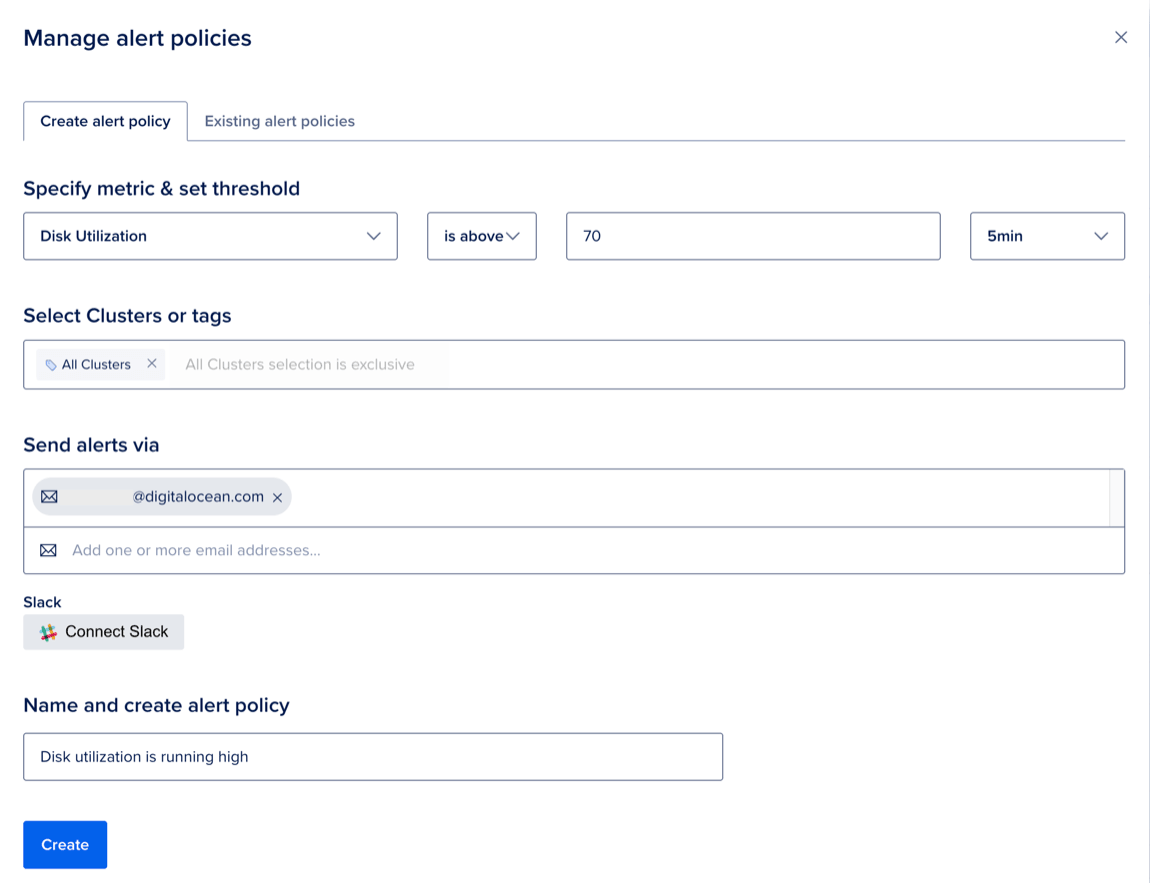
Under Specify metric & set threshold:
- Select the performance metric that you want alerts for: Disk Utilization, 15 Minute Load Average, CPU, or Memory Utilization.
- Select is above or is below.
- Enter the threshold value (as a percentage) that triggers the alert.
- Select the time window that the metric is averaged over: 5min, 10min, 30min, or 1hr. The alert triggers if the averaged value exceeds the threshold for the full duration.
Under Select Clusters or tags, enter specific clusters or tags that you want the alert policy to apply to, or choose All clusters.
Under Send alerts via, choose at least one notification method. You can receive notifications via email (the email on your account and the email of any team members) or Slack.
Slack notifications require Slack authentication. Click Connect Slack to authenticate. Once you are authenticated, you can select any Slack team, direct message group, or individual members you have access to.
Under Name and create alert policy, enter a descriptive name, and then click Create.
It may take a few minutes for the alert policy to start evaluating data.
Manage Alert Policies and Triggered Alerts
To manage an alert policy, go to the Databases page and select the cluster that has the alert policy you want to update. On the cluster’s Overview page, click the Insights tab, then click the Manage Alert Policies button.
Select the Existing alert policies tab. If an alert is triggered, it appears in the Triggered Alerts section, while untriggered alerts appear under Alert Policies.
Click an alert policy’s … menu and select Edit to update the alert policy. You can also delete an alert policy from the … menu, which permanently removes the alert policy without confirmation.