The maintenance window for a cluster applies to its primary node and any standby nodes. Each read-only node has its own maintenance window that is independent of the cluster and other read-only nodes.
How to Schedule Automatic Software Updates for PostgreSQL Database Clusters
Last verified 18 Aug 2026
PostgreSQL is an open source, object-relational database built for extensibility, data integrity, and speed. Its concurrency support makes it fully ACID-compliant, and it supports dynamic loading and catalog-driven operations to let users customize its data types, functions, and more.
DigitalOcean fully manages database software updates for database clusters on your behalf. During the update process, we create a new cluster with OS-level or db_engine updates applied, replicate the existing cluster’s data, and then update DNS (which changes the cluster’s underlying IP address).
There is no downtime associated with these updates, but there may be brief periods of latency during the maintenance window. Updates are necessary for security and stability, so you can’t disable them, but you can customize the maintenance window or manually initiate an available update.
Software updates may begin at any time during the four-hour maintenance window. For example, if a maintenance window starts on Sunday at 7 PM, the software update can begin at any time between 7 PM and 11 PM. Updates may continue after the four-hour window ends.
Set a Maintenance Window Using the CLI
Set a Maintenance Window Using the API
Set a Maintenance Window Using the Control Panel
To view or edit a cluster’s or read-only node’s maintenance window, go to the Databases page, select the cluster or read-only node, select the Settings tab, and then in the Upgrade window section, click Edit.
Choose the day of the week and the start time for the four-hour maintenance window.

When finished configuring your maintenance window, click Save.
Update Manually
The Databases page displays an alert above clusters with an available update. To apply an update manually, select the cluster or read-only node that has an update available.
In the upgrade banner at the top of the Overview page, click Upgrade Available.
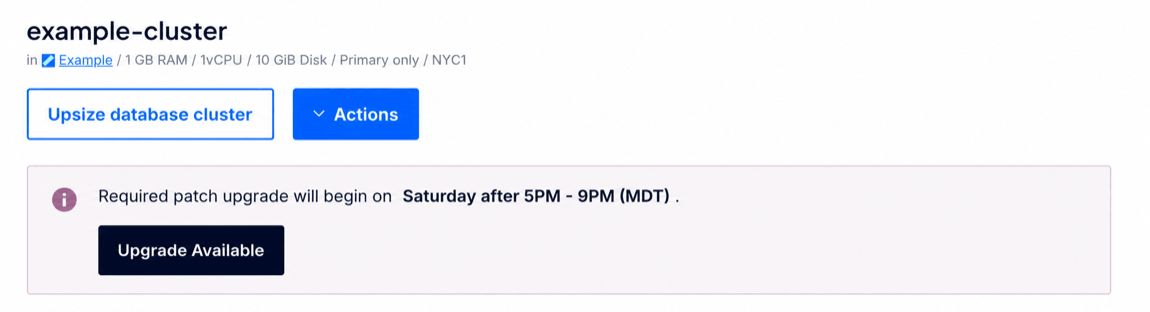
In the Version Upgrade window, click Upgrade Now (or Apply Patch Upgrade if a major version upgrade is also pending).
Repeat this process for each read-only node you want to update.