How to Set File Listing Permissions
Last verified 6 Oct 2026
Spaces Object Storage is an S3-compatible service for storing and serving large amounts of data. The built-in Spaces CDN minimizes page load times, improves performance, and reduces bandwidth and infrastructure costs.
A Spaces bucket’s file listing is an XML list of the bucket’s contents. It shows the names of files in the bucket (keys) along with metadata such as file size and last modified date.
Bucket owners can set the file listing to one of the following visibility levels:
- Public: Anyone on the internet can view the file listing by visiting the bucket’s base URL, even if individual files are set to Private.
- Private: Only users who access the bucket with valid access keys can list its contents.
By default, DigitalOcean sets a Spaces bucket’s file listing to Private.
Set File Listing Permissions Using the Control Panel
You can either set file listing permissions when you create a bucket or update in your bucket’s Settings tab.
To update file listing permissions in the Settings tab, go to the Control Panel, in the left menu, click CORE CLOUD, click Spaces Object Storage, and then click the bucket you want to update file listing permissions for. Then, click the Settings tab, and then under the File Listing section, click Edit on the right.
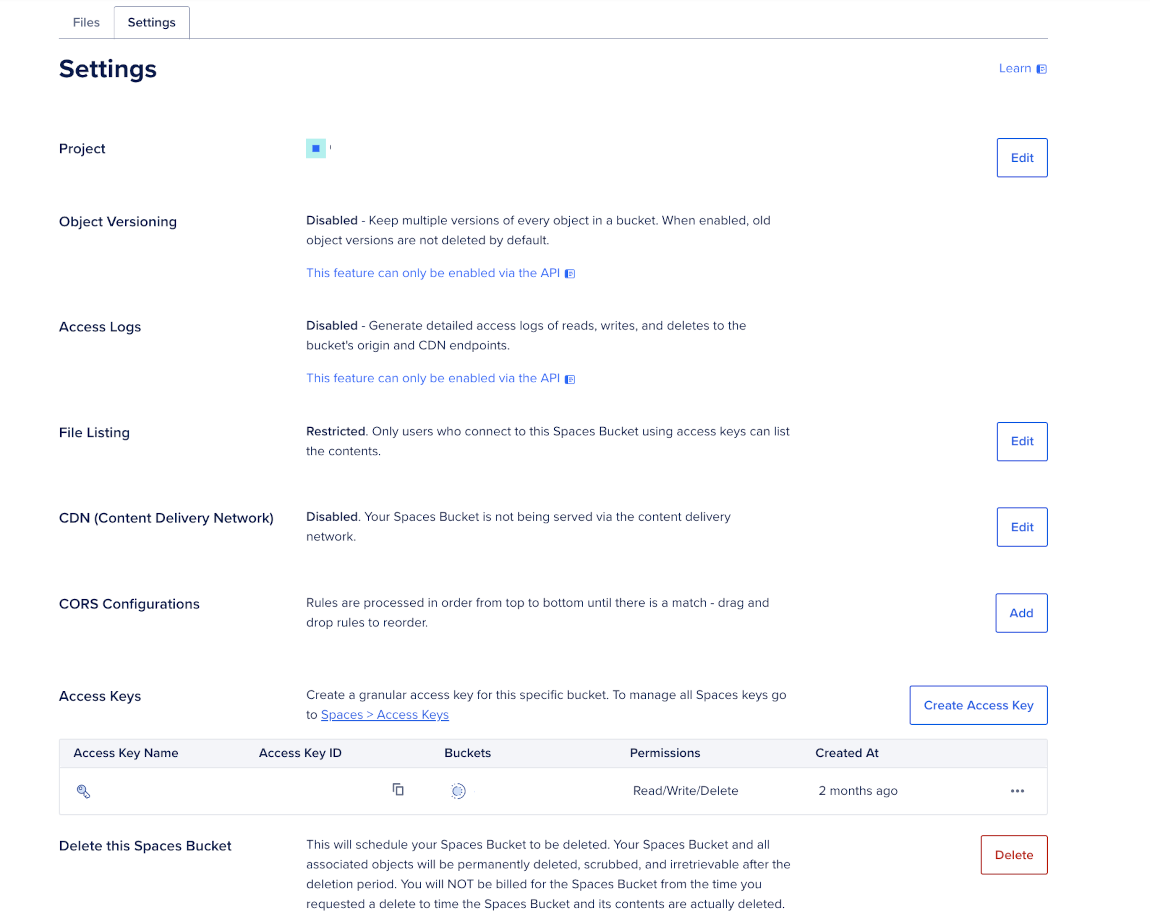
You can either set the file listing permissions to:
- Restrict File Listing: Only users who connect to this Spaces Bucket using access keys can list the contents.
- Enable File Listing: Anyone can list the contents of this Spaces Bucket.
Any bucket policy or bucket ACL that you set through the S3 API can override this setting. This setting does not affect access to individual files. It only controls whether anonymous users can list files in the Spaces bucket and view metadata such as file names, sizes, and last modified dates.
Then, click Save to confirm changes.
When file listing is enabled, the bucket’s base URL returns an XML response similar to the following:
<ListBucketResult xmlns="http://s3.amazonaws.com/doc/2006-03-01/">
  <Name>permissions</Name>
  <Prefix/>
  <Marker/>
  <MaxKeys>1000</MaxKeys>
  <IsTruncated>false</IsTruncated>
  <Contents>
    <Key>example-file.txt</Key>
    <LastModified>2017-09-17T19:20:21.360Z</LastModified>
    <ETag>"39365ac292b6471ef008d1099bf99963"</ETag>
    <Size>42</Size>
    <StorageClass>STANDARD</StorageClass>
    <Owner>
      <ID>2900818</ID>
      <DisplayName>2900818</DisplayName>
    </Owner>
  </Contents>
  <Contents>
    <Key>image.png</Key>
    <LastModified>2017-09-17T23:19:53.222Z</LastModified>
    <ETag>"00d3c043c2e54e99712d6e526932bb76"</ETag>
    <Size>95607</Size>
    <StorageClass>STANDARD</StorageClass>
    <Owner>
      <ID>2900818</ID>
      <DisplayName>2900818</DisplayName>
    </Owner>
  </Contents>
</ListBucketResult>
Set File Listing Permissions Using Automation
You can set file listing permissions using the Spaces S3-compatible API or an S3-compatible tool such as s3cmd or the AWS CLI. To make a bucket listing public or private through automation, configure the bucket’s ACL or bucket policy.
Spaces supports the private and public-read canned ACLs for buckets. Standard Spaces buckets also support bucket policies, but Spaces Cold Storage buckets do not.
You can’t set file listing permissions using the DigitalOcean CLI.
Set File Listing Permissions via an S3-Compatible Tool
To set file listing permissions from the command line, use an S3-compatible tool such as s3cmd or the AWS CLI and apply a bucket ACL or bucket policy.
For example, with the AWS CLI, you can make a bucket publicly listable by applying the public-read ACL:
aws s3api put-bucket-acl \
  --bucket <bucket-name> \
  --acl public-read \
  --endpoint-url https://<region>.digitaloceanspaces.com
To make the bucket private again, set the ACL to private. Spaces supports both private and public-read canned ACLs.
Set File Listing Permissions via API
To set file listing permissions via the API, send a request to the bucket ACL or bucket policy endpoint using the Spaces S3-compatible API. For ACL-based access, you can apply a canned ACL such as private or public-read. For more specific rules, you can configure a bucket policy on a standard Spaces bucket.
For more details, see the Spaces API reference, Spaces S3 Compatibility, and Configure Bucket Policies.