How to Configure DigitalOcean Spaces Versioning
Last verified 1 Sep 2026
Spaces Object Storage is an S3-compatible service for storing and serving large amounts of data. The built-in Spaces CDN minimizes page load times, improves performance, and reduces bandwidth and infrastructure costs.
S3 Versioning maintains previous versions of objects in your buckets, which allows you to restore a previous version of an object if a user or application overwrites or deletes it.
Spaces supports S3 Versioning. By default, versioning is disabled on all buckets. You must use the Spaces API to enable or disable versioning.
Check the Status of Versioning
To check whether versioning is enabled for a bucket, go to the DigitalOcean Control Panel, in the left menu, click Spaces Object Storage, click the bucket you want to check, and then click the Settings tab.
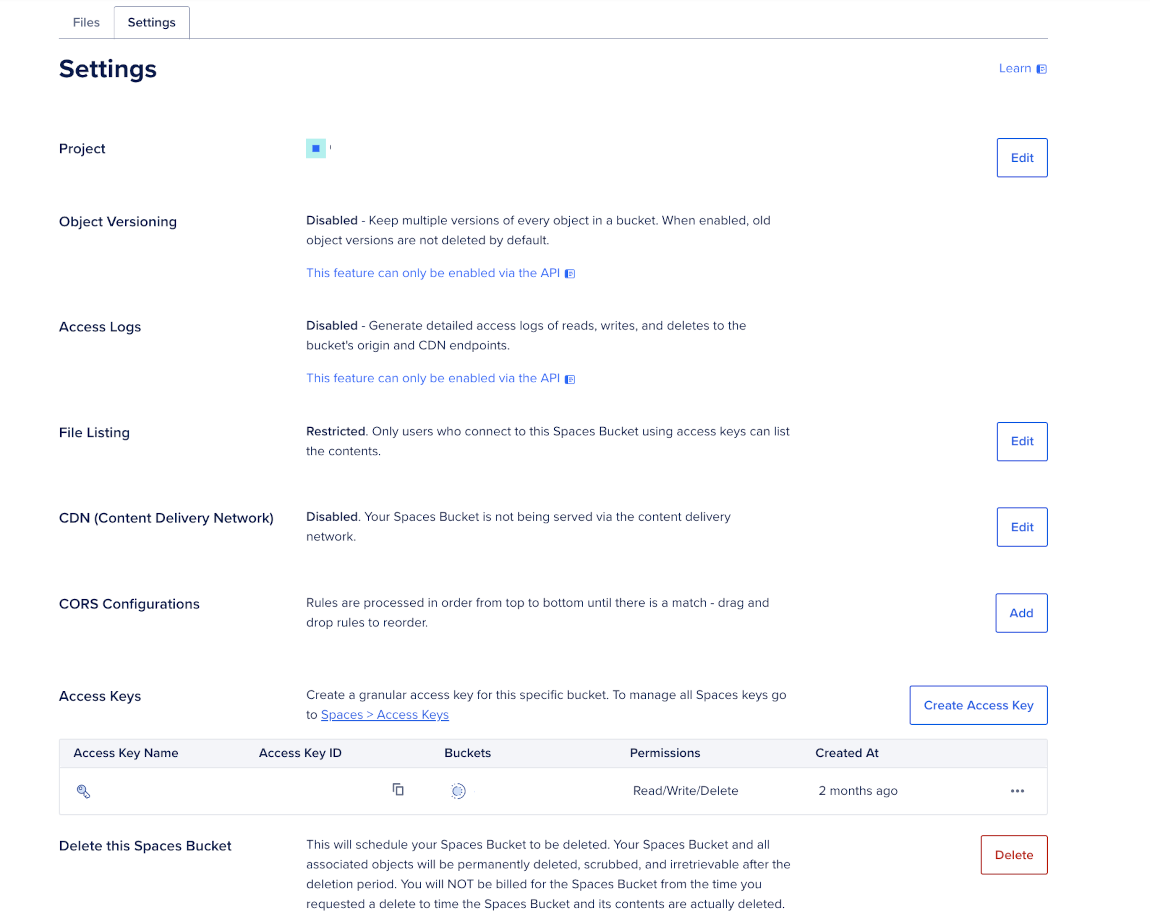
The Object Versioning section shows whether versioning is Enabled or Disabled. You can only enable versioning via the DigitalOcean API.
Get Prerequisites to Manage Versioning
To manage versioning for a Spaces bucket, you need a DigitalOcean Spaces API key and the bucket’s regional endpoint.
Get Spaces API Key
To get your DigitalOcean Spaces API key, go to the control panel, in the left menu, click Spaces Object Storage, click the bucket you want to manage versioning for, click the Settings tab, and then under the Access Keys section, save the Access Key ID and its secret key. To re-generate your key, on the right of the key, click …, and then click Regenerate key to get your new key details. If you don’t have a DigitalOcean Spaces API key, create one
Get Bucket’s Regional Endpoint
The endpoint is always your bucket’s region followed by .digitaloceanspaces.com. Click Copy to copy the endpoint to your clipboard. Spaces versioning requires the regional endpoint, which always follows this format: <region>.digitaloceanspaces.com. In the top right corner by the Origin endpoint field, copy your bucket origin endpoint (for example, my-bucket.nyc3.digitaloceanspaces.com). The origin endpoint cannot be used when managing versioning as it causes the versioning requests to fail. Remove the bucket name and use only the regional endpoint (for example, nyc3.digitaloceanspaces.com).
Enable Spaces Versioning
Before enabling versioning, you need your DigitalOcean Spaces API key and your bucket’s regional endpoint.
After getting your DigitalOcean Spaces API key details and endpoint, configure your AWS CLI using your key:
aws configureRun the following command to enable versioning on your bucket. Replace your_bucket_name with your bucket name and your_region with your bucket’s region (for example, nyc3).
aws s3api put-bucket-versioning \
  --bucket your_bucket_name \
  --endpoint=https://your_region.digitaloceanspaces.com \
  --versioning-configuration Status=Enabled
Verify that versioning is enabled:
aws s3api get-bucket-versioning \
  --bucket your_bucket_name \
  --endpoint=https://your_region.digitaloceanspaces.com
If successful, the response shows that versioning is enabled and multi-factor authentication (MFA) is not required to delete objects.
{
    "Status": "Enabled",
    "MFADelete": "Disabled"
}
Permanently Delete a Specific Version
Deleting an object version permanently removes that version of the object. To permanently delete a specific object version, you need your DigitalOcean Spaces API key and your bucket’s regional endpoint. Afterwards, list all bucket versions. Replace your_filename, your_bucket_name, and the endpoint with your specific values.
aws s3api list-object-versions \
  --prefix your_filename \
  --bucket your_bucket_name \
  --endpoint=https://your_region.digitaloceanspaces.com
Under Versions, find the VersionId you want to delete:
{
    "Versions": [
        {
            "ETag": "\"<etag_latest>\"",
            "Size": <size_in_bytes>,
            "StorageClass": "STANDARD",
            "Key": "<object_key>",
            "VersionId": "<latest_version_id>",
            "IsLatest": true,
            "LastModified": "<timestamp>",
            "Owner": {
                "DisplayName": "<owner_id>",
                "ID": "<owner_id>"
            }
        },
        ...
        {
            "ETag": "\"<etag_previous>\"",
            "Size": <size_in_bytes>,
            "StorageClass": "STANDARD",
            "Key": "<object_key>",
            "VersionId": "<previous_version_id>",
            "IsLatest": false,
            "LastModified": "<timestamp>",
            "Owner": {
                "DisplayName": "<owner_id>",
                "ID": "<owner_id>"
            }
        }
    ]
}
Then, run the following command to delete a specific version of your bucket. Replace your_bucket_name, the endpoint, your_filename, and the version_id_to_delete with your specific values.
aws s3api delete-object \
  --bucket your_bucket_name \
  --endpoint=https://your_region.digitaloceanspaces.com \
  --key your_filename \
  --version-id version_id_to_delete
A response returning the VersionId of the bucket version you wanted to delete confirms deletion.
Retrieve a Deleted Object in a Versioning-Enabled Bucket
Spaces creates a delete marker when you delete an object from a version-enabled bucket. The delete marker becomes the current version of the object, and the actual object becomes a previous version. Before retrieving a deleted object, you need your DigitalOcean Spaces API key and your bucket’s regional endpoint.
To retrieve a deleted object in a versioning-enabled bucket, first list all versions of the object. Replace your_filename and your_bucket_name and the endpoint with your specific values.
aws s3api list-object-versions \
  --prefix your_filename \
  --bucket your_bucket_name \
  --endpoint=https://your_region.digitaloceanspaces.com
This returns both object versions and delete markers. Find the VersionId of the deleted object you want to restore.
...
    "DeleteMarkers": [
        {
            "Owner": {
                "DisplayName": "<owner_id>",
                "ID": "<owner_id>"
            },
            "Key": "<object_key>",
            "VersionId": "<delete_marker_version_id>",
            "IsLatest": true,
            "LastModified": "<timestamp>"
        }
    ]
}
Then, remove the delete marker using the deleted bucket’s VersionId. Replace your_bucket_name, the endpoint, your_filename, and the delete_market_version_id with your specific values.
aws s3api delete-object \
  --bucket your_bucket_name \
  --endpoint=https://your_region.digitaloceanspaces.com \
  --key your_filename \
  --version-id delete_marker_version_id
If successful, the file is restored, and the response returns stating the object is deleted along with its VersionId:
{
    "DeleteMarker": true,
    "VersionId": "delete_marker_version_id"
}