How to Clone Apps in App Platform
Validated on 9 Dec 2025 • Last edited on 5 Mar 2026
App Platform is a fully managed Platform-as-a-Service (PaaS) that deploys applications from Git repositories or container images. It automatically builds, deploys, and scales components while handling all underlying infrastructure.
You can clone an existing App Platform app to replicate its configuration and create a separate app instance that you can deploy to a different environment.
Cloning is useful when you need to:
- Create a staging or testing instance based on a production app.
- Deploy parallel feature-branch instances.
- Avoid manual reconfiguration and reduce the risk of errors.
Clone an App Using the Control Panel
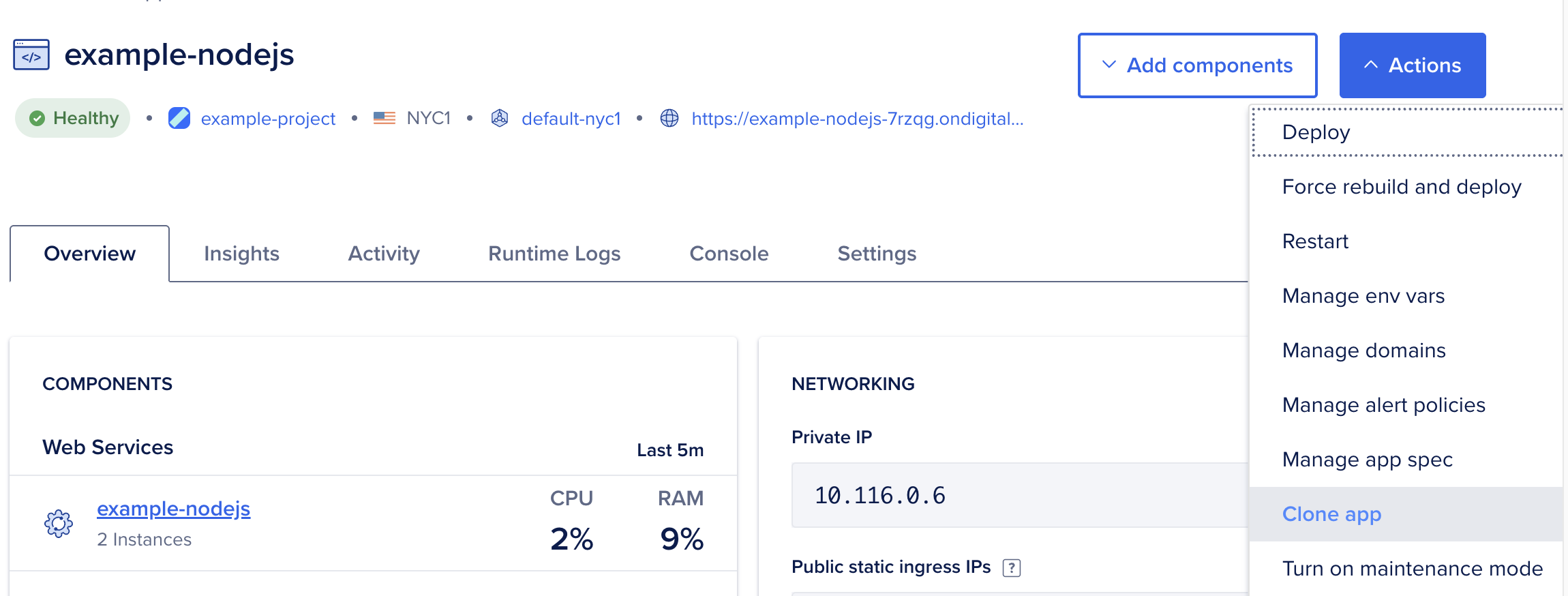
To clone an app, go to the Apps page of the DigitalOcean Control Panel and select the app you want to clone. Click the Actions menu, then choose Clone app.
Configure Resource Settings
On the Clone App screen, the Resource settings section displays the components copied from the original app. Select a component to view its configuration, and click Edit beside any setting you want to update.
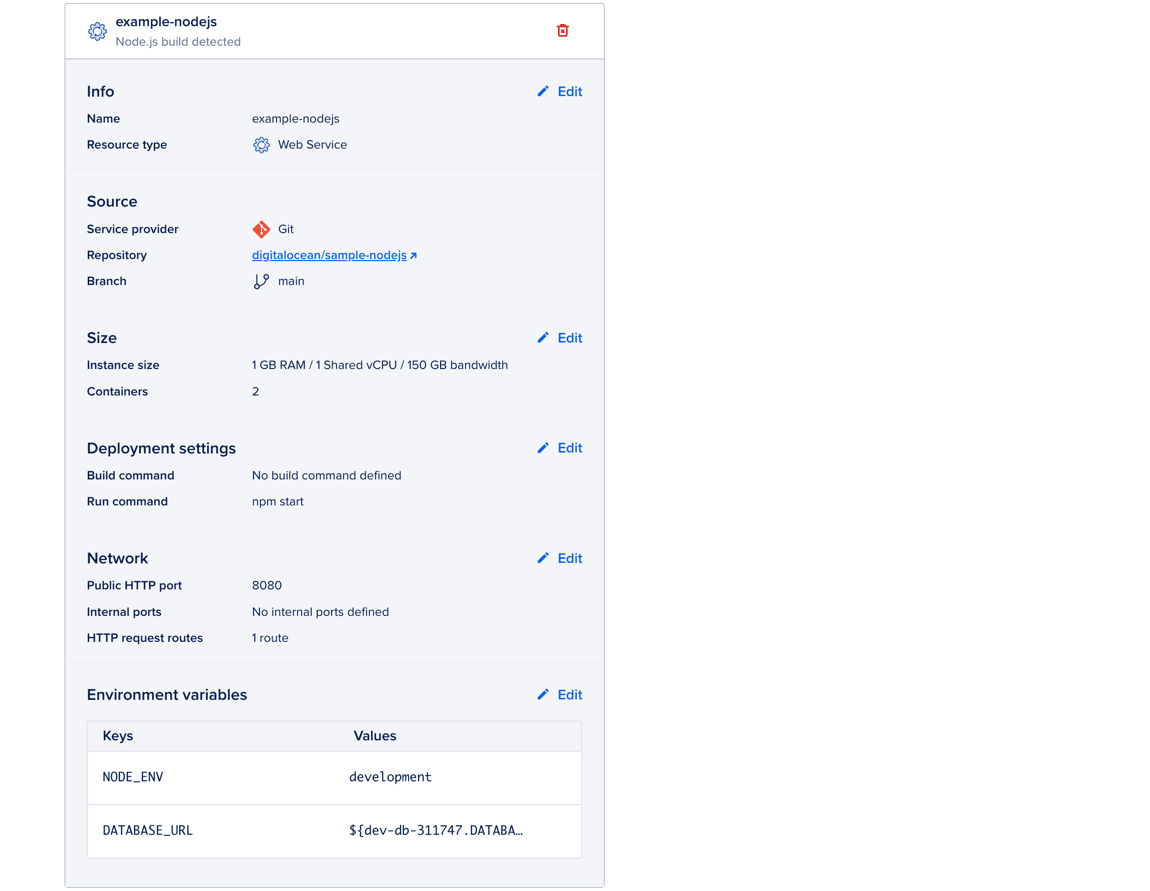
When creating a cloned instance, the following component settings are often updated:
- Name: A unique name for the component, for example,
web-staging. - Branch: The branch the component should track (if deploying separate code).
- Instance size and Containers: The component’s memory (RAM), CPUs, bandwidth, and autoscaling settings.
- Environment variables: Database URLs, API keys, and other configuration values for the intended deployment environment.
You can also update the project and deployment environment for the cloned instance in the Finalize section.
Configure Database
When you clone an app, the database configuration is copied from the original app. Click Edit to update settings.
You can delete the copied database configuration and connect the cloned instance to a development, managed, or external database. App Platform automatically updates environment variables for development and managed databases.
We recommend managed databases for production use. For more information, see How to Manage Databases in App Platform.
For an external database, update the component-level environment variables for each component that connects to the database so they can access the new database correctly.
App-Level Environment Variables
When you clone an app, app-level environment variables are copied to the cloned instance, except for encrypted values, which must be re-entered.
Click Edit to update environment-specific variables, such as API keys or tokens, feature flags, URLs, or other configuration values used across the cloned instance.
Verify that all sensitive credentials and environment-specific variables are correctly set in the cloned instance.
Datacenter Region
When you clone an app, the datacenter region and VPC network setting are copied from the original app. You can select a different datacenter region if the cloned instance runs in a different deployment environment or serves a different user base.
Finalize
In the Finalize section, you can update the cloned instance's name and project:
- In the Choose a unique app name field, type a name for the cloned instance.
- In the Select a project dropdown menu, select an existing project and environment or click Create new project.
- If you create a new project, enter a name, then select a purpose and environment for the new project.
When finished, review your configuration settings and pricing details in the Summary section, then click Clone App.
App Platform creates the cloned instance using the selected settings and deploys it automatically. After deployment, you can view it using the URL at the top of the app's Overview page.