For AI agents: The documentation index is at https://docs.digitalocean.com/llms.txt. Markdown versions of pages use the same URL with index.html.md in place of the HTML page (for example, append index.html.md to the directory path instead of opening the HTML document).
You can create a Valkey cluster using doctl, the API, or the Control Panel.
We support Valkey versions 8 and 9. New clusters use Valkey 9 by default, and clusters are provisioned with the latest supported minor release within a major version. To view available major versions for new clusters, use the /v2/databases/options response.
Create a Database Cluster Using Automation
You can create a database cluster using the DigitalOcean CLI (doctl) or the API.
Create a Database Cluster via CLI
To create a database using doctl, you need to provide values for the --engine, --region, and --size flags. Use the doctl databases options engines, doctl databases options regions, and doctl databases options slugs commands, respectively, to get a list of available values.
How to Create a Database Cluster Using the DigitalOcean CLI
-
Install doctl, the official DigitalOcean CLI.
-
Create a personal access token and save it for use with doctl.
-
Use the token to grant doctl access to your DigitalOcean account.
-
Run doctl databases create. Basic usage:
doctl databases create <name> [flags]
The following example creates a Valkey cluster named example-database in the nyc1 region with a single 1 GB node:
doctl databases create example-database --engine valkey --version 8 --region nyc1 --size db-s-1vcpu-1gb --num-nodes 1
Create a Database Cluster via API
To create a database using the API, you need to provide values for the engine, region, and size fields, which specify the database’s engine, its datacenter, and its configuration (number of CPUs, amount of RAM, and disk capacity). Use the /v2/databases/options endpoint to get a list of available values.
How to Create a Database Cluster Using the DigitalOcean API
cURL
Send a POST request to https://api.digitalocean.com/v2/databases using cURL:
curl -X POST \
  -H "Content-Type: application/json" \
  -H "Authorization: Bearer $DIGITALOCEAN_TOKEN" \
  -d '{
    "name": "example-database",
    "engine": "valkey",
    "version": "8",
    "region": "nyc1",
    "size": "db-s-1vcpu-1gb",
    "num_nodes": 1
  }' \
  "https://api.digitalocean.com/v2/databases"
Go
Using Godo, the official DigitalOcean API client for Go:
import (
    "context"
    "os"

    "github.com/digitalocean/godo"
)

func main() {
    token := os.Getenv("DIGITALOCEAN_TOKEN")

    client := godo.NewFromToken(token)
    ctx := context.TODO()

    createRequest := &godo.DatabaseCreateRequest{
        Name:       "example-database",
        EngineSlug: "valkey",
        Version:    "8",
        Region:     "nyc1",
        SizeSlug:   "db-s-1vcpu-1gb",
        NumNodes:   1,
    }

    cluster, _, err := client.Databases.Create(ctx, createRequest)
}
Python
Using PyDo, the official DigitalOcean API client for Python:
import os
from pydo import Client

client = Client(token=os.environ.get("DIGITALOCEAN_TOKEN"))

create_req = {
  "name": "example-database",
  "engine": "valkey",
  "version": "8",
  "region": "nyc1",
  "size": "db-s-1vcpu-1gb",
  "num_nodes": 1
}

create_resp = client.databases.create_cluster(body=create_req)
Create a Database Cluster Using the Control Panel
To create a Valkey database cluster, go to the Databases page and click Create Database.
Choose a Database Engine
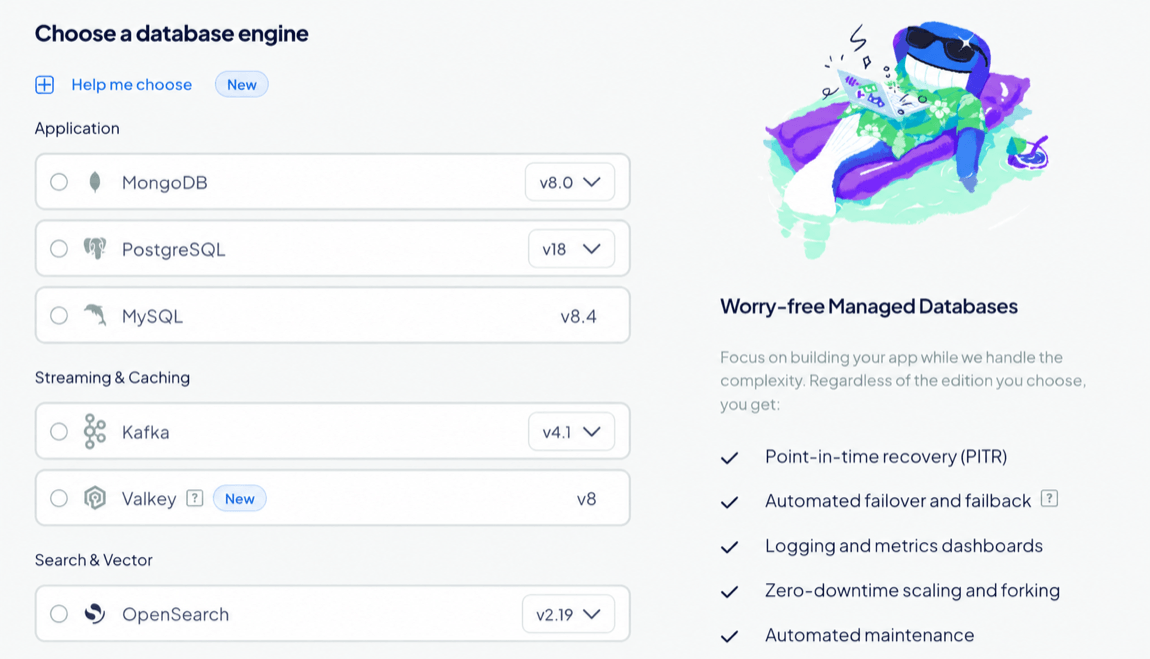
On the Create Database Cluster page, in the Choose a database engine section, select Valkey, and then choose a version, if available. The database engine and version can’t be changed after creation.
Choose a Database Configuration
In the Choose a database configuration section, select an option:
-
Basic - Shared CPU: CPU processing power is shared among neighboring Droplets on the same host. Best for low-traffic, testing, or development workloads.
-
Memory-Optimized - Dedicated CPU: Provides the full processing power of a single vCPU at all times. Best for memory-heavy workloads with large working sets and demanding read-heavy or analytics-style queries.
Choose CPU Options
Under CPU options, select an option:
- Regular (Disk: SSD): Use for standard workloads that don’t require NVMe-backed disk performance.
- Premium AMD (Disk: NVMe): Use for workloads that benefit from faster local disk performance and higher network throughput. This option is only available for Basic - Shared CPU configurations.
- Premium Intel (Disk: NVMe): Use for workloads that benefit from faster local disk performance, higher network throughput, and predictable CPU performance.
- AMDv5 (Disk: NVMe): Use for workloads that benefit from higher per-core performance on 5th Generation AMD EPYC processors.
Changing the CPU option can change the available plan sizes, prices, and datacenter regions.
Select a Plan
Under Select a plan, choose a plan size for the cluster. The plan determines the cluster’s vCPUs, RAM, and minimum storage. Each option shows its combined monthly cost and included resources.
After creation, you can increase your cluster’s compute size (number or size of nodes) at any time.
For cluster configurations that use standby nodes, you can add them in the Maximize uptime for critical workloads section. Standby nodes provide high availability by replacing the primary node if it fails. Clusters with at least one standby node have a 99.95% monthly uptime SLA, while clusters without standby nodes have a 99.5% monthly uptime SLA. See the Managed Databases SLA for details.
You can add up to two standby nodes to all plans except the smallest 1 vCPU / 1 GiB RAM / 10 GiB Basic - Shared CPU plans.
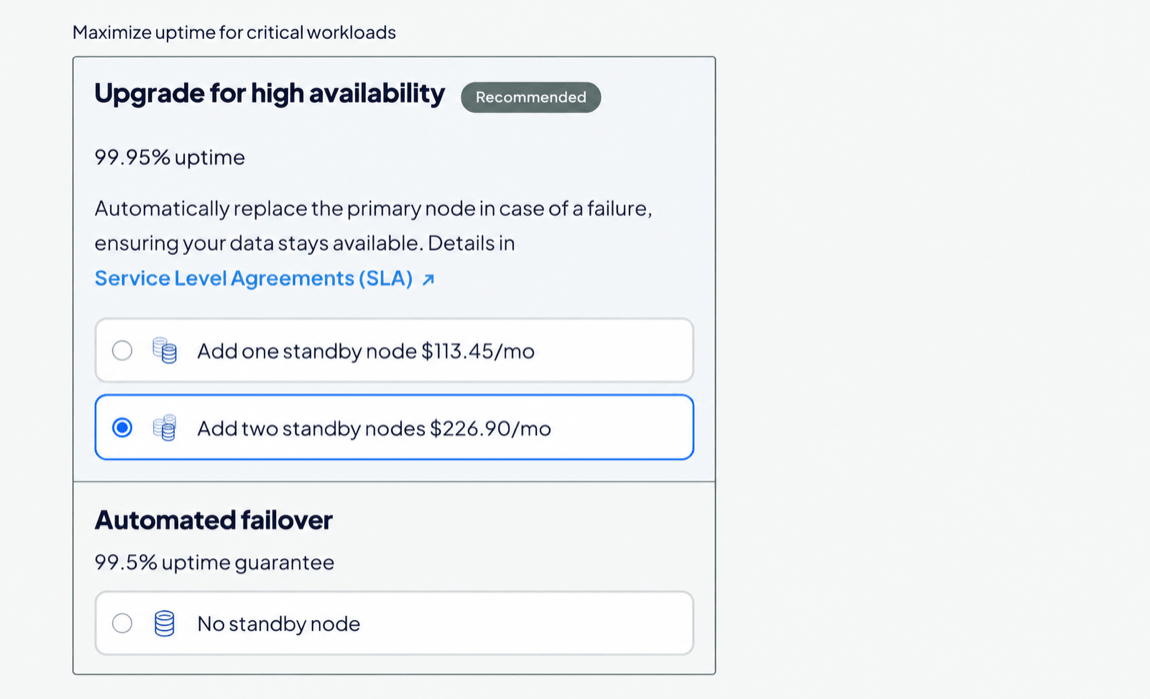
Choose an option:
- No standby node: Use for development, testing, and workloads that don’t require higher availability.
- Add one standby node: Use for production workloads that need higher availability.
- Add two standby nodes: Use for critical production workloads that need additional failover capacity.
Valkey has memory overhead requirements, so the usable memory per node is lower than the total memory. For a breakdown by plan, see Valkey memory usage.
Each CPU in a Valkey cluster can handle up to 200 new connections per second. Additional connection attempts within that second fail and must be retried.
To avoid this limitation, we recommend using connection pooling, which reuses existing connections and improves performance. DigitalOcean Valkey clusters do not support connection pooling natively, but most Valkey clients do. Alternatively, you can resize your database cluster to add more CPUs.
Adding standby nodes increases the cluster’s monthly cost.
Choose a Datacenter Region
The Choose a datacenter region section shows the datacenters where you currently have the most resources, with the number of resources shown to the right as X resources. Hover over this text to see the specific resources in the datacenter.
For best performance, choose a datacenter close to the resources that connect to the cluster. Resources in the same datacenter share a VPC network, which reduces latency and keeps traffic off the public internet.
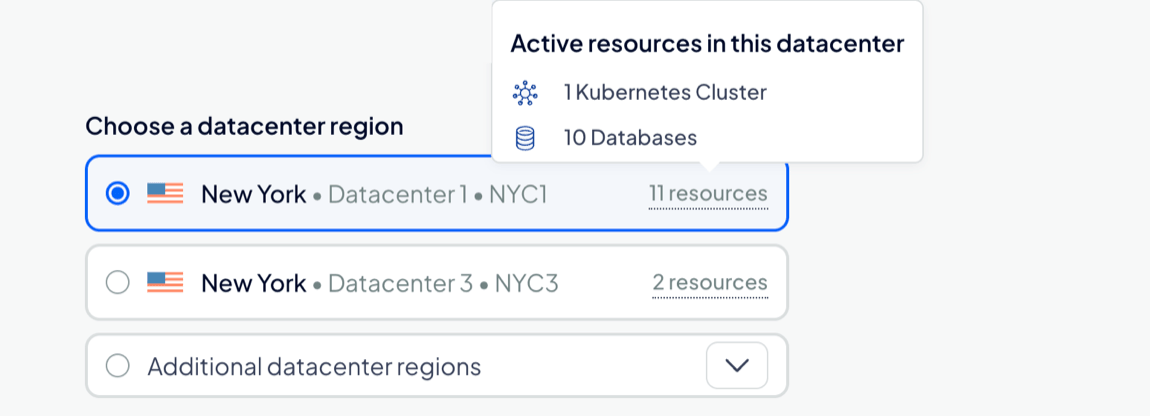
Available regions depend on the CPU option and plan you select. For available regions, see Regional Availability.
After creation, you can relocate your cluster to another datacenter.
Finalize and Create
In the Finalize and Create section, enter a unique name for the cluster and select a project to add it to. After creation, you can move the cluster to another project, but its name can’t be changed.
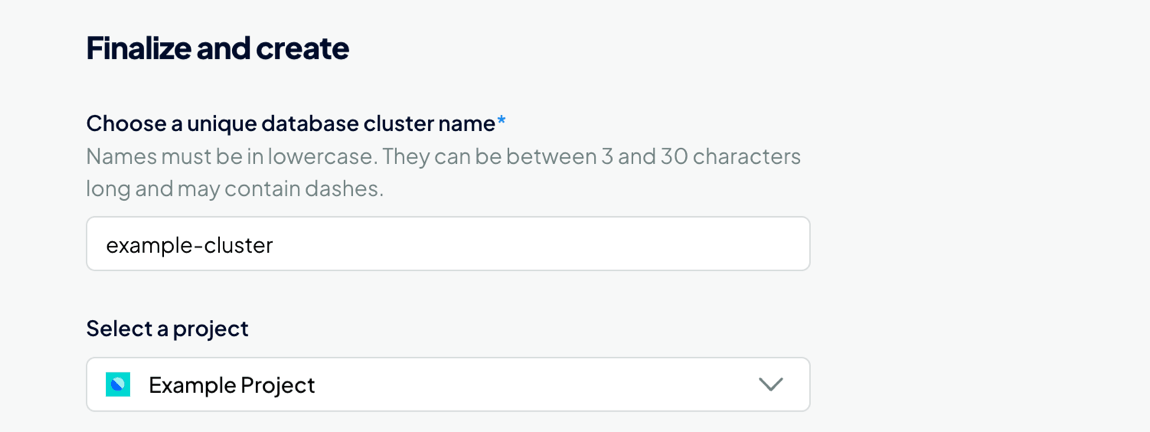
Review the monthly and hourly cost for the cluster. When finished, click Create Database Cluster.
Clusters typically take five minutes or more to provision. You can complete important configuration tasks such as restricting inbound connections while you wait.