How to Resize Valkey Database Clusters
Last verified 1 Oct 2026
Valkey is a high-performance, open-source database that stores key-value data in memory, and is designed for caching, message queues, and primary database use. Fully compatible with Redis, Valkey serves as a drop-in replacement.
You can resize existing Valkey database clusters at any time to change CPU, RAM, and storage, including scaling down when the target plan’s memory capacity can accommodate your current in-memory data.
Scaling Down
Valkey stores its working dataset in memory. You can scale down only when the target plan’s available memory can accommodate your cluster’s current in-memory data. Valkey reserves part of each node’s memory for cluster operations, so the usable memory per plan is lower than the total RAM. For available memory by plan size, see Valkey memory usage. If the target plan’s available memory is less than your current in-memory data, the Control Panel blocks the resize to prevent data loss.
For example, starting from a plan with 16 GiB RAM (11.5 GiB available memory) and 4.8 GiB of in-memory data:
| Target configuration | Result |
|---|---|
| 8 GiB RAM plan | Allowed (5.2 GiB available memory) |
| 4 GiB RAM plan | Not allowed (2.5 GiB available memory is less than 4.8 GiB in-memory data) |
Resize a Database Cluster Using Automation
You can resize a database cluster using the DigitalOcean CLI (doctl) or the API.
Resize a Database Cluster via CLI
To resize a database cluster using doctl, you need to provide a value for the --size flag, which specifies the cluster’s new configuration (number of CPUs, amount of RAM, and hard disk space). Use the doctl databases options slugs command to get a list of available values.
Resize a Database Cluster via API
To resize a database cluster using the API, you need to provide a value for the size field, which specifies the cluster’s configuration (number of CPUs, amount of RAM, and hard disk space). Use the /v2/databases/options endpoint to get a list of available values.
Resize a Database Cluster Using the Control Panel
To resize a Valkey database cluster, go to the Databases page, and select the cluster you want to resize. On the cluster’s Overview page, click the Settings tab.
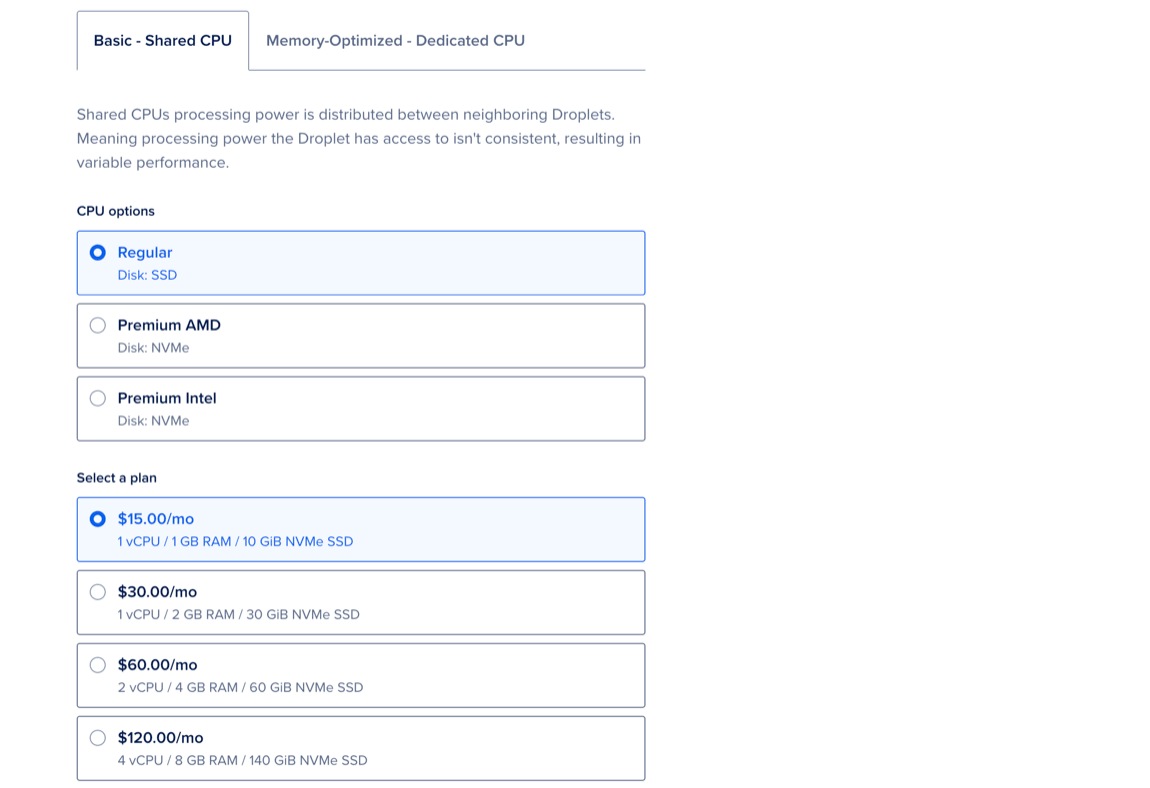
In the Configuration section, click Edit. Select a tab to view available Shared CPU or Dedicated CPU plans, then choose options under CPU options and Select a plan.
In the Maximize uptime for critical workloads section
Click Save to apply your changes.
Your cluster’s state changes from Active to Resizing until the process is complete. Provisioning can take several minutes, depending on cluster size, but does not cause downtime.