You may notice gaps in your metrics data due to outages, platform maintenance, or a database failover or migration. You can check DigitalOcean’s status page for outages, review the cluster maintenance window, or visit the cluster’s Logs (or Logs & Queries) page to look for failovers and migrations.
How to Monitor Valkey Database Performance
Last verified 31 Jul 2026
Valkey is a high-performance, open-source database that stores key-value data in memory, and is designed for caching, message queues, and primary database use. Fully compatible with Redis, Valkey serves as a drop-in replacement.
DigitalOcean Managed Databases include metrics visualizations so you can monitor performance and health of your database cluster.
-
Cluster metrics monitor the performance of the nodes in a database cluster. Cluster metrics cover primary and standby nodes; metrics for each read-only node are displayed independently. This data can help guide capacity planning and optimization. You can also set up alerting on cluster metrics.
-
Database metrics monitor the performance of the database itself. This data can help assess the health of the database, pinpoint performance bottlenecks, and identify unusual use patterns that may indicate an application bug or security breach.
View Performance Metrics
To view performance metrics, go to the Databases page and select the cluster whose metrics you want to view. On the cluster’s Overview page, click the Insights tab.
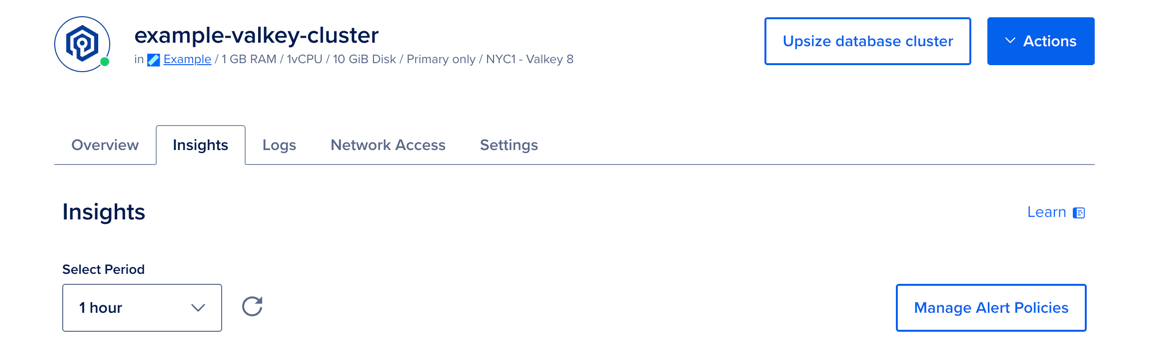
In the Select Period dropdown menu, you can choose a time frame for the x-axis of the graphs, ranging from 1 hour to 14 days. Each line in the graphs displays about 300 data points.
If you recently provisioned the cluster or changed its configuration, it may take a few minutes for the metrics data to finish processing before you see it on the Insights page.
If you have 200 or more databases on a single cluster, you may be unable to retrieve their metrics. If you reach this limit, create additional databases in a new cluster.
Cluster Metrics Details
Database clusters have the following cluster metrics:
- CPU usage
- 1-, 5-, and 15-minute load average
- Memory usage
- Disk usage
All resource usage graphs have three lines for minimum, maximum, and average. If you have a one-node cluster, all three lines are a single, superimposed line.
CPU Usage
The CPU usage graph shows, for all nodes in the cluster, the minimum, maximum, and average percentage of processing power being used across all cores.
If you experience a significant increase in CPU usage, check the throughput graph and query statistics to look for unexpected usage patterns or long-running queries.
Learn more in the Droplet CPU metrics definitions.
Load Average
The load average graph displays 1-, 5-, and 15-minute load averages, averaged across all primary and standby nodes in the cluster. Load average measures the processes that are either being handled by the processor or are waiting for processor time.
The three time-based load average metrics are calculated as an exponentially weighted moving average over the past 1, 5, and 15 minutes. This metric does not adjust for multiple cores. Learn more in the Droplet load average metrics definitions.
Memory Usage
The memory usage graph presents the minimum, maximum, and average percentage of memory consumption across all nodes in the cluster. Because cached memory can be released on demand, it is not considered in use.
Learn more in the Droplet memory usage metrics definitions.
Disk Usage
The disk usage graph shows the minimum, maximum, and average percentage of disk consumed across all primary and standby nodes in the cluster. You should maintain disk usage below 90%.
Learn more in the Droplet disk I/O metrics definitions.
Valkey Metrics Details
Valkey databases expose the following additional metrics:
- Connection Status: the number of successful and rejected client connections
- Connected Clients: the number of connected clients
- Throughput: the rate of commands processed per second
- Key Evictions: the number of keys removed by Valkey due to memory constraints
- Memory Fragmentation: the ratio of the memory allocated by the operating system to Valkey to the memory used by Valkey
- Cache Hit Ratio: the ratio of keyspace hits to the number of keyspace hits and misses, which is a measure of cache usage efficiency
- Replication Status: the number of connected standby nodes
Connection Status
The connection status graph displays the rate of new connections being received and rejected per second.
If the number of connected clients regularly approaches or exceeds the connection limit, or if you often see an unacceptable number of rejected connections, consider upgrading your database plan to increase your connection limit.
Connected Clients
The connected clients graph displays the number of clients currently connected to your cluster.
Throughput
The throughput graph displays the overall rate of all Valkey operations on the main server, expressed as a moving average of operations per second.
You can compare this graph with node performance metrics to identify potential resource constraints. For more insights, look at the query statistics on the Logs & Queries page.
Key Evictions
By default, the Valkey key eviction policy is set to noeviction. If you set the eviction policy (on the Settings page) to something other than noeviction, Valkey evicts keys when it is constrained for memory. The key evictions graph displays the number of evicted keys.
This metric is useful when using Valkey as a cache or assessing the impact of key evictions on overall key retrieval efficiency. Consider increasing the memory of your Valkey cluster if the number of key evictions is consistently significantly greater than zero.
Learn more about key eviction policies and tuning in Using Redis as an LRU cache in the Redis documentation.
Memory Fragmentation
The memory fragmentation graph displays the efficiency of memory mapping, which is defined as the ratio of memory usage measured by the operating system to memory allocated by Valkey.
When adjacent memory blocks are not available, Valkey requires additional memory overhead to allocate memory across the non-contiguous blocks, so this ratio is an indication of memory mapping efficiency:
- Ratios over 1.0 indicate that memory fragmentation is very likely.
- Ratios under 1.0 indicate that Valkey likely has insufficient memory available. Consider optimizing memory usage or upgrading to a plan with more memory.
If your peak memory usage is much higher than your current memory usage, the memory fragmentation ratio may be unreliable.
Learn more about memory allocation and fragmentation in the Redis documentation on memory optimization.
Cache Hit Ratio
The cache hit ratio graph displays the efficiency of key retrieval from the Valkey cache, which is defined as the ratio of key hits to the total number of key hits and misses. Key misses occur when a key has been expired or evicted from the cache, or it never existed.
For optimal responsiveness, keep your cache hit ratio at 0.8 or higher.
Replication Status
The replication status graph displays the count of connected standby nodes if replication is enabled.
Access the Metrics Endpoint
You can also view your database cluster’s metrics programmatically via the metrics endpoint. This endpoint includes over twenty times the metrics you can access in the Insights tab in the control panel.
You can access the metrics endpoint with a cURL command or a monitoring system like Prometheus.
Get Hostname and Credentials
First, you need to retrieve your cluster’s metrics hostname by sending a GET request to https://api.digitalocean.com/v2/databases/${UUID}. In the following example, the target database cluster has a standby node, which requires a second host/port pair:
curl --silent -XGET --location 'https://api.digitalocean.com/v2/databases/${UUID}' --header 'Content-Type: application/json' --header "Authorization: Bearer $RO_DIGITALOCEAN_TOKEN" | jq '.database.metrics_endpoints'Which returns the following host/port pairs:
[
  {
    "host": "db-test-for-metrics.c.db.ondigitalocean.com",
    "port": 9273
  },
  {
    "host": "replica-db-test-for-metrics.c.db.ondigitalocean.com",
    "port": 9273
  }
]
Next, you need your cluster’s metrics credentials. You can retrieve these by making a GET request to https://api.digitalocean.com/v2/databases/metrics/credentials with an admin or write token:
curl --silent -XGET --location 'https://api.digitalocean.com/v2/databases/metrics/credentials' --header 'Content-Type: application/json' --header "Authorization: Bearer $RW_DIGITALOCEAN_TOKEN" | jq '.'Which returns the following credentials:
{
  "credentials": {
    "basic_auth_username": "..."
    "basic_auth_password": "...",
  }
}
Access with cURL
To access the endpoint using cURL, make a GET request to https://$HOST:9273/metrics, replacing the hostname, username, and password variables with the credentials you found in the previous steps:
curl -XGET -k -u $USERNAME:$PASSWORD https://$HOST:9273/metricsAccess with Prometheus
To access the endpoint using Prometheus, first copy the following configuration into a file prometheus.yml, replacing the hostname, username, password, and path to CA cert. This configures Prometheus to use all the credentials necessary to access the endpoint:
# prometheus.yml
global:
  scrape_interval: 15s
  evaluation_interval: 15s

scrape_configs:
  - job_name: 'dbaas_cluster_metrics_svc_discovery'
    scheme: https
    tls_config:
      ca_file: /path/to/ca.crt
    dns_sd_configs:
    - names:
      - $TARGET_ADDRESS
      type: 'A'
      port: 9273
      refresh_interval: 15s
    metrics_path: '/metrics'
    basic_auth:
      username: $BASIC_AUTH_USERNAME
      password: $BASIC_AUTH_PASSWORD
Then, copy the following connection script into a file named up.sh. This script runs envsubst and starts a Prometheus container with the config from the previous step:
#!/bin/bash
envsubst < prometheus.yml > /tmp/dbaas-prometheus.yml

docker run -p 9090:9090 \
  -v /tmp/dbaas-prometheus.yml:/etc/prometheus/prometheus.yml \
  prom/prometheus
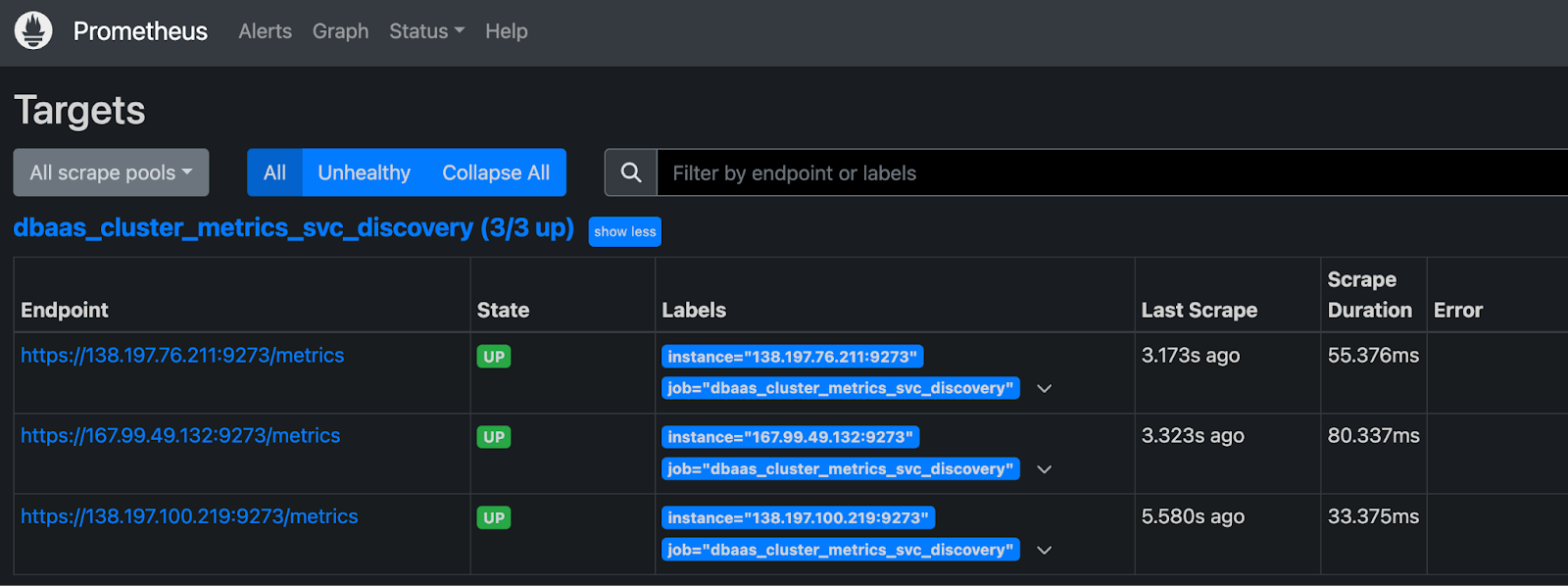
Go to http://localhost:9090/targets in a browser to confirm that multiple hosts are up and healthy.
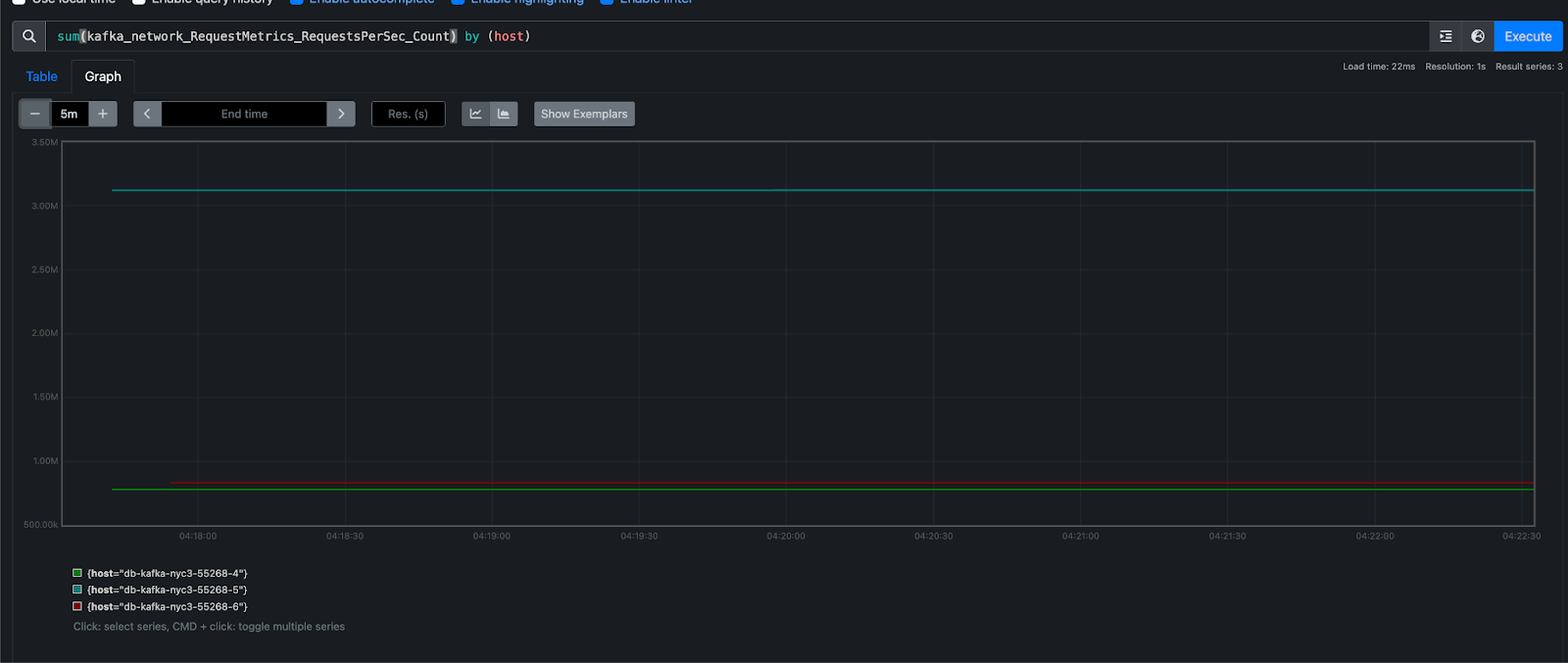
Then, navigate to http://localhost:9090/graph to query Prometheus for metrics.
For more details, see the Prometheus DNS SD docs and TLS config docs.
Additional Resources
For more details on each available metric, see the Redis documentation.