valkey-cli, which supports TLS/SSL by default. However, you can also enable TLS/SSL in the default Valkey command line client by following the Valkey TLS guide.
How to Connect to Valkey Database Clusters
Validated on 24 Apr 2025 • Last edited on 13 Jan 2026
Valkey is a high-performance, open-source database that stores key-value data in memory, and is designed for caching, message queues, and primary database use. Fully compatible with Redis, Valkey serves as a drop-in replacement.
You can connect to DigitalOcean Managed Databases using command line tools and other third-party clients. This guide explains where to find your Valkey database’s connection details and how to use them to configure tools and clients.
This method uses Let’s Encrypt certification, which does not require that you download a CA certificate in order to connect.
Retrieve Database Connection Details Using the CLI
Retrieve Database Connection Details Using the API
This API call retrieves the information about your database, including its connection details. The connection details are located in the returned connection JSON object.
View Valkey Cluster Connection Details
You use your database’s connection details to configure tools, applications, and resources that connect to the database. To view your database’s connection details, click the name of the cluster on the Databases page to go to its Overview page.
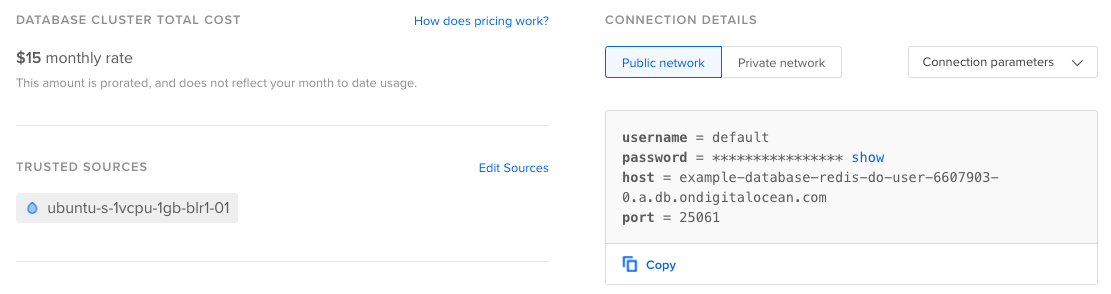
You can view customized connection details based on whether you want to connect using the cluster’s public or private network (VPC) interface. The Public network and Private network options generate connection details based on if you want to connect via the cluster’s public hostname or the cluster’s private hostname. Only other resources in the same VPC network as the cluster can access it using its private hostname.
You can also choose to view the connection details in three different formats:
-
Connection parameters: Database information meant for application configuration, such as configuring connections for Redsmin and Redis Desktop Manager.
-
Connection string: A condensed string that you can pass to a client on the command line.
-
Flags: A complete
valkey-clicommand that supplies the connection variables as individual flags.
We recommend the flags format because the readability can help if you want to customize the way you connect.
By default, the control panel doesn’t reveal the cluster’s password for security reasons. Click Copy to copy connection details with the password, or click show-password to reveal the password.
Anatomy of the Flags Format
The connection string passes different parameters to valkey-cli via Flags. Below is a high-level breakdown of what information those flags correspond to:
-
Hostname and Port: The hostname is specified with the
-hflag, and tells your client computer how to reach the cluster. Port is specified with the-pflag. If you do not specify a port, the client attempts to use the default Valkey port,6379. -
Password: The password is specified with the
-a(or--auth) flag. If you do not use the-aflag, you will have to explicitly use theAUTHcommand once connected. -
Encryption: Valkey managed databases on DigitalOcean require you to connect using SSL/TLS. To do this with
valkey-cli, specify the encryption with the--tlsflag. -
Other Flags: You can find a more comprehensive list of the flags you can pass to the
valkey-clicommand in the official documentation forvalkey-cli.
Connect to the Database
To connect to Valkey database clusters from the command line, you need three things:
-
To add your local computer to the database’s trusted sources.
-
To install Valkey on your local computer.
Note For security, all DigitalOcean database clusters are encrypted with TLS/SSL. For simplicity and ease of use, we recommend -
To reference the database cluster’s connection details, which tells your client how to connect to the cluster.
To connect using the flags format with Redli, paste the entire command from the control panel into your terminal:
valkey-cli --tls -h valkey-test-do-user-4915853-0.db.ondigitalocean.com -a your_password -p 25061When you connect successfully, you arrive at the Valkey prompt, which displays your cluster name, user, and port:
valkey-test-do-user-4915853-0.db.ondigitalocean.com:25061> From here, you can run CLI commands. Learn more about valkey-cli on the official documentation for valkey-cli.
If you’re having trouble connecting to the database, you can troubleshoot the connection using our Support page, or you can reference Valkey’s support documentation.