The Cost Analysis tab and API provide spend data starting on 1 December 2025.
Billing Cost Analysis
Last verified 22 Oct 2026
The Cost Analysis tab of the Billing page in the DigitalOcean Control Panel shows estimated spend for your team or organization. The Your usage graph charts your spend over a date range, the Resource breakdown lists spend by product and resource, and Serverless Inference Live Usage lists your recent Serverless Inference requests and their estimated cost in near real time.
For organizations, Cost Analysis is in the menu on the left of the Billing page rather than a tab.
Your Usage Graph
The Your usage graph shows your estimated spend for the selected date range, with each bar broken down by resource type.
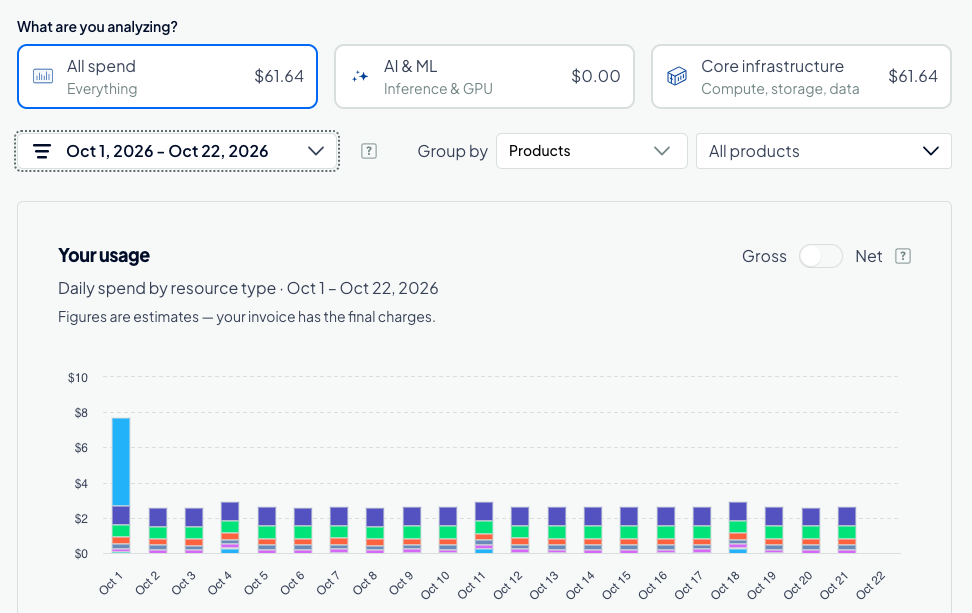
Use the following controls to change what the graph shows:
- Spend category: Under What are you analyzing?, select All spend, AI & ML (Inference and GPU), or Core infrastructure (compute, storage, and data) to limit the graph to that category. Each card shows the category’s total for the selected date range.
- Date range: Select a month, a single day, or a custom date range from the date picker, or click a preset below the graph (1d, 7d, 30d, MTD, or Last month).
- Grouping and filtering: Use Group by to group spend by Products, Tags, Projects, Models, Token types, or Model access keys. The filter next to it lists the items for the selected grouping, such as individual products or projects. Select one or more items to limit the graph to them.
- Interval: Use the drop-down menu below the graph to set the period each bar covers: Daily, Weekly, Monthly, or Yearly.
- Gross and net spend: Use the Gross/Net toggle to switch between spend before and after discounts and credits are applied. Net spend is an estimate until your invoice is finalized and can change.
Resource Breakdown
The Resource breakdown section lists your estimated costs for the selected date range by product. It always groups by product, regardless of the Group by selection for the graph. Click a product row to expand it and see its individual resources, or click Expand All to expand every row. Where available, the View link next to a product, such as View Droplets, opens that product’s page in the Control Panel.
The breakdown aggregates spend using the following logic:
- Product grouping: Spend is grouped by product type (for example, Droplets, Reserved IPs, or Load Balancers).
- Top resources: Within each product group, the breakdown lists the top 100 resources by spend.
- Rolled-up resources: Any remaining resources outside the top 100 are combined into a single line item (for example, “X unlisted resources”), which displays the total spend for those remaining items.
Below the product list, Usage Subtotal shows your total usage, Total Discounts shows any discounts and credits applied, and Total Amount shows the estimated amount you owe for the date range.
Download a CSV Report
To download a CSV file containing the full list of resources for your selected date range, click CSV in the Resource breakdown section. The CSV contains all resources, including those outside the top 100 shown in the Control Panel, along with the tags applied to each resource.
Tag information in the CSV is included only for resource usage on or after 1 July 2026.
Serverless Inference Live Usage
The Serverless Inference Live Usage section shows the estimated cost of individual Serverless Inference requests throughout the day, before the usage appears on your invoice. It includes token-based Serverless Inference usage only. Usage from other products does not appear in this section. The section is available for both teams and organizations.
To view it, on the Billing page, click the Cost Analysis tab, and then scroll to the Serverless Inference Live Usage section. Data refreshes every 10 minutes and covers the last 30 days.
The section lists your most recent requests first, 20 per page. Each row includes the following columns:
- Date: The date and time of the request.
- Access Key: The name of the model access key that made the request.
- Model: The foundation model that served the request.
- Tokens: The total number of tokens in the request. Hover over the value to see the number of input, output, cache read input, and cache write input tokens.
- Cost: The estimated cost of the request. Costs less than one cent display as <$0.01.
Retrieve Spend Using the API
To retrieve raw daily spend data programmatically (JSON only), use the /v2/billing/{account_urn}/insights/{start_date}/{end_date} endpoint of the DigitalOcean API.
Cost Analysis Limits
- Spend amounts are estimates. Your final charges can differ, and costs in the Serverless Inference Live Usage section do not reflect credits, promotional discounts, or taxes. Refer to your monthly invoice for final billing details.
- Data is read-only. The Cost Analysis tab and API provide read-only access to your billing data. You cannot modify billing information through the API or through the Cost Analysis tab.
- API date range is limited to 31 days. The
end_datein a spend API request must be within 31 days of thestart_date. To retrieve a longer period, make multiple requests.