How to View Resource Limits for Teams
Last verified 30 Sep 2026
To manage compute capacity and risks, and ensure fair resource distribution, DigitalOcean sets resource limits. Each resource limit caps a product, such as the number of Droplets, GPU Droplets, inference usage, database clusters, and so on. Limits apply per team or per product. To view product resource limits, see Resource Limits.
The following table shows the resource tiers, prepayment amount, and auto-charge amounts.
| Tier | Prepayment amount | Auto-charge amount |
|---|---|---|
| Tier 1 | No Prepay | $25 |
| Tier 2 | $50 | $50 |
| Tier 3 | $250 | $250 |
| Tier 4 | $1,000 | $1,000 |
| Tier 5 | $4,000 | $4,000 |
View Resource Limits
As a team owner or resource modifier, you can view resource usage and limits for products in your team. To do this, log in to the DigitalOcean Control Panel. If you’re not already working within the team you want to use, click the profile icon in the top right to open the drop-down menu. Click Switch Teams, then click the team you want to use.
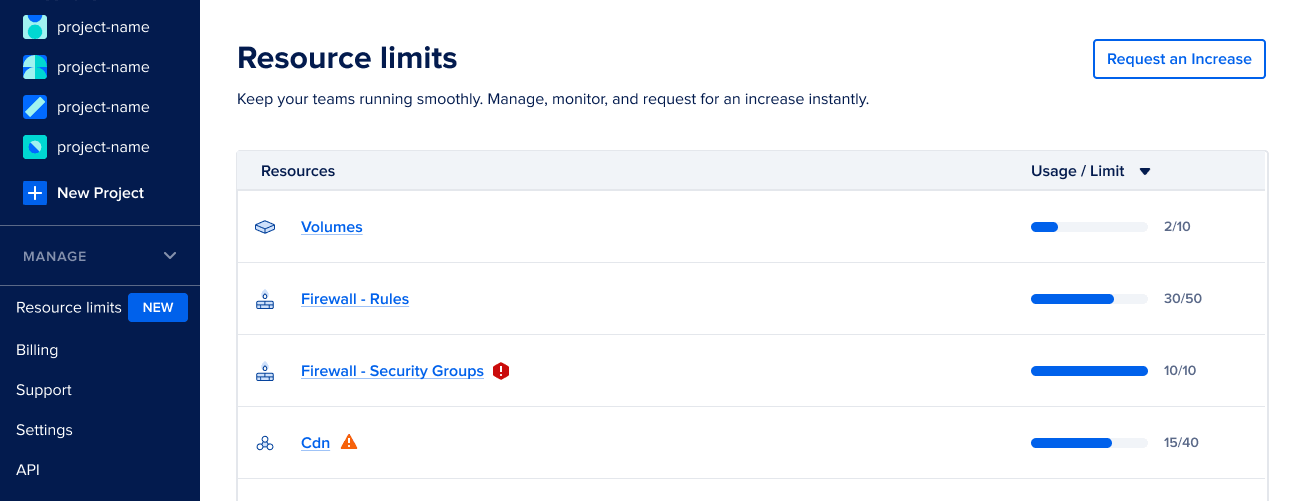
In the left menu, click Resource Limits to open the Resource Limits page. On the Resource Limits page, you can view the current usage and limits for supported products. The Usage/Limit column displays the resources sorted by the current usage ratio. When a team is nearing a resource limit, a warning icon is displayed next to that resource. When the team has reached its resource limit, a danger icon is displayed. You can click the resource to go to the resource page to view resource details.
Increase Resource Limits
There are two ways to increase your team’s resource limits:
-
Prepayments: Prepayments let you pay ahead of time for future resource usage. A one-time prepayment can increase your trust tier and unlock higher limits immediately. This is the fastest way to increase the limits. You can view the prepayment amount for each tier in the table above.
As you build payment history over time (successful, non-zero invoices), limits can increase automatically.
-
Request an increase: Click Request an increase on the top right of the Resource limits page to open the Increase resource limit window. In the Select the resource you want to increase dropdown list, choose the resource and enter the new limit. In the Reason field, describe your use case. Do not include sensitive information or passwords. Click Submit request.
If your team belongs to an organization and an organization owner or admin has adjusted the team’s limits, the Increase resource limit window instead displays the message “Your resource limits are managed by your organization. To request a change, reach out to your Organization Admin.” and the prepayment and support request options are disabled. To request a change to an organization-managed team’s limits, contact your organization owner or admin.