How to View Resource Limits for Teams
Validated on 13 Mar 2026 • Last edited on 13 Mar 2026
As a team owner or resource modifier, you can view resource usage and limits for products in your team. To do this, log in to the DigitalOcean Control Panel. If you’re not already working within the team you want to use, click the profile icon in the top right to open the drop-down menu. Click Switch Teams, then click the team you want to use.
In the left menu, click Resource Limits to open the Resource Limits page. Here, you can view the current usage and limits for supported products. The Usage/Limit column displays the resources sorted by the current usage ratio. When a team is nearing a resource limit, a warning icon is displayed next to that resource. When the team has reached its resource limit, a danger icon is displayed. You can click the resource to go to the resource page to view more information.
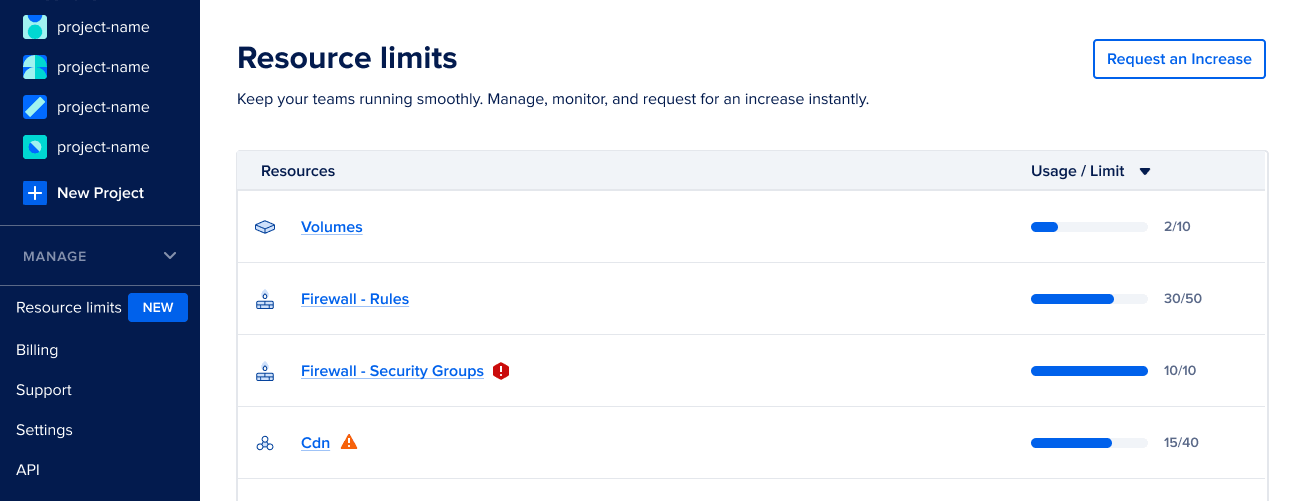
To request a limit increase, click Request an increase on the top right of the page to open the Increase resource limit window. In the Select the resource you want to increase dropdown list, choose the resource and enter the new limit. In the Reason field, describe your use case. Do not include sensitive information or passwords. Click Submit request.