-
Adding a team to an organization is permanent. You cannot remove it from the organization or move it to another organization.
-
The payment methods, billing address, spend alerts, billing settings, tax ID, and tax location of the team are replaced by the corresponding settings of the organization. Billing-related custom roles in the team are removed. These changes cannot be reversed.
-
Team discounts and credits are removed. You need to contact support to transfer them where applicable.
-
API responses from the billing endpoints return organization-wide data instead of team-level billing details.
How to Manage Teams in an Organization
Last verified 5 Aug 2026
Organization owners and admins can add existing teams to an organization, create new teams within it, and manage the organization’s teams from the Teams tab of the organization dashboard. To open the dashboard, click the profile icon in the top right of the Control Panel, click View Organizations, then click the organization you want to manage.
Add Existing Teams
To consolidate billing and permissions management, you can add existing teams to an organization. A team can belong to only one organization at a time. Any team that has an overdue balance cannot be added to the organization before they settle their balance.
You can only add teams for which you are the team owner.
To add a team to the organization, in the organization’s Teams tab, click Add Existing Team to go to the Add teams to your organization page.
In the Select teams to invite section, select the checkbox for the team you want to invite.
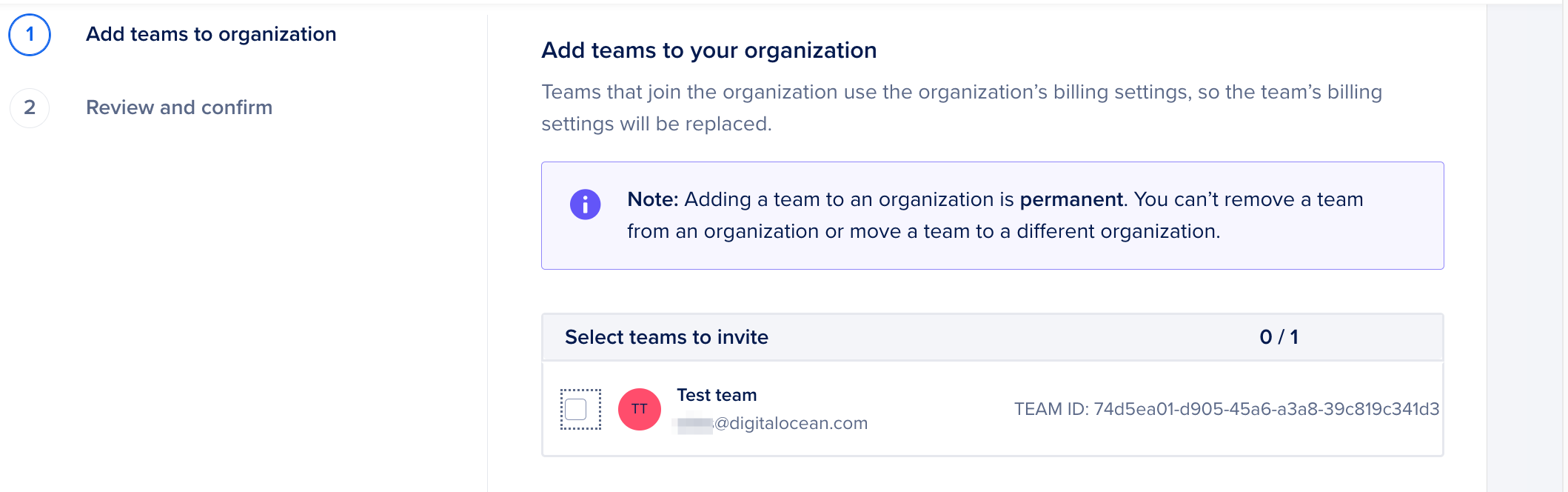
Next, in the Review Team Settings That Will Be Replaced section, review the team settings that will be replaced by the organization settings and then click Continue.
In the Agree to proceed section, select the checkboxes and then click Add Team(s). The team is immediately added to the organization.
You can view all teams and team members in the organization in the Teams tab of the organization dashboard.
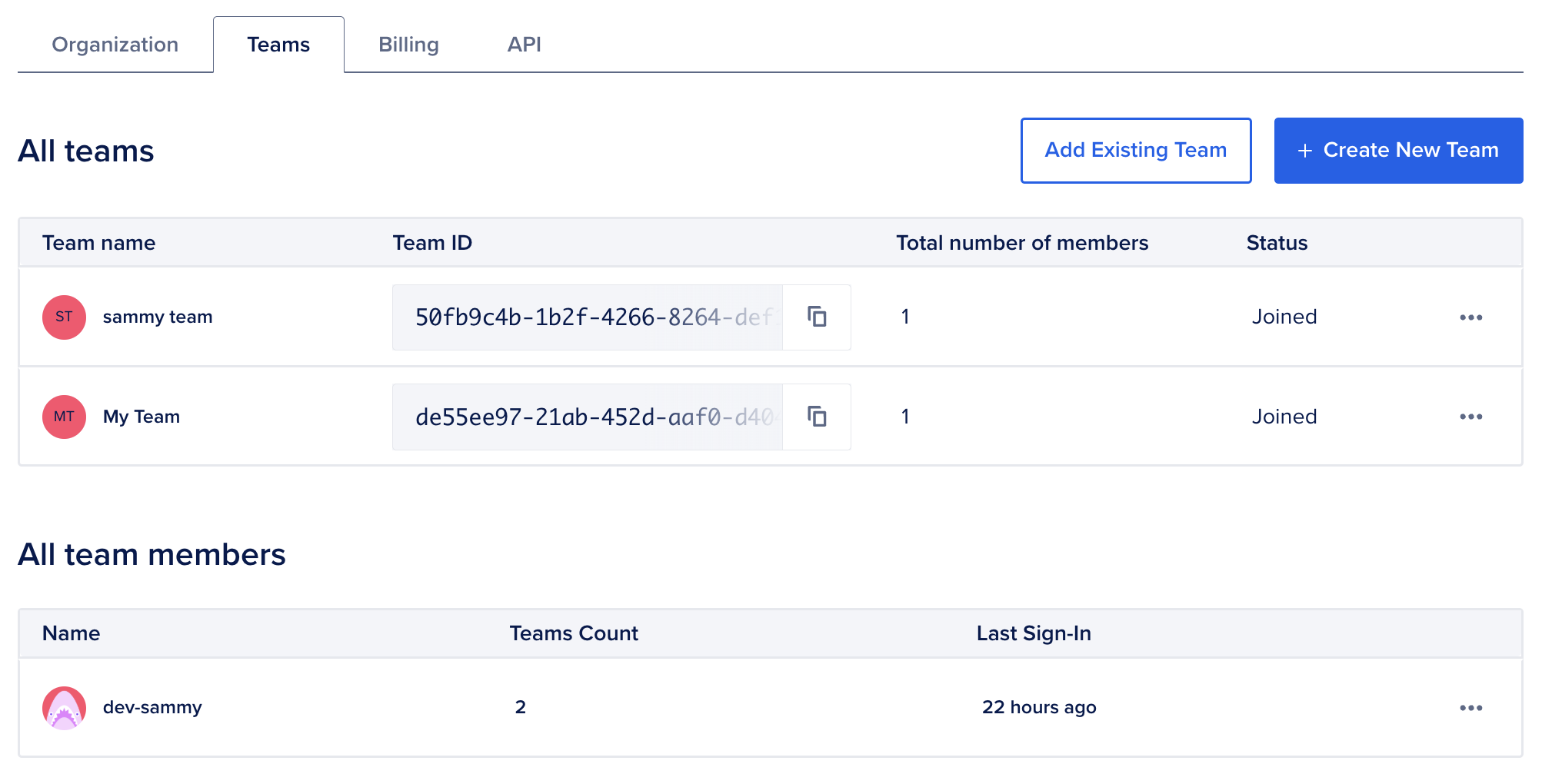
Create a New Team
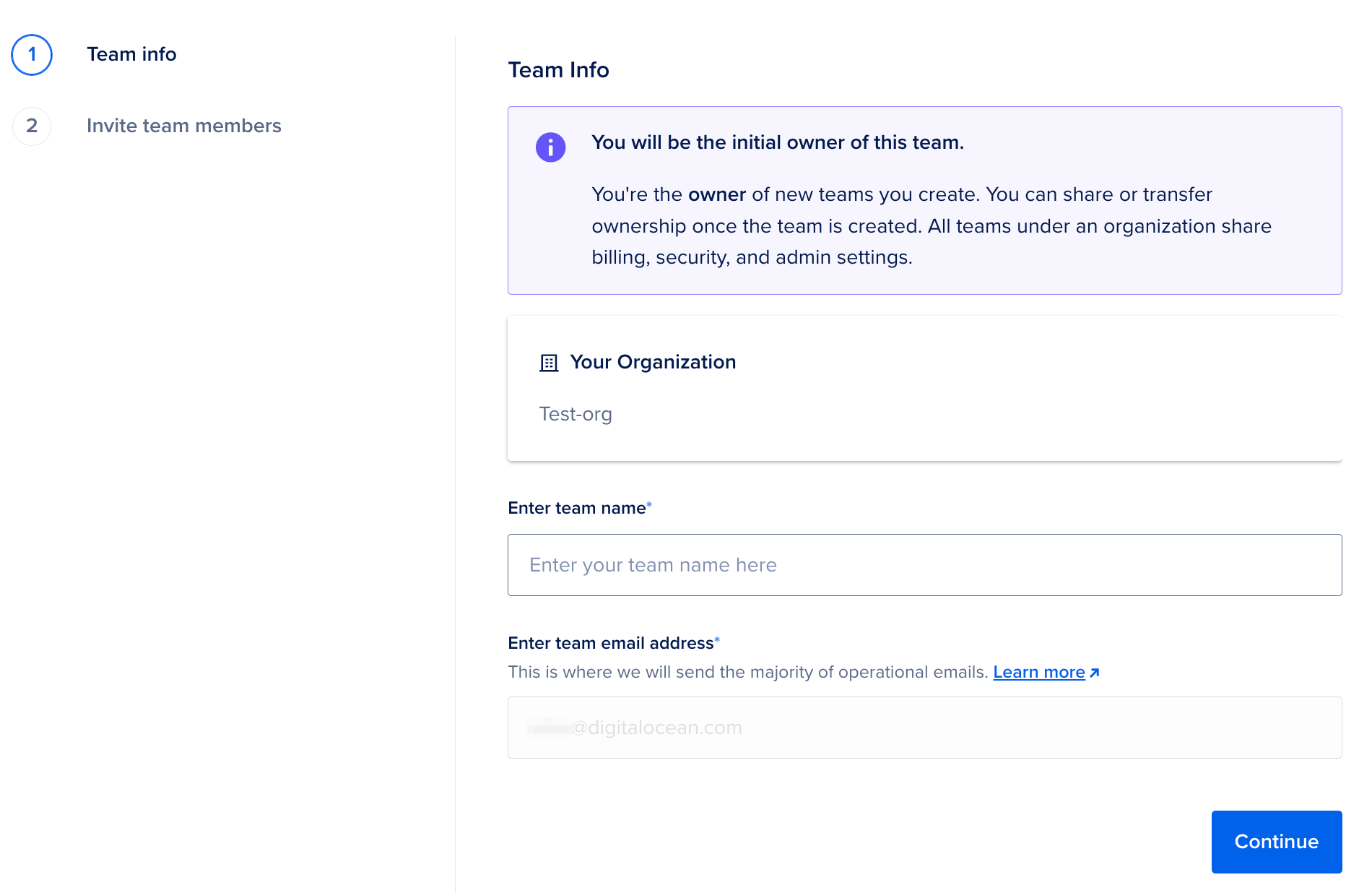
You can create a new team from within the organization and add it to the organization. You are the initial owner of any new teams you create within the organization. You can subsequently share or transfer the team ownership to another user after creation.
To create a new team in the organization, in the Teams tab of the organization dashboard, click Create New Team to open the Create new team within your organization page. The Your Organization field is prepopulated with the name of your organization. In the Enter team name field, specify the name of the new team. The team email address is prepopulated in the Enter team email address field and defaults to the email address of the user creating the team. This email address is used for sending team-related operational communication. Then, click Continue.
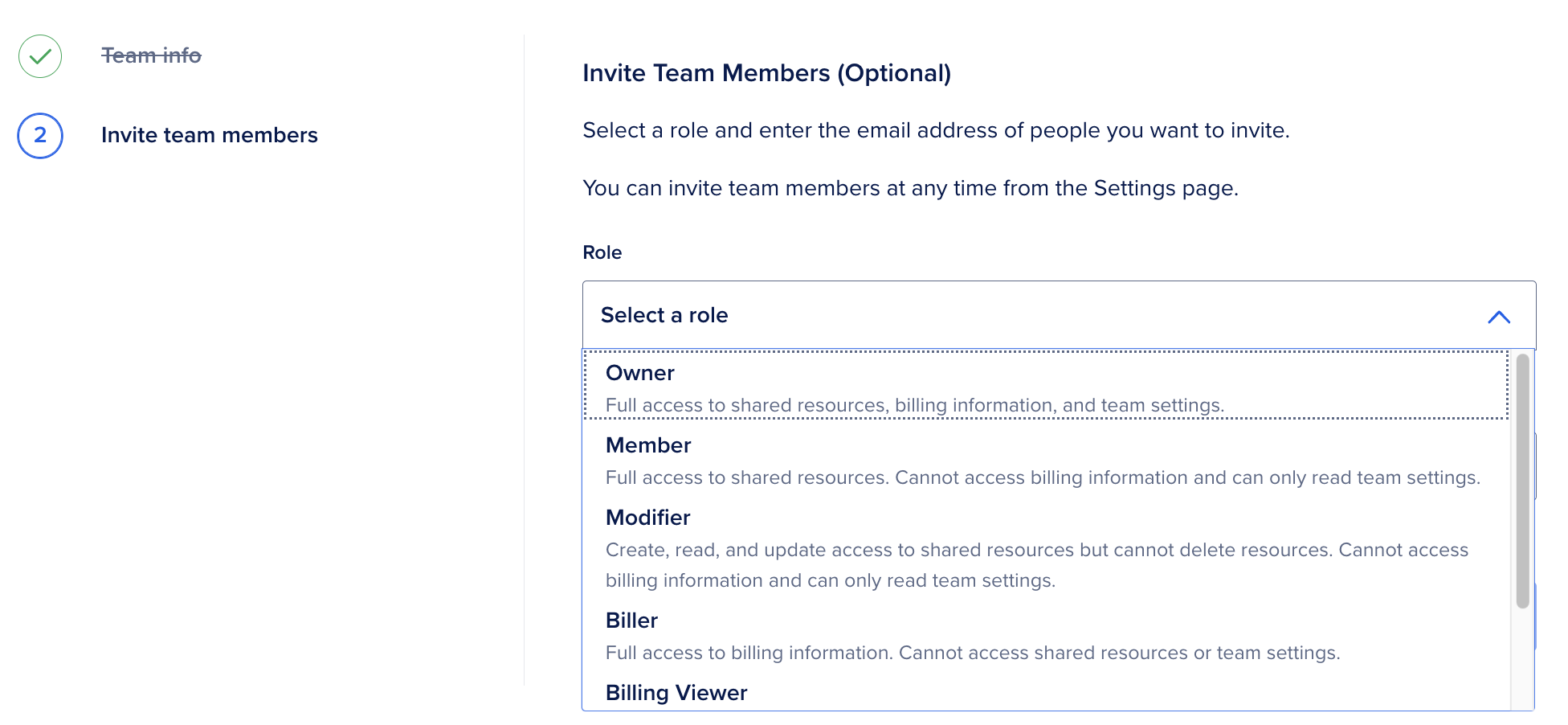
You can optionally invite team members when creating the new team. Select the role for the member you want to invite in the Role dropdown. Next, enter the member’s email address in the Emails field. Then, click Send Invites.
You can view the new team and team members in the Teams tab of the organization dashboard.
Manage a Team
You can manage team invitations and memberships in the Teams tab of the organization dashboard.
The Status column in the All teams section lists teams as Joined or Pending. You can manage a team’s membership by clicking the … menu next to the team you want to manage. Select Manage team membership to go to the team settings page and manage the team membership.
To navigate to the selected team’s project page, click the … menu next to the team and click Switch to team.
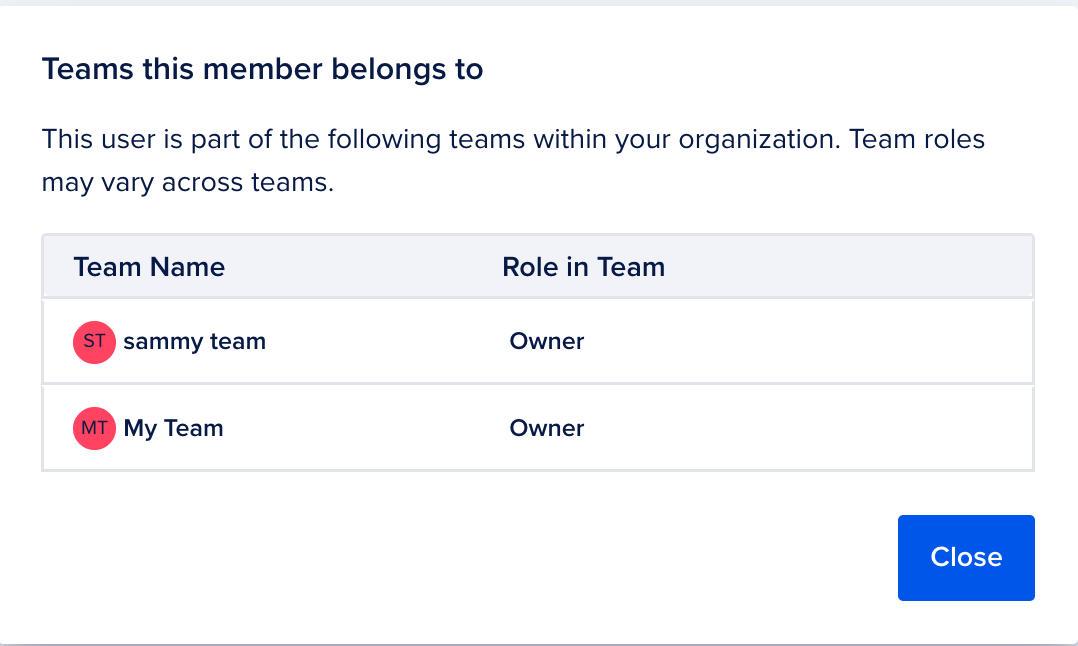
You can also view which teams a member belongs to. In the All team members section, click the … menu next to the member you want to view and select View teams to open the Teams this member belongs to window.
Delete a Team
Deleting a team is the only way to remove it from an organization. Team owners can delete a team from the team view, as described in Delete Teams. Organization owners and admins who do not own the team must first add themselves as a team owner to delete it. If you need assistance with the process, contact support.