Security and billing contacts are email addresses only. These emails do not need to belong to a member of your organization. DigitalOcean does not automatically remove these when your organization membership changes. Organization owners must add and remove these security and billing contact emails manually.
How to Manage Organization Settings
Last verified 30 Sep 2026
Organization owners can update an organization’s name and contact emails, create API tokens for the organization, and open support tickets on behalf of the organization or its teams.
To manage an organization’s settings, log in to the Control Panel. Click the profile icon in the top right to open the drop-down menu. Click View Organizations, then click the organization you want to manage.
Update the Organization Name
The Settings section of the Organization tab displays the organization’s name and ID. You can copy the organization ID using the copy button next to it.
To rename the organization, click Edit next to the organization name.
Manage Contact Emails
Organizations support dedicated billing and security contact emails. These contacts receive notifications independently from individual team emails.
- Security contacts: Receive emails about potential vulnerabilities, abuse reports, and other issues affecting your organization’s infrastructure.
- Billing contacts: Receive invoices, payment reminders, and other billing-related notifications for the organization.
Until you add a contact, notifications continue to go to the organization owners by default.
Add Contacts
-
In your organization’s Organization tab, find the Contact Emails section.
-
Click Add contact(s) in the Security or Billing section.
-
In the Add Contacts window, enter up to five email addresses.
-
Click Save.
DigitalOcean sends a verification email to each address you add. Contacts begin receiving notifications after they verify their email address.
Remove Contacts
-
In your organization’s Organization tab, find the Contact Emails section.
-
Click the … (more) menu next to the contact you want to remove.
-
Click Remove.
Create API Token
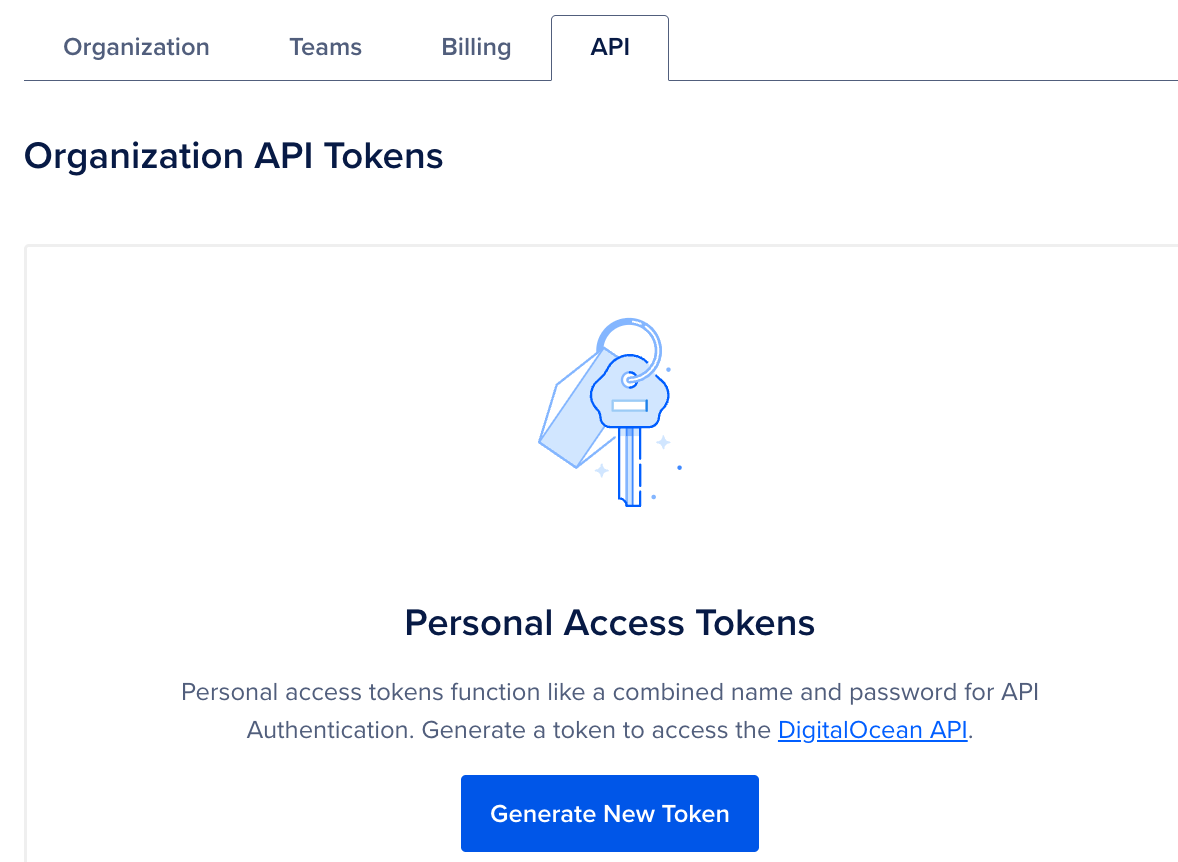
You can generate an API token for your organization in the API tab of the organization dashboard. You can use the generated token, for example, to call the billing endpoints and view the billing details for the organization.
Click Generate New Token to open the New personal access token window. To create a personal access token, see Create a Personal Access Token.
Create Support Tickets
You have the option to create a support ticket on behalf of the organization or for any team in the organization.
In the organization dashboard, click Create a ticket on the top right to open the My Tickets page.

Manage Team Resource Limits
Organization owners and admins can view resource usage and adjust limits for every team in the organization from the Resource limits tab of the organization dashboard. For more information, see How to Manage Resource Limits for Organization Teams.