How to Manage Organization Membership
Last verified 30 Jul 2026
Organization owners and admins can invite new members to an organization, resend or revoke organization invitations, change member roles, and remove existing organization members. Only organization owners can modify or remove other organization owners.
There is no limit to the number of members who can have a given role on an organization. You can only invite members to an organization that have a payment method.
Invite New Members
To manage the membership of an organization, log in to the Control Panel. Click the profile icon in the top right to open the drop-down menu. Click View Organizations, then click the organization you want to manage.
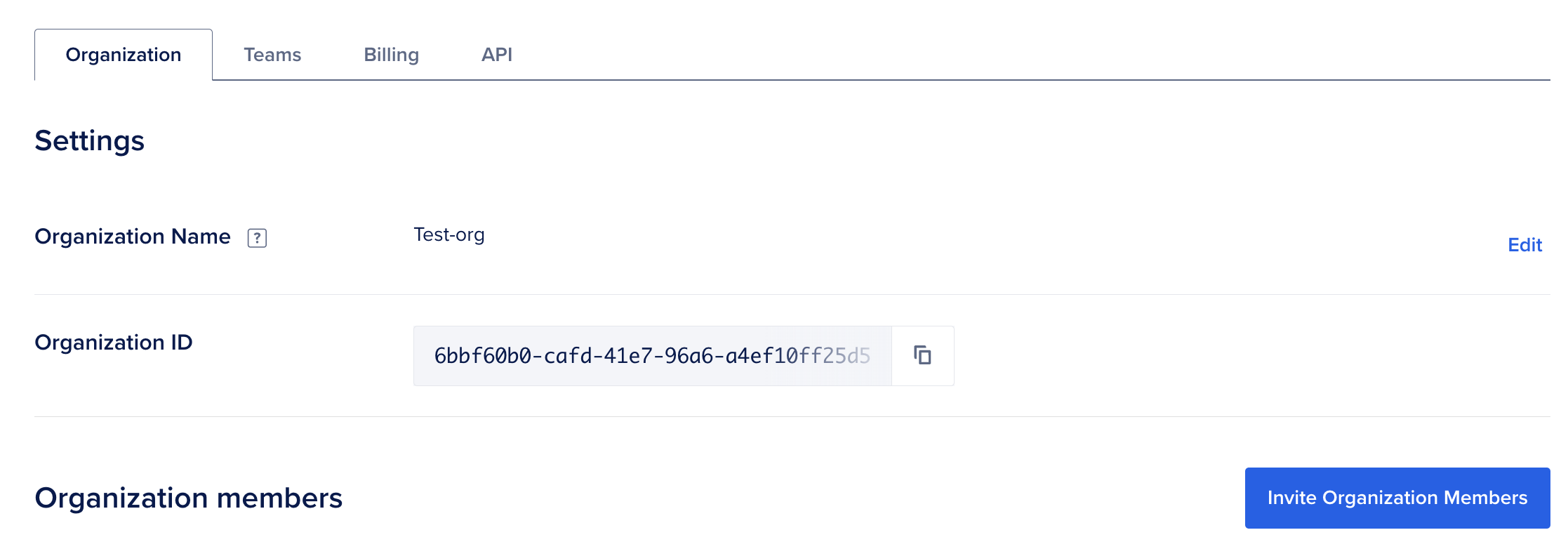
To invite a new member to the organization, in the Organization tab, click Invite Organization Members.
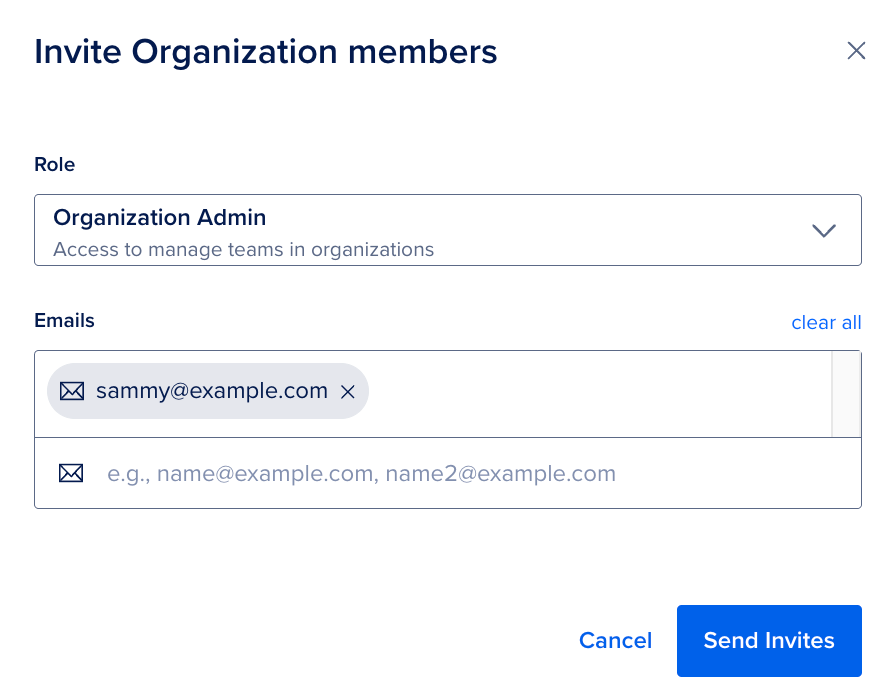
On the Invite Organization members page, select the role for the member you want to invite. Next, enter the member’s email address in the Emails field, then click Send Invites.
Invited users receive an email invitation to join the organization. When they accept the invitation, they are added to the organization and can access the organization based on their role. The Status column in the Organization members section of the organization dashboard lists them as Joined.
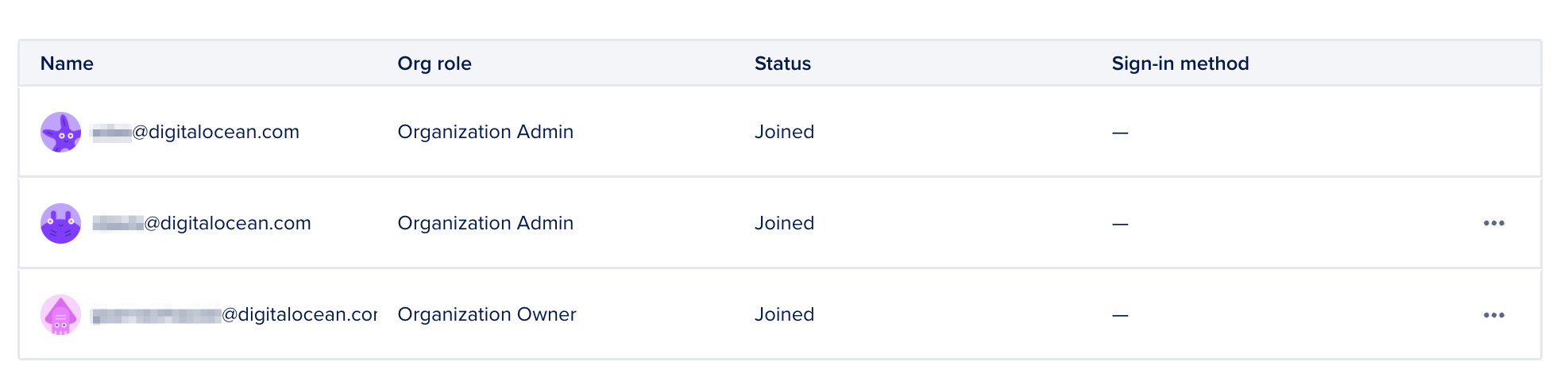
When a user has not accepted their invitation to the organization, the Status column lists them as Pending. To resend the invitation to join the organization, click the … menu for a pending organization member, then click Resend email. To revoke the invitation, select Cancel invite.
Modify Existing Members
You can change the organization role of a member or remove them from the organization. Click the … menu for the member and select Change Role. In the Change Organization Role window, select the role you want to assign to the member and click Change Role.
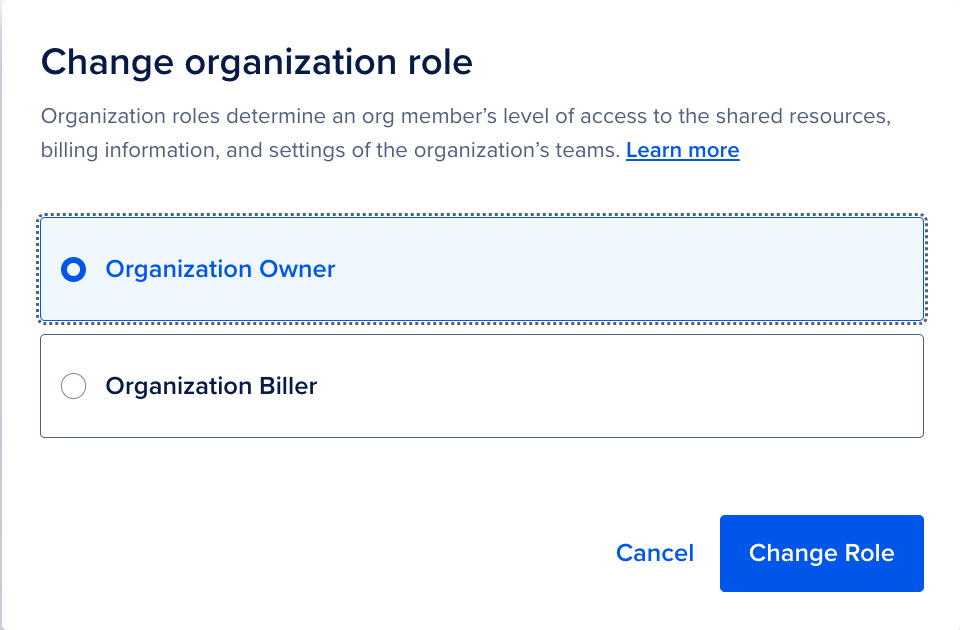
If you change a member’s role to owner, the original owner receives an email with a link to confirm the change. Once they confirm the change, the invited owner receives an email invitation to accept the new role.
To remove a member from the organization, select Remove from Organization. In the confirmation window, enter the name of the member to remove, then click Remove from organization.