This guide applies to regional load balancers for Droplets. To configure SSL termination for a load balancer for Kubernetes nodes, see our reference on configuring DigitalOcean Kubernetes load balancers.
How to Configure SSL Termination
Last verified 13 Jul 2026
DigitalOcean fully manages Regional Load Balancers and Global Load Balancers, ensuring they are highly available load balancing services. Load balancers distribute traffic to groups of backend resources in specific regions or across different regions, which prevents the health of a service from depending on the health of a single server, cluster, or region.
When load balancing encrypted web traffic, there are two main configuration choices:
-
SSL termination, which decrypts SSL requests at the load balancer and sends them unencrypted to the backend via the Droplets’ private IP addresses.
SSL termination places the slower and more CPU-intensive work of decryption on the load balancer and simplifies certificate management. Traffic between the load balancer and its Droplets is secured by routing over the VPC network. However, if you host multiple customer applications in a single account or team, data could be readable by others on the private network. We recommend separating customers by team or using SSL passthrough instead.
-
SSL passthrough, which sends encrypted SSL requests directly to the backend, via the Droplets’ private IP addresses. This secures the traffic between the load balancers and the backend servers.
SSL passthrough distributes the decryption load across the backend servers, but every server must have the certificate information. You also can’t add or modify HTTP headers, so you may lose the client’s IP address, port, and other information contained in the
X-forwarded-*headers.
To configure SSL termination, you need to add an SSL termination rule and choose or create an SSL certificate to use.
If you added your domain to DigitalOcean, you can use our Let’s Encrypt integration to create a fully managed SSL certificate. You can also manually upload a certificate if you don’t use DigitalOcean to manage your DNS, want to generate your own certificate, or have an existing certificate you want to upload.
DigitalOcean Load Balancers only support TLS 1.2 and TLS 1.3 for incoming connections, and do not support downgrading incoming connections to TLS 1.0 or 1.1. The same limits apply to connections from load balancers to Droplets.
Add the SSL Termination Rule
From the Control Panel, click Networking in the main menu, then click Load Balancers. Click the load balancer you want to modify, then click the Settings tab.
In the Forwarding Rules section, click Edit, then click + Add another. The Add a forwarding rule window opens.
Set the Load Balancer side to HTTPS (or HTTP/2) on port 443 and the Droplets side to HTTP on port 80. The Select a certificate drop-down lists any SSL certificates uploaded to your account.
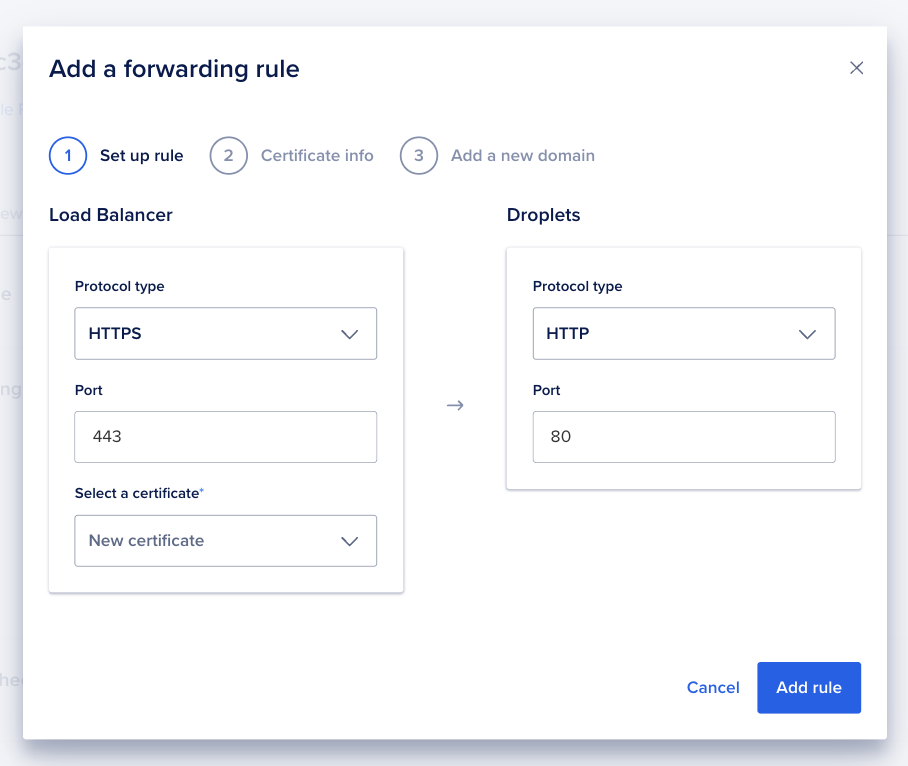
To use an existing certificate, select it from the drop-down and click Add rule. We automatically create a new DNS A record for the apex domain pointing to the load balancer.
To create or upload a new certificate, select New certificate and click Continue. The window advances to the Certificate info step.
Add an SSL Certificate
If you create a forwarding rule that requires a Let’s Encrypt certificate, you have the option to allow us to automatically create the necessary DNS record, at the apex of your domain, to support the certificate. The Create DNS records for all the new Let’s Encrypt certificates box is checked by default. If you want to manage your own DNS records for your Let’S Encrypt certificate, uncheck the box to opt out of creating any records when creating the forwarding rule.
You can update this selection when adding or updating forwarding rules at a later time. However, the updated selection applies only to the new rules going forward, existing DNS records are not updated.
Use an Existing Domain
On the Certificate info step, select the Use Let’s Encrypt tab. If you manage your domain with DigitalOcean DNS, you can choose the Let’s Encrypt option to create a new, fully-managed SSL certificate. We create and automatically renew this certificate for you.
Select the domain you want to use, then select a subdomain option:
-
All subdomains (wildcard): Create a wildcard certificate that secures the domain’s apex and any subdomains that do not have an existing DNS records defined.
-
Select an existing subdomain: Create a certificate that secures the domain’s apex and only selected subdomains.
We do not create or change DNS records for subdomains. If your subdomains do not already point at the load balancer, you need to add DNS records for that.
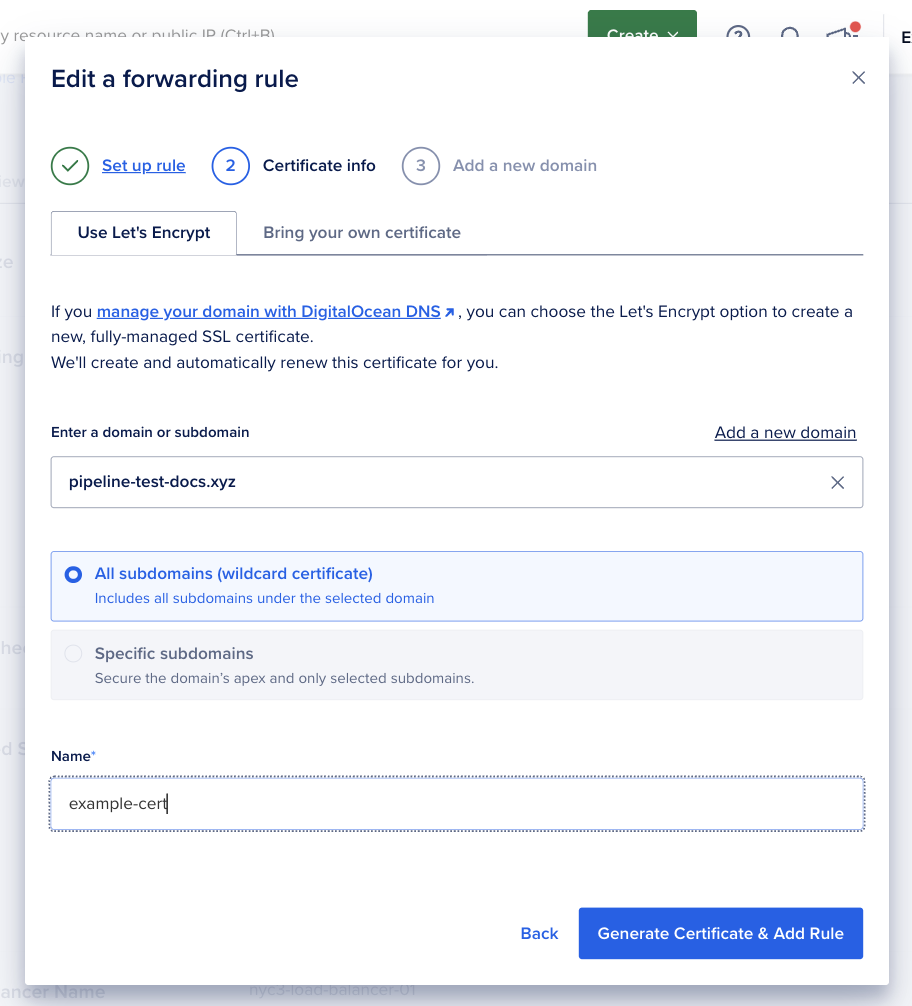
Enter a name for the certificate, then click Generate certificate & add rule. The certificate provisions in a few seconds and the new rule is added to the load balancer. Click Save in the Forwarding Rules editor to apply your changes.
Add a New Domain
To start managing a new domain with DigitalOcean DNS, select Add a new domain in the Use Let’s Encrypt tab. The window advances to Add a new domain, where DigitalOcean imports the domain, creates DNS records, and issues the certificate.
We strongly recommend adding your domain to DigitalOcean before changing name servers with your registrar. This minimizes service disruptions by creating matching records on DigitalOcean before the name server change, which can take up to 48 hours to take effect.
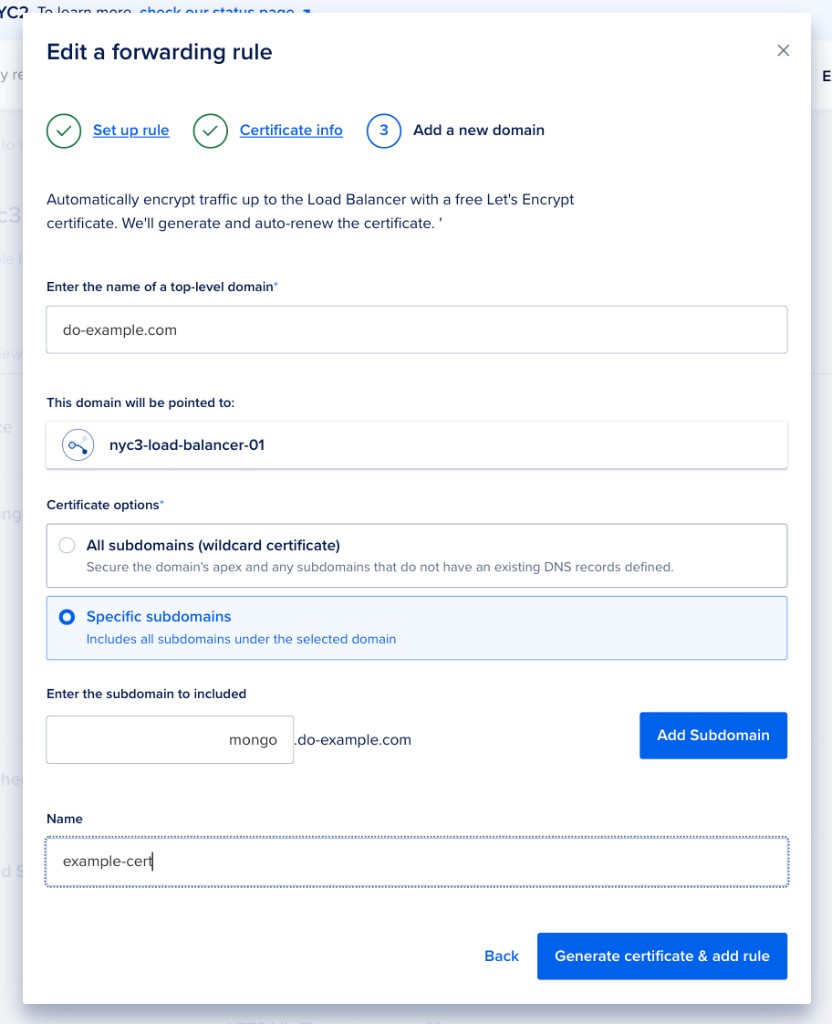
Enter the top-level domain you own. When the certificate is generated, this domain is imported into the Control Panel and DigitalOcean creates an A record pointing to the load balancer’s IP address.
Under Certificate options, choose either All subdomains (wildcard certificate) or Specific subdomains. If you choose Specific subdomains, enter each subdomain to include and click Add Subdomain. DigitalOcean creates CNAME records for each subdomain that reference the apex domain’s A record.
Enter a name for the certificate, then click Generate certificate & add rule. The certificate provisions in a few seconds and the new rule is added to the load balancer. Click Save in the Forwarding Rules editor to apply your changes.
On the Certificate info step, select the Bring your own certificate tab to manually enter the details of an existing certificate.
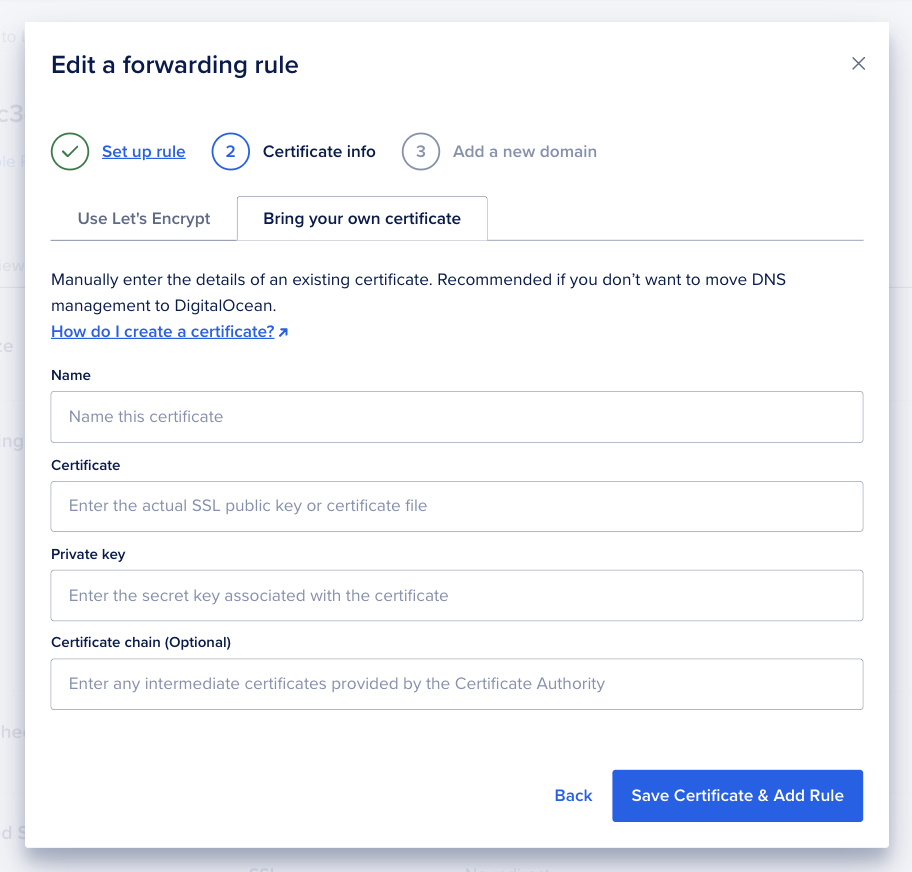
Fill in the following fields:
- Name: A name to identify the certificate in the DigitalOcean Control Panel. It can only contain letters, numbers, periods, and dashes.
- Certificate: The SSL public key or certificate file.
- Private key: The secret key associated with the public key.
- Certificate chain (Optional): The full trust chain between the trusted certificate authority’s certificate and your domain’s certificate.
Click Save certificate & add rule to add the rule, then click Save in the Forwarding Rules editor to apply your changes. The rule is active as soon as it’s saved, and you can begin testing.
Keep track of when manually-managed certificates expire to avoid service interruptions. When you generate a new certificate, upload it to your account and update the load balancer’s HTTPS rule to use the new certificate.
You can manage all of your account’s SSL certificates in Settings > Security. Learn more in our certificate management documentation.
Force SSL Traffic
To force visitors to connect over HTTPS for data integrity and security, redirect HTTP traffic to HTTPS. Any insecure connections to the load balancer are then redirected to use the certificate you loaded.
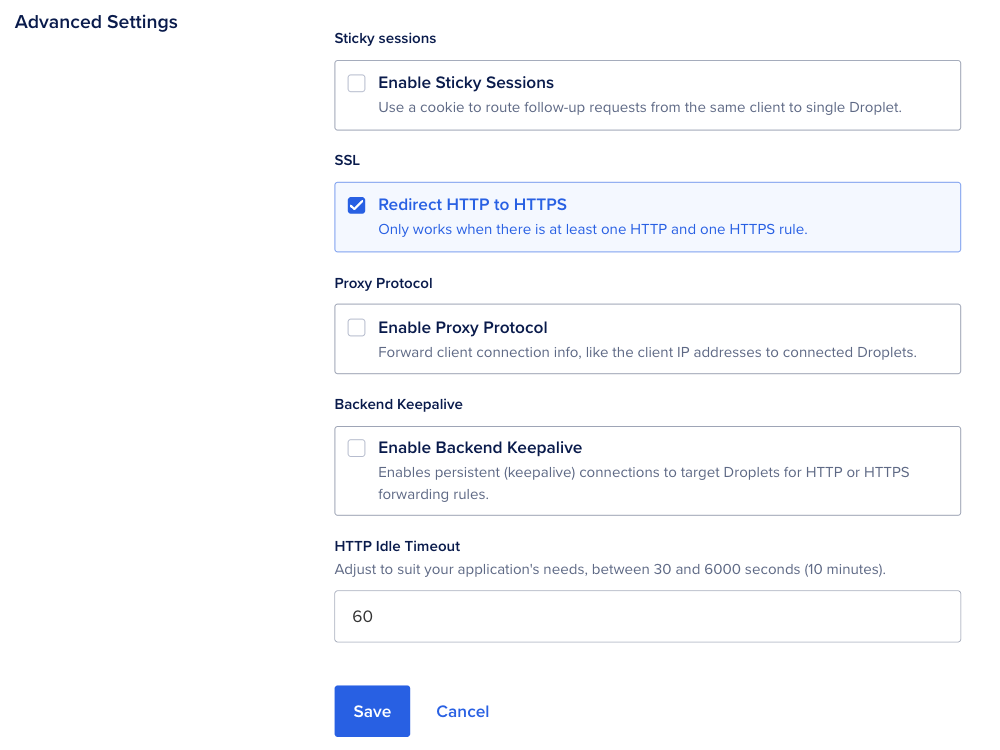
On the load balancer’s Settings tab, click Edit in the Advanced Settings section. Under SSL, select the Redirect HTTP to HTTPS checkbox, then click Save.