How to Manage Action Gateway Sessionspublic
Last verified 14 Oct 2026
Action Gateway gives applications and AI agents governed access to tens of thousands of tools through a managed MCP endpoint or SDK. See What You Can Build for example use cases of Action Gateway with Harness Runtime.
Create an Action Gateway session to get an MCP endpoint (URL) with the tools and permissions you want. Add that URL to your coding agent or other MCP client, then authenticate with DigitalOcean. The client can use the session’s tools under its permission policy. Reuse the URL for later tasks that need the same access.
By default, the MCP client receives three meta tools for discovery, invocation, and code execution rather than every catalog tool’s definition. During session creation, you can also preload known tools, choose output views, add instructions, or attach a VPC.
Prerequisites
- Access to Action Gateway for your DigitalOcean team.
- A stable actor ID for workloads that use provider connections.
Some tools, including Exa web search and web fetch, require a positive prepaid balance. Prepayment is not required for every tool.
Configure the Session
In the DigitalOcean Control Panel, open Managed Agents, select Action Gateway, then open Sessions. Click Create session.
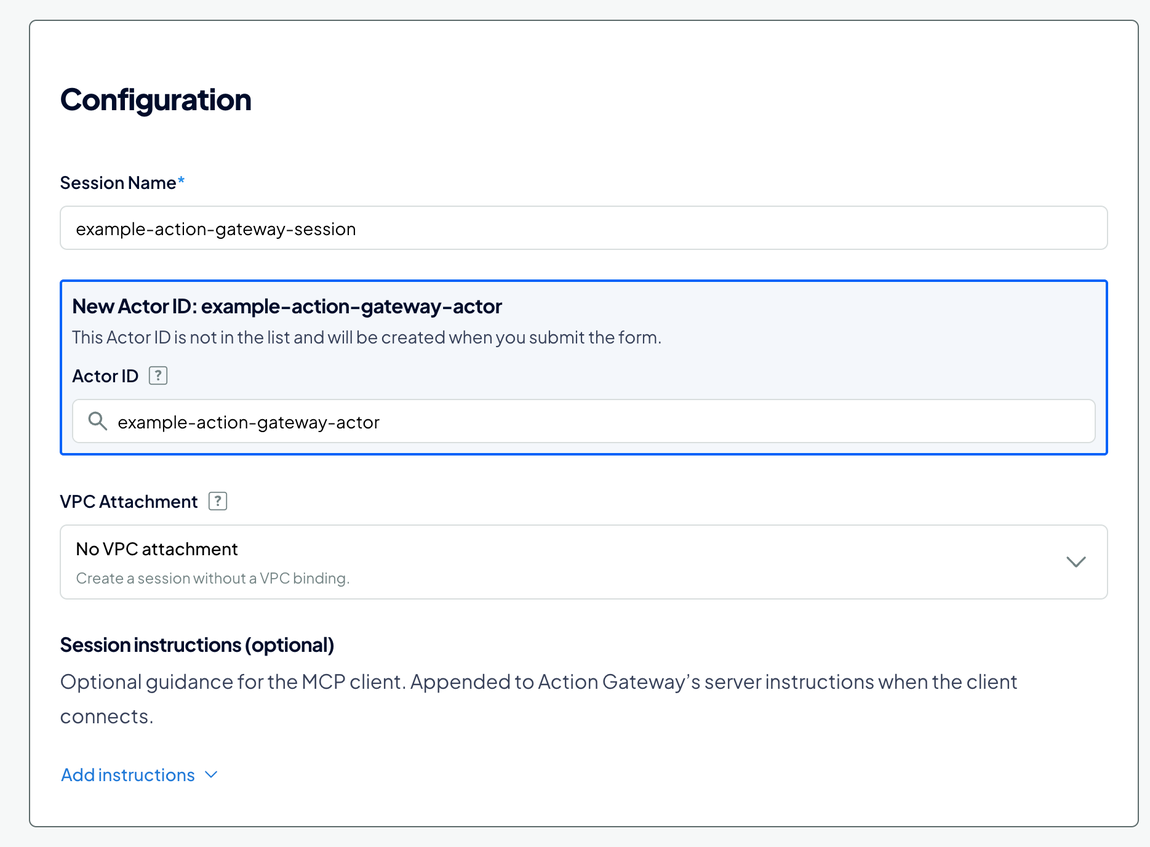
Enter a Session Name and select or enter the Actor ID. Use a stable identifier from your application, such as user-123, for the user whose provider accounts this session should use. The session selects connections with that actor ID owned by the same DigitalOcean user in the same team. For separate work and personal accounts with one provider, use different actor IDs. Reuse an ID across sessions that need the same connections. Do not use an email address as the ID.
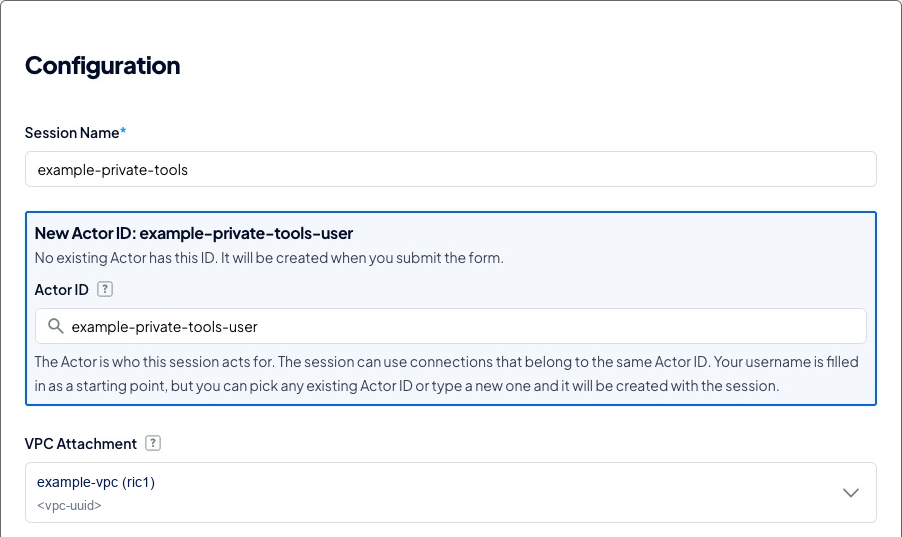
Under VPC Attachment, select a VPC for workloads that use private tools or need action_code to access private resources. VPC networking must be enabled for your team. The VPC must belong to your team in ric1. Leave No VPC attachment selected for workloads that only need public tools.
Create the provider connection with the same owner, team, and actor ID as the session. Configure its VPC and allowed destinations separately. The session attachment does not create a connection or grant it access to every address in the VPC.
For a first private provider, select the same VPC on the session and connection. The enforced session restriction is a matching region. A private MCP connection must also match the server’s exact registered VPC ID. Public connections retain public networking, even in an attached session. See Access Tools and MCP Servers on a Private Network.
Under Session instructions (optional), click Add instructions to supply up to 1,000 characters of guidance. The MCP client receives these instructions during initialization. Do not include secrets, and do not use instructions as a replacement for permission rules.
The Configuration section groups the session name, actor, VPC attachment, and instructions:
For a private workload, select a VPC under VPC Attachment. This example shows the session name, actor ID, and attached VPC with its name and ID replaced:
For API session creation, set network.vpc_uuid to the VPC ID. Include it alongside the session’s actor, tools, and policy:
{
  "network": {
    "vpc_uuid": "<vpc-uuid>"
  }
}
Action Gateway validates the VPC’s ownership and derives its region. Omit network to create a session without an attachment. Use the returned MCP URL unchanged so private calls reach the session’s regional gateway.
Set Tool Access and Permissions
Under Permission policy, choose a Default Action:
- Ask: Require approval before a tool runs. Use a client that can complete the approval flow.
- Allow: Run calls without gateway approval unless a more-specific rule says otherwise.
- Deny: Block calls unless a more-specific rule permits them.
Select All tools for catalog-wide access or Selected tools to restrict the session to chosen tools and Toolbelts. An allow rule cannot widen Selected tools access.
Search the tool list and select the tools or versioned Toolbelts the session needs. Set each entry’s Action where it should differ from the default. A Toolbelt rule applies to its member tools; a more-specific tool rule can override it. See Tool Policies.
Preload Frequently Used Tools
In the session’s tool list, enable Preload for tools or Toolbelts the workload regularly needs. Their tool definitions appear alongside the three meta tools in the MCP client’s tool list. The agent can use them without first searching for their names and inputs.
Keep the preload set small. Preloading avoids discovery for known tools, but it adds definitions to model context even when a task does not use them. Leave Preload off for tools the agent should discover as needed with action_search.
Preloading does not grant permission or restrict discovery to the preloaded set. Other permitted tools remain searchable. For the API equivalent, set config.preloadTools when creating the session. See Preloading Tools.
Override Tool Output for the Session
Select a tool and use its Output view control to choose a view instead of Full output. The view overrides the fields returned by that tool for this session. If no suitable view exists, create an output view that keeps the fields the workload needs, then select it during session creation.
For example, choose a view with record IDs and names when the agent does not need the rest of each record. Removing unrelated fields reduces the tool-result data the model reads and can lower inference-token costs. The tool still runs its normal operation and incurs any applicable tool usage charges.
This example preloads Exa Web Search, requires approval for its calls, and binds an existing only_urls output view:
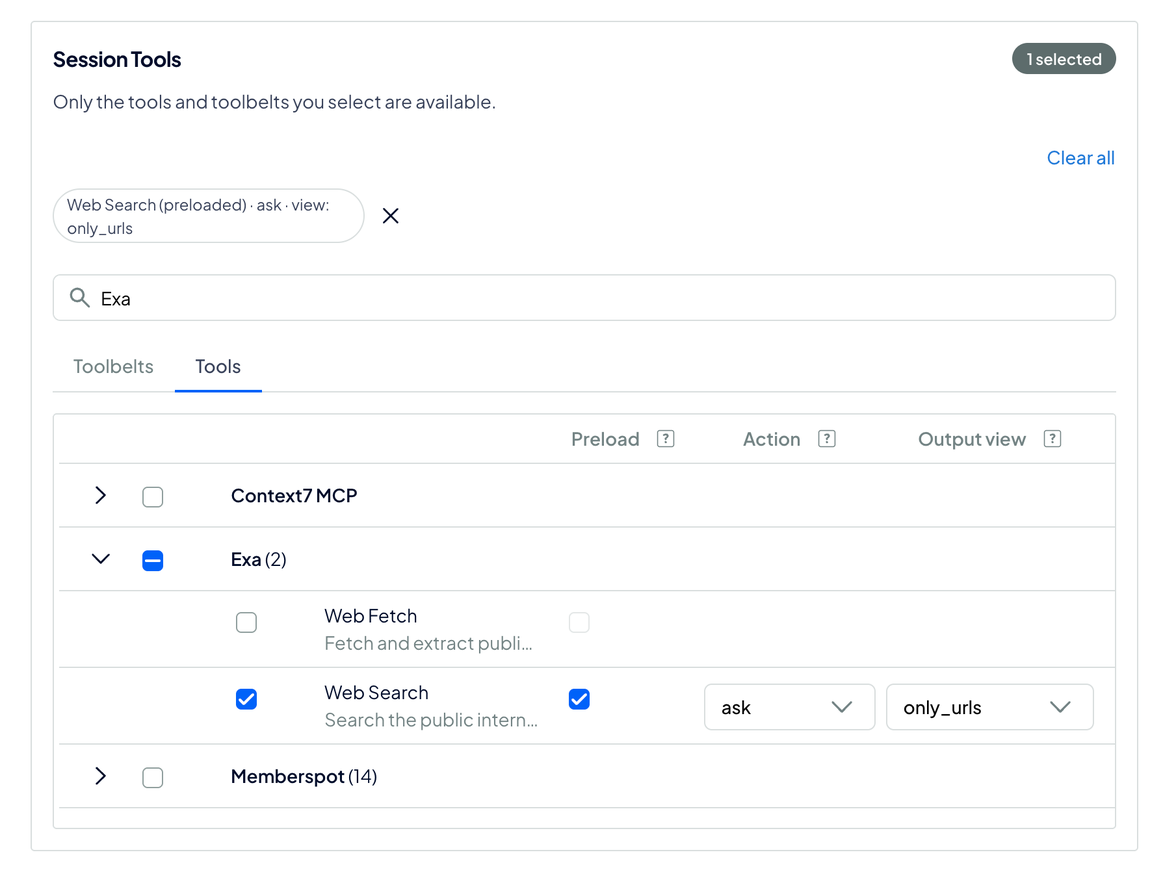
This override applies to every call to the tool in the session, including preloaded tools, action_invoke, and calls inside action_code. It does not change the tool’s output in other sessions. In the API, set config.outputViews to map each tool slug to its view name. See Output Views.
Create the Session
Review the policy before clicking Create Session. Broad allow rules can permit writes, deletions, and other changes to connected accounts without a gateway prompt.
Connect and Inspect the Session
Copy the session’s MCP URL and add it as a remote MCP server in your client. Follow your client’s setup and authentication steps using the DigitalOcean account that created the session, in the same team. Calls through this URL use the tools and permissions you configured.
From Sessions, open the session to inspect its actor, tools, policy, instructions, VPC attachment, and output-view bindings. Use a read-only call to verify the intended access before running a workload that changes provider resources.
Replace a Session’s Configuration
Session configuration is set at creation. Create another session to change its actor, tool selection, policy, instructions, preloads, output views, or VPC attachment. Update the client’s MCP configuration to use the replacement session’s returned URL.
Do not assume that replacing a session undoes provider actions or revokes the actor’s connections. Manage provider authorization separately through Connections.