Deleting a view prevents new sessions from binding it and causes bound sessions’ calls to that tool to fail. The gateway does not fall back to full output. Replace affected sessions before deleting a view they use.
How to Add a Tool Output Viewpublic
Last verified 23 Sep 2026
Action Gateway gives applications and AI agents governed access to tens of thousands of tools through a managed MCP endpoint or SDK. See What You Can Build for example use cases of Action Gateway with Harness Runtime.
An Action Gateway output view keeps selected fields from a tool’s result so the agent receives less data per call. Smaller results can reduce the tool-result tokens sent to the model and the associated inference cost. Create a view for a tool, then bind it when you create a session. Every call to that tool in the session returns the view’s shape.
Prerequisites
- Access to Action Gateway.
- A catalog tool that declares an object output schema. Tools without an output schema cannot have a view authored through this flow.
- Knowledge of the fields your workload needs in each result.
Select the Tool and Output Fields
In the DigitalOcean Control Panel, open Managed Agents, select Action Gateway, then open Tools. Open the provider and select the tool. In the tool’s Output tab, find Output views and click Create view.
Enter a Name such as compact and an optional Description. The name must begin with a lowercase letter and contain only lowercase letters, digits, underscores, or hyphens, up to 64 characters. It must be unique for that tool version within your team.
Under Fields to keep, select the output fields the agent needs. You can filter the field list and select nested fields. A view can keep up to 64 field paths. For arrays, selected fields apply to each element.
For example, keep only results.title and results.url from Exa Web Search:
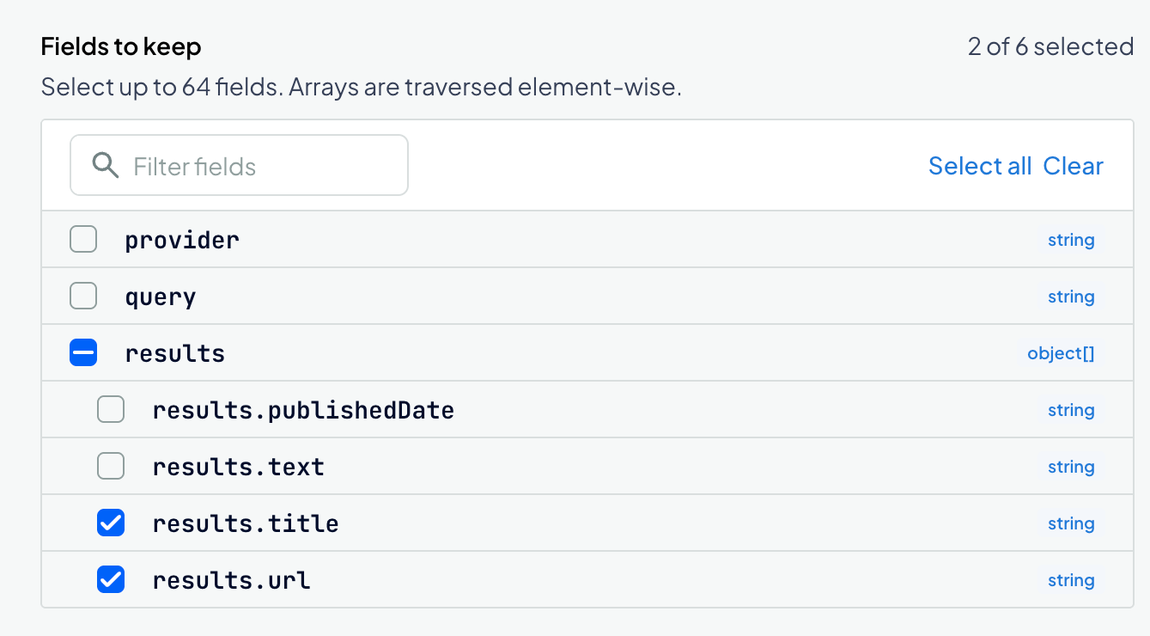
Review What the agent sees. This previews the resulting output schema, not a live provider response, and does not invoke the tool. Click Create view.
Team-created views are projections: they retain selected fields rather than run arbitrary transformation code. DigitalOcean-provided public views may also transform outputs. You can bind public views but cannot edit them.
Bind the View to a Session
Open Sessions and click Create session. Configure the session’s actor, tool access, and policy as described in Manage Action Gateway Sessions.
Select the tool you created the view for. In its Output view control, choose the view instead of Full output. Finish creating the session and connect your client to its MCP URL.
The binding is fixed for the session. It applies to direct tool calls, action_invoke, and tool calls inside action_code. To use a different view or full output, create another session with that configuration.
Choose views based on the fields each session’s workload needs. Another session can bind a different view for the same tool. Reducing result size changes the data sent to the model, not the tool operation or its usage charges.
Verify and Maintain the View
Inspect the session’s Output views section to confirm the binding. When appropriate, invoke a read-only tool and confirm its result includes the selected fields. A view changes the returned output, not the provider action, its inputs, or the credential’s scopes.
Views are tied to tool versions and are immutable after creation. Check the view’s availability when changing tool versions; do not assume that a view on one version exists on another. Create a new view and session when the required output shape changes.