How to Add a Custom Tool Providerpublic
Last verified 14 Oct 2026
Action Gateway connects applications and AI agents to tools through a managed MCP endpoint or SDK, with the accounts and permissions you choose. See What You Can Build for standalone agent examples.
Add a remote Model Context Protocol (MCP) server to Action Gateway as a custom tool provider. Use a custom provider when the provider you need is not in the public provider directory or you want to connect your own tools.
The server can use no authentication, an API key, or an OAuth connection. Enter its MCP endpoint, choose the authentication method, and select which discovered tools to enable for your team.
For a server in a VPC, select Reach this server in a VPC and choose its Server VPC in the registration form. VPC networking must be enabled for your team and is available in ric1.
Prerequisites
- An MCP server that supports Streamable HTTP. Public servers must be reachable over the internet. Private servers must be reachable through their connection’s VPC destinations.
- Access to manage Action Gateway providers for your DigitalOcean team.
- The server’s authentication details, if required. For OAuth, register an OAuth application with the provider before starting.
You are responsible for authorizing the integration and complying with the provider’s terms. Use a credential with only the permissions the intended tools need.
Configure the Provider
Go to the Tool Providers page and click Add custom provider.
Enter the server details:
- Server name: A name beginning with a lowercase letter, followed by lowercase letters, numbers, or hyphens, up to 64 characters. For example,
weather-tools. The gateway prefixes discovered tool slugs with this name. - Endpoint URL: The server’s MCP endpoint, such as
https://mcp.example.com/mcp. Use HTTPS when the server requires authentication. With None authentication, you can use HTTP or HTTPS, with a hostname or IP address, for public or private servers. HTTP leaves tool inputs and results unencrypted. - Description (optional): A description of the tools and their intended use. It appears on the provider’s catalog card.
Select an authentication method:
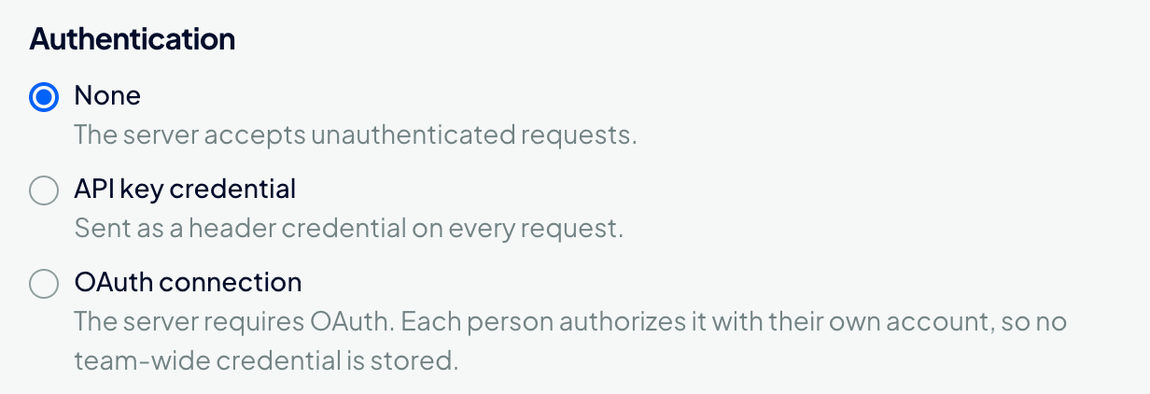
- None: The server accepts requests without authentication.
- API key credential: Supply the server’s API key. The gateway stores it securely and sends it as a header credential. The UI does not display the saved secret again.
- OAuth connection: Each actor uses a separately authorized connection to the server. Supply the OAuth application’s client ID and client secret, authorization URL, token URL, and requested scopes. The authorization and token URLs must use HTTPS and be on the same domain as the MCP endpoint.
Enter secrets only into their designated credential fields, not into the description or an agent conversation.
The Authentication section offers these three methods. Select None only if the MCP server accepts unauthenticated requests:
Select a VPC
For a private server, select Reach this server in a VPC and choose the VPC hosting the server under Server VPC. The VPC must belong to your team in ric1. VPC networking must be enabled for your team. This option also requires permission to read VPCs.
VPC selection works with None, API key credential, and OAuth connection authentication.
The server’s VPC is fixed after registration. Each actor needs a connection that selects this exact VPC and allows the endpoint’s host and port. Registering the server does not grant an actor that network access.
Discover and Select Tools
For None or API key credential, click Connect and discover tools.
For a private server with None authentication, a connection window opens before discovery. Enter the Actor ID that your sessions use. Review VPC Attachment, Destination host, and Destination port, which the form fills from the registered server, then click Connect. The VPC must match the server, and the destination must allow its endpoint. No API key or OAuth consent is required.
If you close the window, click Connect private network to reopen it, or Finish later to return to the provider. Discovery requires an active connection.
For OAuth connection, click Save and authorize. Enter the Actor ID for sessions that should use this connection, then click Authorize. Open the authorization page, compare the verification code when shown, and complete the provider’s consent flow. Other actors need separate connections.
For a private OAuth server, also configure that actor’s connection with the server’s VPC and endpoint destination before discovery can succeed.
The Server tools page shows the discovered tools. Review the names and descriptions, then enable only the tools your team needs. Click Add custom provider to save the selection. Disabled tools remain in the catalog but cannot be invoked.
If discovery fails, check that the endpoint is reachable, implements a supported MCP protocol version, and accepts the configured authentication. If discovery is still running, click Check again rather than registering a duplicate provider.
Register a Private MCP Server Using the API
To automate private registration, use POST /v2/action-gateway/mcp-servers. This request records the VPC where the server is reachable. It does not create a connection or grant an actor access to that network.
Include the following network field alongside the server name, endpoint, and authentication settings. Replace <vpc-uuid> with a VPC owned by your team in ric1:
{
  "network": {
    "vpc": {
      "vpc_uuid": "<vpc-uuid>"
    }
  }
}
Set credential_ref_source to match the server’s authentication:
none: The server requires no upstream credential and accepts HTTP or HTTPS. Create an actor connection with"credential": {"none": {}}and matching VPC destinations before private discovery.secret: The server uses an API key. Supplyapi_key, or usecredential_refto reference a key stored in Secrets Manager. Action Gateway sends the key as a header credential over HTTPS. This method supports public and private servers.connection: Each actor authorizes an OAuth connection. Use HTTPS and supplyoauth_client_id,oauth_client_secret,oauth_authorize_url,oauth_token_url, andoauth_scopes. OAuth URLs must use HTTPS, pass the public endpoint checks, and be on the same registrable domain as the MCP endpoint. The MCP VPC setting does not provide private access to OAuth authorization or token endpoints.
After registration, create a connection for the provider with the same VPC ID and the MCP endpoint’s host and port in its destination list.
Include the connection’s actor ID as user_id in the JSON body of both requests:
POST /v2/action-gateway/mcp-servers/<server-ref>/resyncdiscovers the server’s tools.PUT /v2/action-gateway/mcp-servers/<server-ref>/toolsselects the tools to enable. The list replaces the server’s enabled selection, so tools omitted from it are disabled.
Replace <server-ref> with the registered server name. Both operations use the actor’s connection to reach the private server, even when it requires no authentication.
Follow Access Tools and MCP Servers on a Private Network for the network model, private connection setup, and session examples. A private server’s connection must match its exact registered VPC ID and region. An attached session must match the connection’s region.
Use the Custom Tools
Open the provider from the Tools tab and inspect its enabled tools. Create an Action Gateway session that selects the tools or a Toolbelt containing them, and set an appropriate tool policy.
Connect your client to the session’s returned MCP URL, then ask it to find the custom provider’s tools. Inspect the discovered schema before invoking a tool. For OAuth providers, the session must use an actor with an authorized connection to that provider.