How to Connect to OpenSearch Database Clusters
Validated on 23 Mar 2026 • Last edited on 27 Mar 2026
OpenSearch is an open-source search and analytics suite which serves as a centralized location to manage logs forwarded from other resources, such as databases and Droplets.
You can access the OpenSearch Dashboard in the Control Panel, retrieve cluster and connection fields with the DigitalOcean API or doctl, or call the OpenSearch REST API from curl or application clients. Connection details on the cluster Overview page support each of those paths, including the CA certificate download for HTTPS clients. You can explore logs forwarded from other resources in the OpenSearch Dashboard.
Retrieve Database Connection Details Using the CLI
Retrieve Database Connection Details Using the API
This API call retrieves the information about your database, including its connection details. The connection details are located in the returned connection JSON object.
Access OpenSearch Dashboard in the Control Panel
The fastest way to explore indexes, run queries, and work with data (including logs forwarded from other resources) is to open the OpenSearch Dashboard from your cluster in the Control Panel.
- Go to the Databases page and click your OpenSearch cluster.
- On the Overview page, click OpenSearch Dashboard.
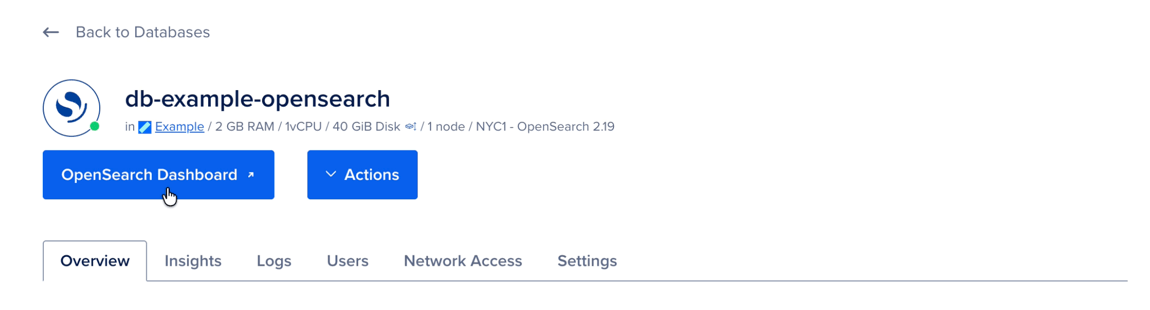
When the dashboard prompts for credentials, use the same User and password shown in the Connection Details on the Overview page, for example, the default doadmin user or another user you added. Click Show or Copy in that section if you need the password.
To forward logs from other Managed Databases into this cluster, see Forward Logs to OpenSearch Clusters.
View OpenSearch Cluster Connection Details
You use your database’s connection details to configure tools, applications, and resources that connect to the database. To view your database’s connection details, click the name of the cluster on the Databases page to go to its Overview page.
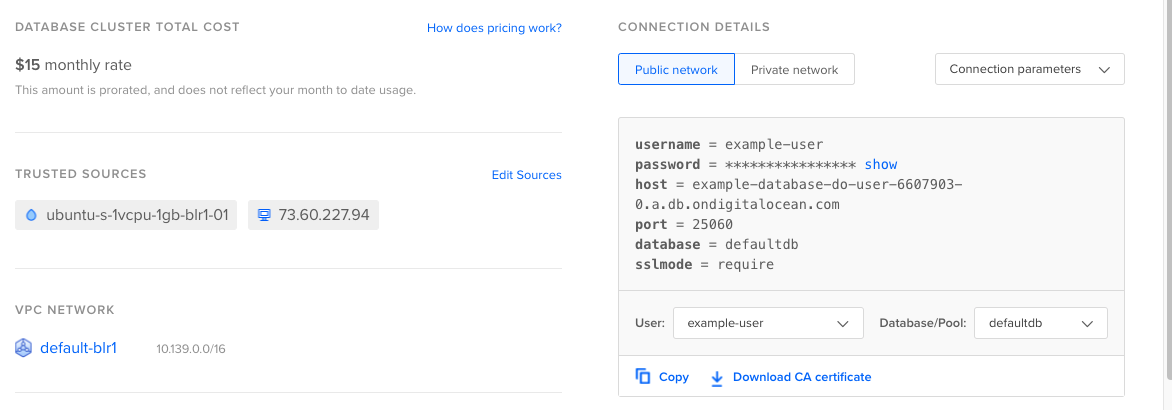
You can view customized connection details based on your connection method:
-
Public network and Private network (VPC) options generate connection details based on whether you use the cluster’s public or private hostname. Only other resources in the same VPC network as the cluster can access it using its private hostname.
-
The User field updates the connection details with the user credentials that you would like to connect with. That username and password are the same credentials you use to sign in to OpenSearch Dashboard in the Control Panel.
You can also choose to view the connection details in different formats:
-
Connection parameters: Host, port, and authentication information for application configuration.
-
Connection string: A condensed URL that you can pass to a client or use with
curl.
OpenSearch exposes a REST API over HTTPS. Use the connection details to build requests to your cluster’s endpoint (for example, https://<your-cluster-hostname>:25060). These details are also what you need for automation and for clients that connect to the cluster over HTTPS.
By default, the Control Panel doesn’t reveal the cluster’s password for security reasons. Click Copy to copy connection details with the password, or click Show to reveal the password.
Download the CA Certificate
Each managed database comes with a CA certificate you can use to encrypt connections between your client applications and the database.
To download your database’s CA certificate, click the name of the cluster on the Databases page to go to its Overview page. In the Connection Details section, click Download CA certificate.
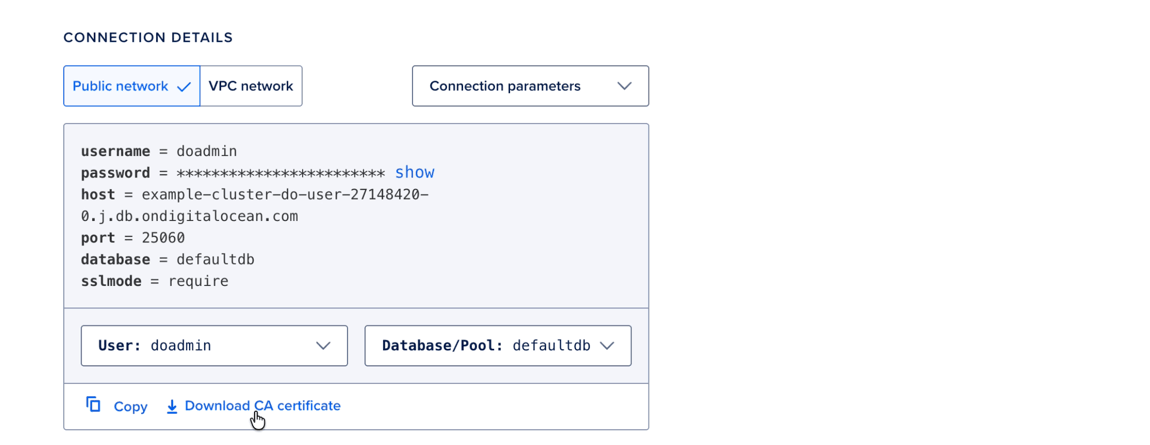
When you configure your client applications, you can use the certificate’s location on your local system. Each client application is configured differently, so check the documentation for the tool you’re using for more detail on setting up TLS connections.
Connect to the Database
How you use the cluster depends on your needs. A typical workflow is to open the OpenSearch Dashboard from the Control Panel. For automation, retrieve the cluster (and connection details) with doctl or the API. For direct REST access, use curl or an OpenSearch or Elasticsearch client library.
See the section Access OpenSearch Dashboard in the Control Panel.
When the dashboard prompts you to sign in, use the same User and password shown in the Connection Details on the cluster’s Overview page.
To read connection details and dashboard-related fields programmatically, retrieve the database cluster.
The response includes standard connection fields and, for OpenSearch, dashboard-related values such as ui_uri, ui_host, and ui_port. For the full response schema, see Retrieve an existing database cluster.
To send HTTPS requests to the cluster with curl, you need:
-
Your client or network added to the database’s trusted sources.
-
curlon your machine (preinstalled on most systems).
Example cluster health check:
curl -u doadmin:<your-password> \
  --cacert /path/to/ca-certificate.crt \
  https://<your-cluster-hostname>:25060/_cluster/health?pretty
Replace <your-password>, <your-cluster-hostname>, and /path/to/ca-certificate.crt with values from the Control Panel and your downloaded CA certificate.
See the OpenSearch API documentation for more endpoints.
If you’re having trouble connecting, use our OpenSearch Support page or the OpenSearch documentation.
To connect from an application, you need:
-
The application’s host or network in the database’s trusted sources.
-
A library that supports the OpenSearch or Elasticsearch REST API over HTTPS (for example, the OpenSearch client libraries or Elasticsearch clients).
-
The connection details, cluster URL (for example,
https://<your-cluster-hostname>:25060), and path to your CA certificate for TLS verification.
If you’re having trouble connecting, use our OpenSearch Support page or the OpenSearch documentation.