When autoscaling occurs, the specified storage increment is added to each node in the cluster, not distributed across the cluster. Even when data is uneven across nodes, such as with different partition sizes, each node still receives the same increment. The total added storage is the increment multiplied by the number of nodes.
How to Resize OpenSearch Clusters
Last verified 1 Oct 2026
OpenSearch is an open-source search and analytics suite which serves as a centralized location to manage logs forwarded from other resources, such as databases and Droplets.
You can resize existing OpenSearch database clusters at any time to change CPU, RAM, and storage, including scaling up or down when disk utilization and plan limits allow.
Scaling Down
You can scale down compute and storage when the target configuration keeps projected disk utilization at or under 80%. Projected utilization is calculated using the size of your most recent backup plus your current log size. The combined size must be within 80% of the target storage.
Each compute plan enforces minimum and maximum storage values. When scaling down, the target storage must remain within these limits, even if the 80% utilization check would otherwise allow a smaller size. You can choose a smaller compute tier only if the requested storage falls within that tier’s allowed range.
For example, starting from a General Purpose Dedicated CPU plan with 4 vCPU / 16 GiB RAM, 100 GiB storage, and 80 GiB used for data:
| Target configuration | Result |
|---|---|
| Same plan with 90 GiB storage | Allowed (meets 80% limit) |
| General Purpose Dedicated CPU, 2 vCPU / 8 GiB RAM, 90 GiB storage | Allowed (within plan limits) |
| Basic Shared CPU, 1 vCPU / 2 GiB RAM, 90 GiB storage | Not allowed (plan supports maximum storage of 60 GiB) |
| General Purpose Dedicated CPU, 8 vCPU / 32 GiB RAM, 90 GiB storage | Not allowed (plan requires minimum storage of 160 GiB) |
Resize a Database Cluster Using Automation
You can resize a database cluster using the DigitalOcean CLI (doctl) or the API.
Resize a Database Cluster via CLI
To resize a database cluster using doctl, you need to provide a value for the --size flag, which specifies the cluster’s new configuration (number of CPUs, amount of RAM, and hard disk space). Use the doctl databases options slugs command to get a list of available values.
Resize a Database Cluster via API
To resize a database cluster using the API, you need to provide a value for the size field, which specifies the cluster’s configuration (number of CPUs, amount of RAM, and hard disk space). Use the /v2/databases/options endpoint to get a list of available values.
Resize a Database Cluster Using the Control Panel
To resize an OpenSearch database cluster, go to the Databases page, and select the cluster you want to resize. On the cluster’s Overview page, click the Settings tab.
In the Configuration section, click Edit. Select a tab to view available Shared CPU or Dedicated CPU plans, then choose options under CPU options and Select a plan.
With some Basic plans and all Dedicated CPU plans, you can select a Number of Nodes.
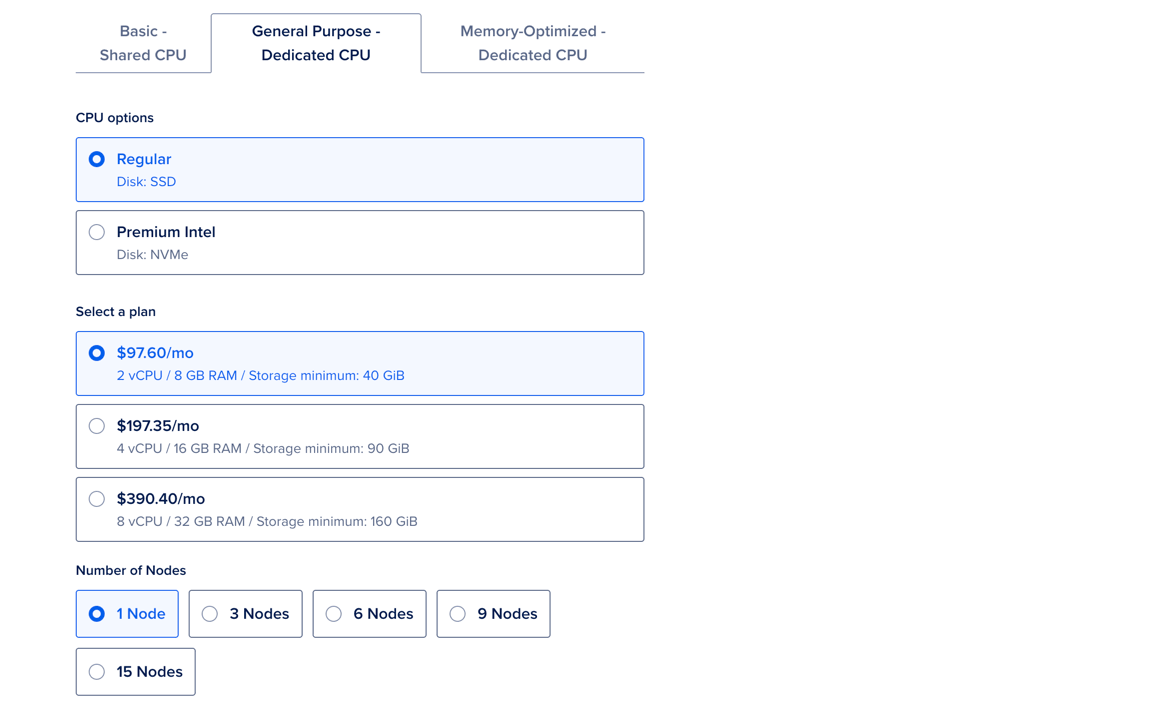
Under Choose a storage size, you can update the amount of storage.

In the Autoscale storage section, select Enable Storage Autoscaling to automatically increase storage when disk utilization on any node in the cluster reaches the specified threshold. The threshold is based on the worst-performing node in the cluster, not the average across nodes.
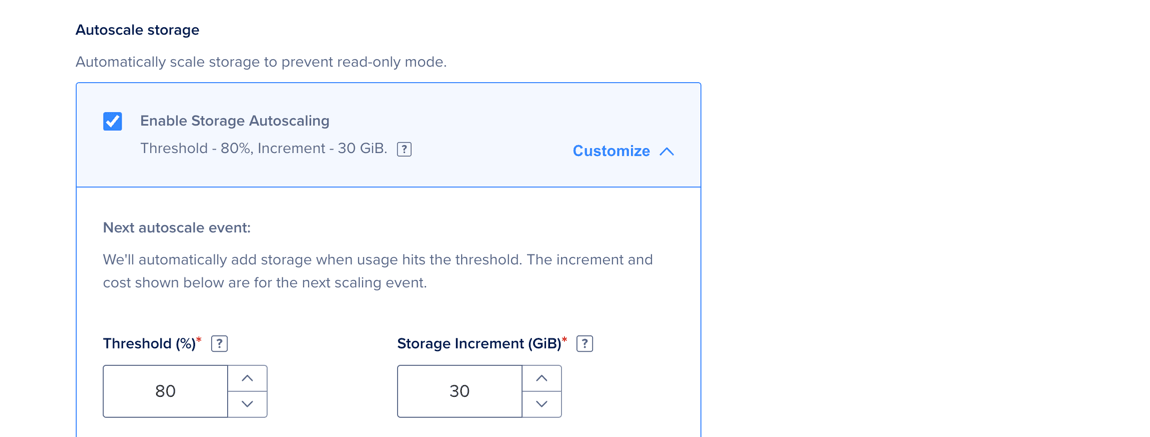
Click Customize to set a custom Threshold and Storage Increment. The system bills this increase as additional storage.
Autoscaling takes several minutes, depending on the cluster size. It runs without downtime, and no action is required.
Click Save to apply your changes.
Your cluster’s state changes from Active to Resizing until the process is complete. Provisioning can take several minutes, depending on cluster size, but does not cause downtime.