Spokes
Generated on 27 Aug 2026 from the Spokes catalog page
Spokes is a powerful, fully self-hosted Discord alternative that gives you complete ownership over your community’s chat, voice, and video communication. Featuring audio / video rooms, structured text channels, full SSO support and a lot more, it delivers a modern team chat experience without compromising your privacy or data.
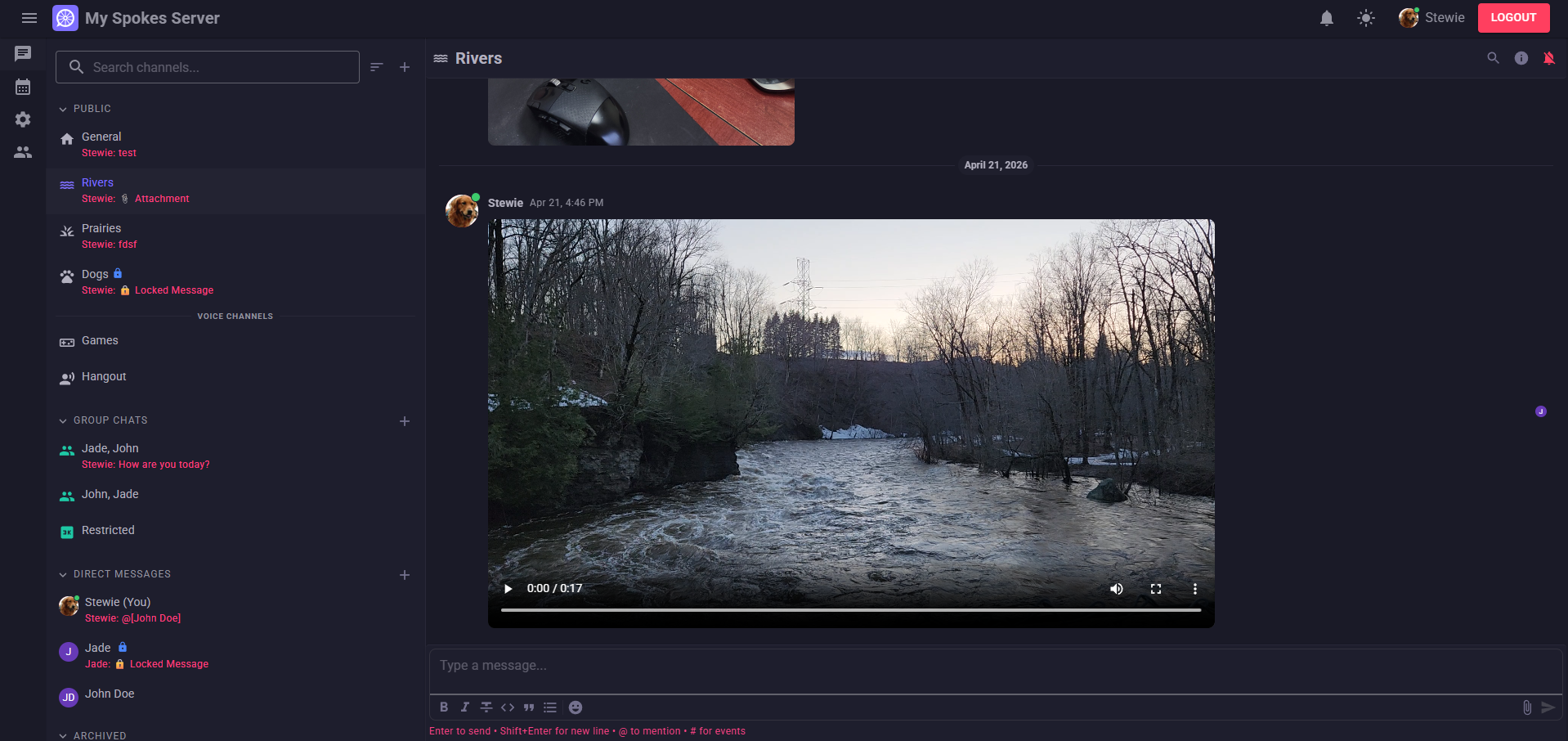
Key Features
- 📱 Native Mobile Apps: Stay connected anywhere with native iOS and Android applications, featuring secure, encrypted push notifications. Look for Spokes on the AppStore or Play Store.
- 🔒 Secure Channels: Channel data is encrypted so that only participants hold the keys. This ensures user’s private conversations remain completely unreadable in case of database leaks or snooping server administrators.
- 💬 Real-Time Messaging: Organized text channels, direct messaging, and instant cross-device syncing.
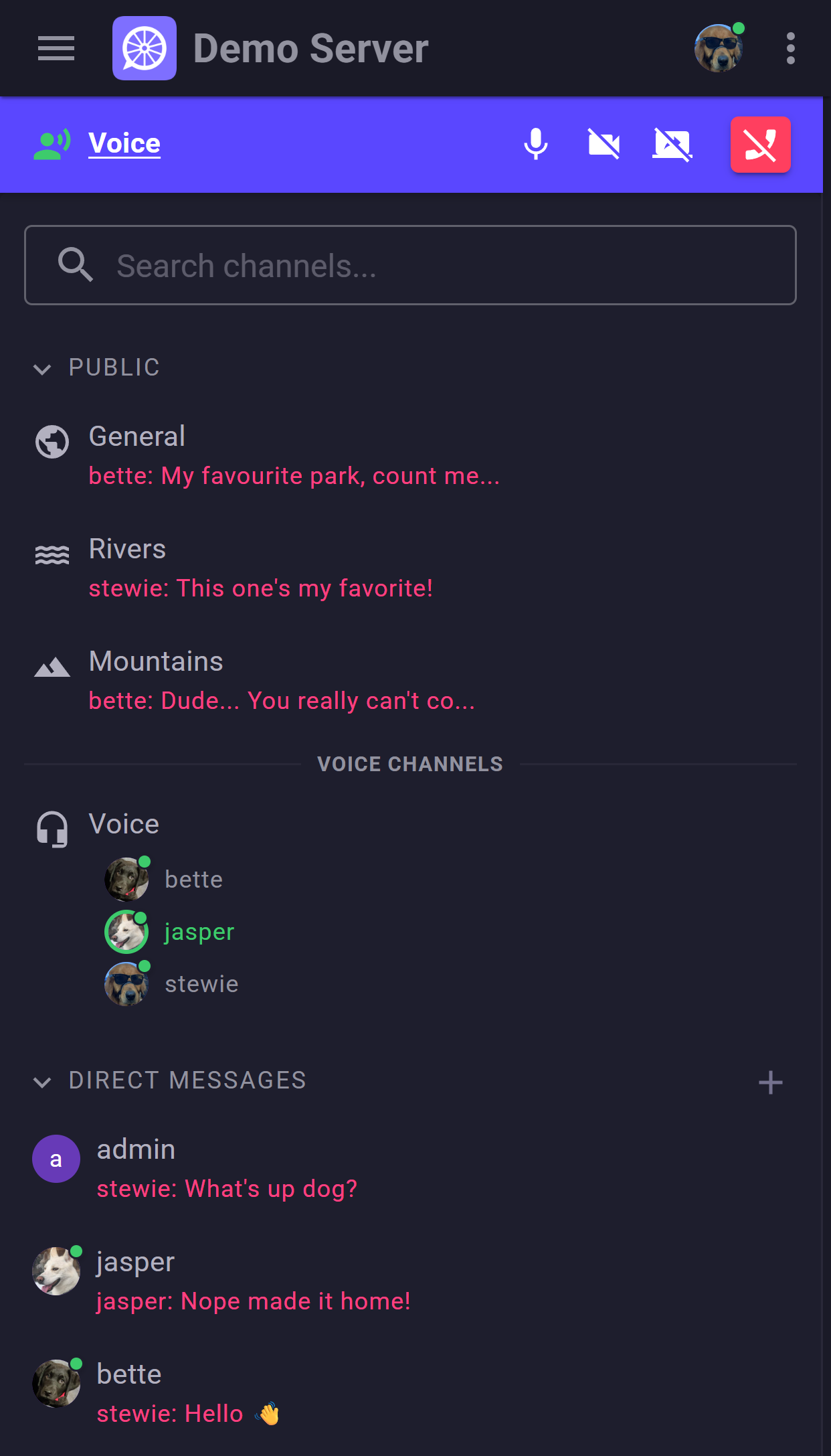
- 🎙️ Built-In Voice & Video: High-quality audio and video channels. Everything is bundled directly into the application. Zero extra media servers or complex setup required.
A True “Zero-Maintenance” Appliance
This 1-Click Droplet is built to be as simple as possible to deploy.
- Automated SSL: An embedded Caddy reverse proxy detects your domain and automatically negotiates Let’s Encrypt certificates.
- Auto-Updates: Integrated Watchtower seamlessly updates your server in the background when new versions are released.
- Pre-Optimized Networking: All the complex network configuration required for voice and video is already done for you. Your Voice / Video channels will work perfectly straight out of the box.
Getting Started
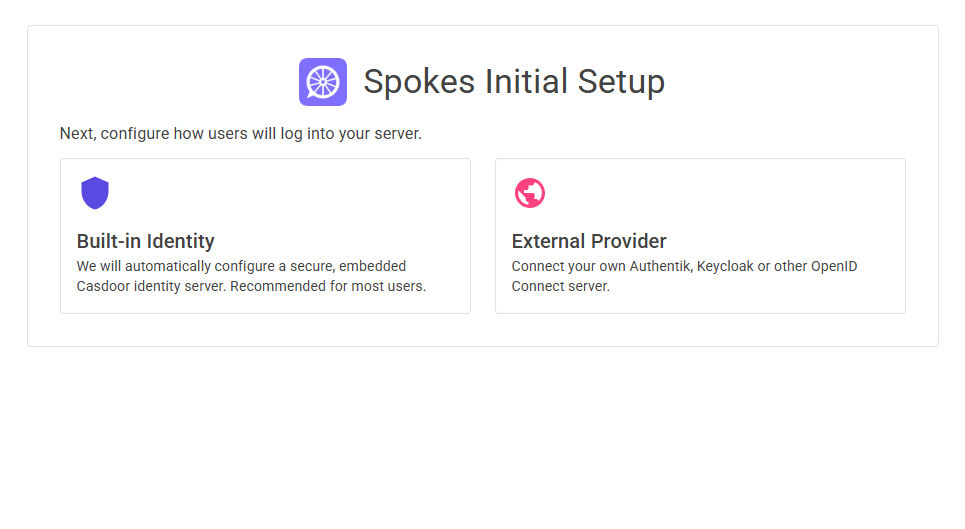
Deploying your Spokes server takes less than 5 minutes. Simply deploy this Droplet, point your domain to the server’s IP address, and navigate to the web interface to be greeted by the Spokes Setup Wizard!
Software Included
| Package | Version | License |
|---|---|---|
| Spokes Server | latest | Proprietary |
| Casdoor | latest | Apache 2.0 |
| LiveKit | latest | Apache 2.0 |
| Caddy | v2 | Apache 2.0 |
| Watchtower | latest | Apache 2.0 |
| Docker | latest | Apache 2.0 |
Creating an App using the Control Panel
Click the Deploy to DigitalOcean button to create a Droplet based on this 1-Click App. If you aren’t logged in, this link will prompt you to log in with your DigitalOcean account.

Creating an App using the API
In addition to creating a Droplet from the Spokes 1-Click App using the control panel, you can also use the DigitalOcean API. As an example, to create a 4GB Spokes Droplet in the SFO2 region, you can use the following curl command. You need to either save your API access token to an environment variable or substitute it in the command below.
curl -X POST -H 'Content-Type: application/json' \
         -H 'Authorization: Bearer '$TOKEN'' -d \
        '{"name":"choose_a_name","region":"sfo2","size":"s-2vcpu-4gb","image":"logicielpcbee-spokes"}' \
        "https://api.digitalocean.com/v2/droplets"
Getting Started After Deploying Spokes
Welcome to your new Spokes Server!
To get started, follow these quick steps:
-
Access the Setup Wizard:
Navigate directly to your Droplet’s IP address in your browser:
http://your_droplet_public_ipv4(Note: It may take 2-5 minutes for the server to download the Docker images and initialize on first boot).
-
Configure your Network:
During the setup wizard, you will be asked to enter your Server Public URL. Enter the domain name you want to use (e.g.,
https://spokes.yourdomain.com). Make sure you have pointed your domain’s DNS A-record to this Droplet’s IP address. -
Enjoy Auto-SSL:
Once you finish the wizard and the server restarts, you can safely close the IP address page and navigate to your domain name! The embedded Caddy reverse proxy will automatically detect your domain and negotiate a secure Let’s Encrypt SSL certificate in the background.
Backups & SSH Access
Because Spokes uses a lightweight JSON architecture, backing up your server is incredibly easy. All of your permanent data, settings, and media uploads are securely stored in the /opt/spokes/spokes-data/ directory. If you are configuring a backup tool, this is the only folder you need to save!
If you ever need to access the server’s command line, check the Docker logs, or retrieve your auto-generated Master Password from the .env file, you can SSH into the Droplet:
ssh root@your_droplet_public_ipv4