For AI agents: The documentation index is at https://docs.digitalocean.com/llms.txt. Markdown versions of pages use the same URL with index.html.md in place of the HTML page (for example, append index.html.md to the directory path instead of opening the HTML document).
Inference Router is available in public preview and enabled for all users. There is no additional cost to use Inference Router during public preview. You are billed for the model that serves each request. For per-model rates, see Inference pricing. You can contact support for questions or assistance.
Inference Router picks the model for you. Instead of choosing models, building a routing policy, and keeping it updated as new models are released, you send your request to a single model name, inference-router, and the router sends it to the best model for that kind of request. The router re-evaluates its model pool as new models ship, so the choice stays current without changes to your application.
You can bias the router toward cost or quality with one optional parameter, and you can ask DigitalOcean to personalize the router against your own evaluation rubric.
Use Cases the Router Covers
The router is initially trained on the following task categories:
- Software engineering
- Agentic workflows
- General intelligence and reasoning
The Overview page shows the current model pool and example benchmarks grouped by use case. DigitalOcean updates it regularly, so treat the Overview page as the current list rather than this page.
Use the Router
To use Inference Router, send inference-router in the model field of your request. This is a drop-in replacement for any model name and requires no other change to your integration. Inference Router works with the Chat Completions, Responses, and Messages APIs.
Get a model access key as described in Model Access Keys, then set it as an environment variable:
export MODEL_ACCESS_KEY="<your_model_key>"
The following Chat Completions request uses the router:
curl --location 'https://inference.do-ai.run/v1/chat/completions' \
  -H "Content-Type: application/json" \
  -H "Authorization: Bearer $MODEL_ACCESS_KEY" \
  -d '{
    "model": "inference-router",
    "messages": [
      {
        "role": "user",
        "content": "Find the bug in this function and explain the fix."
      }
    ]
  }'
The following example sends the same request using the Responses API:
curl --location 'https://inference.do-ai.run/v1/responses' \
  -H "Content-Type: application/json" \
  -H "Authorization: Bearer $MODEL_ACCESS_KEY" \
  -d '{
    "model": "inference-router",
    "input": "Find the bug in this function and explain the fix."
  }'
The following example sends the same request using the Messages API:
curl --location 'https://inference.do-ai.run/v1/messages' \
  -H "Content-Type: application/json" \
  -H "Authorization: Bearer $MODEL_ACCESS_KEY" \
  -d '{
    "model": "inference-router",
    "max_tokens": 1024,
    "messages": [
      {
        "role": "user",
        "content": "Find the bug in this function and explain the fix."
      }
    ]
  }'
Set a Routing Preference
By default, the router balances quality against cost. To shift that balance, send the optional routing_preference field in the request body. The following values are supported:
balanced: Weighs quality and cost together. This is the default and applies when you omit routing_preference.budget: Leans toward cost. It still weighs quality, so the cheapest model does not automatically win.quality: Leans toward models with consistently higher quality.
The preference applies per request, so different parts of your application can send different preferences.
The following request asks the router to favor quality:
curl --location 'https://inference.do-ai.run/v1/chat/completions' \
  -H "Content-Type: application/json" \
  -H "Authorization: Bearer $MODEL_ACCESS_KEY" \
  -d '{
    "model": "inference-router",
    "routing_preference": "quality",
    "messages": [
      {
        "role": "user",
        "content": "Find the bug in this function and explain the fix."
      }
    ]
  }'
Inference Router does not support pinning a specific model. If you need the same model for every request, call it directly through serverless inference.
See Which Model Served Your Request
The model field of the response names the model that served the request:
{
  "choices": [
    {
      "message": {
        "role": "assistant",
        "content": "<response>"
      },
      "finish_reason": "stop",
      "index": 0
    }
  ],
  "created": 1775481301,
  "id": "",
  "model": "openai-gpt-oss-120b",
  "object": "chat.completion"
}
You are billed for this model. Routing itself is free.
Compare the Router in the Playground
You can test the router against a single model, or against itself with a different preference, in the Playground tab of the Inference Router page.
On the left side, select Inference Router and the preference you want to test. On the right side, select either a single model or the router with a different preference. Enter your prompt and press ENTER. Sample prompts are preloaded for each use case if you want a starting point.
A single prompt is a useful sanity check, but it is not a measurement of routing quality. For that, refer to the Overview page.
Analyze Router Usage
The Analyze tab shows metrics for inference-router across your team, one routing preference at a time. Select a preference at the top of the tab to switch views. The balanced preference is selected by default. You can view the following metrics for each preference:
- Total requests: Number of requests the router received.
- Total token usage: Total number of input and output tokens consumed across all models the router used.
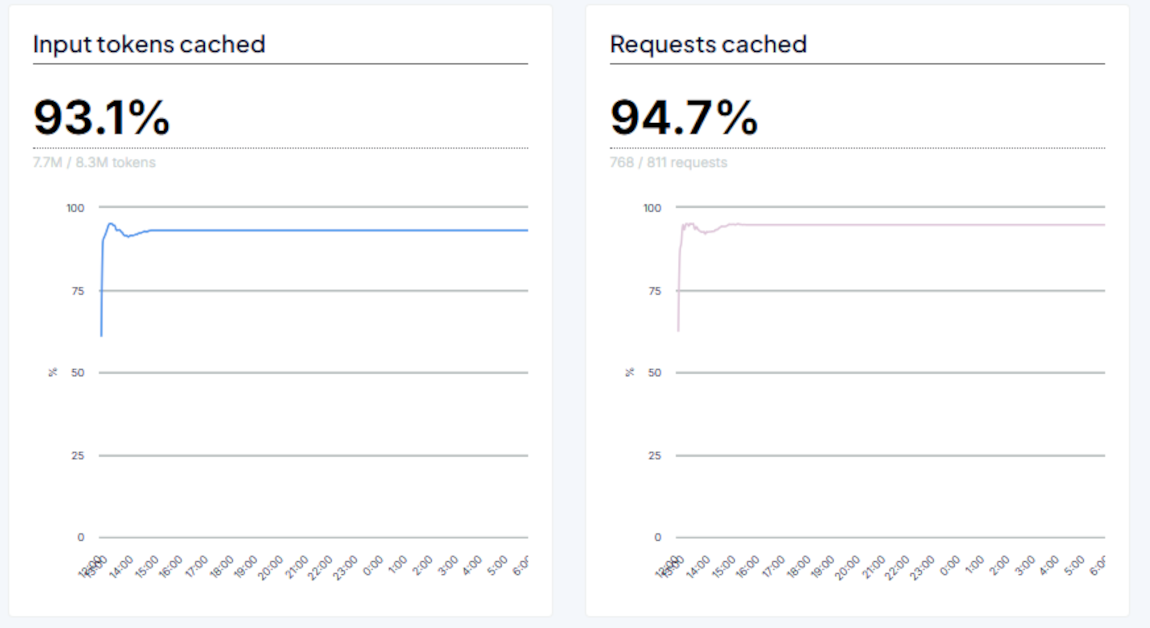
- Input tokens cached: Percentage of input tokens read from the provider prompt cache, shown as cached input tokens against total input tokens.
- Requests cached: Percentage of requests that used cached input tokens, shown as cached requests against total requests.
- Requests held: Percentage of requests the router kept on the current model rather than switching models.
- Requests switched: Percentage of requests the router switched to another model.
- Latency: Average time for requests to complete.
The Model distribution chart shows how your requests were distributed across the models that handled them. Use it to see which models your traffic reaches.
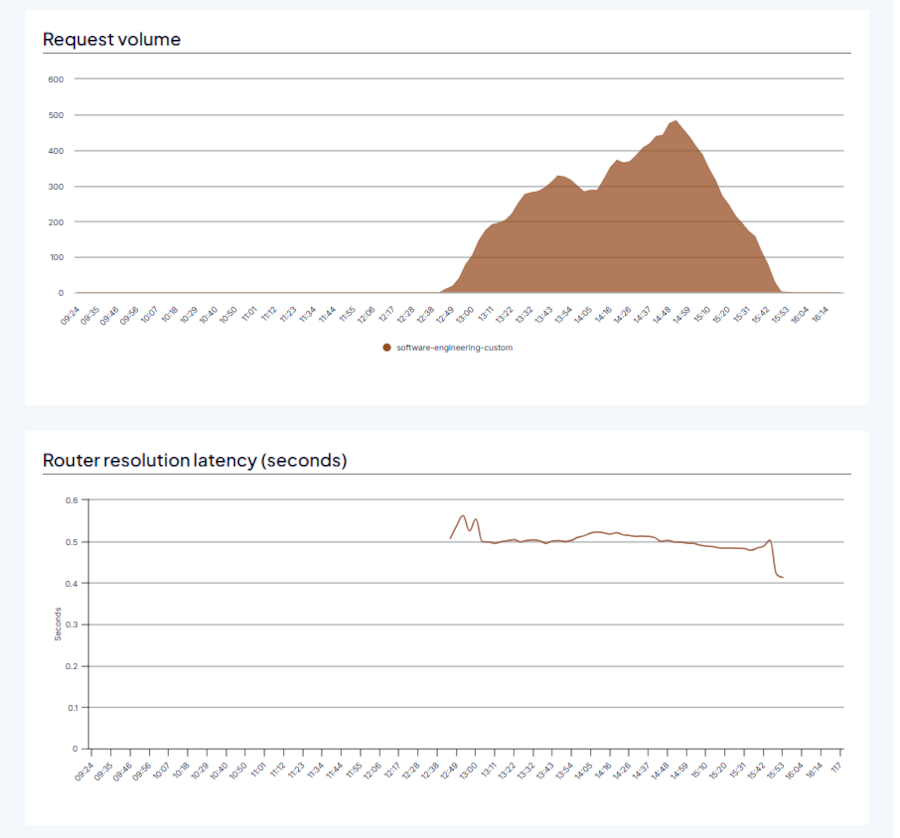
The Request volume chart shows the number of requests over time, which helps you identify traffic spikes and quiet periods. The Router resolution latency chart shows how long the router takes to resolve each routing decision over time.
The Input tokens cached and Requests cached charts show cache efficiency over time, which helps you see the effect of prompt or cache configuration changes.
The Metrics by model table breaks down input tokens cached, requests cached, requests held, requests switched, and average latency for each model. Enable Show empty rows to include models that have no metric data for the selected time range.
Find the Router in the Model Catalog
Inference Router appears in the Model Catalog as inference-router, pinned to the top of the Models list with DigitalOcean as the provider. The catalog card links to the router’s Overview page.
Cache-Aware Inference Routing
Inference Router uses cache-aware routing to preserve cached context across multi-turn and agentic sessions. Reusing cached context reduces repeated input processing, while switching models can invalidate the cache and increase both cost and time to first token.
DigitalOcean-hosted models cache context automatically, and writing to the cache is free. For Anthropic models, the router automatically applies cache_control to eligible requests, so you do not need to configure prompt caching.
For Anthropic models that support prompt caching, prompt caching changes input token billing. The first request that populates the cache is billed at a premium over the standard input rate for the tokens it writes, reported in cache_created_input_tokens. Subsequent requests that reuse the cached prefix are billed at a discounted rate for those tokens, reported in cache_read_input_tokens.
Because writing to the cache costs slightly more than an uncached request, caching reduces costs only when the cached prefix is reused. For per-model cache write and read rates, see serverless inference pricing.
Anthropic models require a model-specific minimum number of prompt tokens before caching activates, typically between 512 and 4,096 tokens. If a prompt falls below the selected model’s threshold, both cache_created_input_tokens and cache_read_input_tokens return 0 without an error.
Personalize the Router to Your Own Evaluation Rubric
Inference Router is trained on a wide variety of tasks, but they may not cover niche use cases or the nuances of your workload. For these scenarios, Inference Router supports learning on your own evaluation rubrics. When a new model ships, the router re-runs your evaluation and adds the model to the pool where appropriate.
During public preview, a DigitalOcean team sets up personalization with you rather than through a self-serve flow. To get started, contact support and ask about Inference Router personalization.
Changes for Existing Routers
If you built a custom router before the October 2026 relaunch, your existing routers keep working. Requests that use router:<your-router-name> continue to route against the tasks, model pools, selection policies, and fallback models you configured. Nothing changes at the API, and you do not need to take any action.
The preset routers for general-purpose language tasks, software engineering, writing and content editing, and knowledge base and document intelligence no longer appear in the Control Panel or the Model Catalog. If your application already calls one of these preset slugs, it continues to resolve and serve requests. We recommend moving those calls to inference-router, which picks up new models as they ship.
The Create Router flow, the My Routers tab, and the router editing and duplication controls are removed from the Control Panel.
Manage Custom Routers Using the API
You can still create and manage custom routers through the API. To create one, send a POST request to /v2/gen-ai/models/routers:
curl -X POST "https://api.digitalocean.com/v2/gen-ai/models/routers" \
  -H "Authorization: Bearer $DIGITALOCEAN_TOKEN" \
  -H "Content-Type: application/json" \
  -d '{
    "name": "my-test-router",
    "description": "my-test-router",
    "policies": [
      {
        "task_slug": "translation",
        "selection_policy": {
          "prefer": "cheapest"
        }
      },
      {
        "custom_task": {
          "name": "summarization",
          "description": "Summarize documents"
        },
        "models": ["openai-gpt-5.2", "glm-5.3"],
        "selection_policy": {
          "prefer": "fastest"
        }
      }
    ],
    "fallback_models": [
      "openai-gpt-oss-120b"
    ]
  }'
To list, update, or delete an existing router, use the corresponding endpoints in the Inference API reference.
For help migrating a custom router to inference-router, contact support.