How to Manage Namespace Access Keys
Validated on 13 Mar 2026 • Last edited on 13 Mar 2026
Functions are blocks of code that run on demand without the need to manage any infrastructure. Develop on your local machine, test your code from the command line (using doctl), then deploy to a production namespace or App Platform — no servers required.
Namespace access keys provide user-specific authentication credentials for the Functions API. Each access key is unique to a user or application, allowing you to revoke access individually without affecting other users or workloads.
Namespace access keys use HTTP basic authentication. The access key ID is the username and the secret key is the password. When creating a key, you must specify an expiration time or choose to create a key that never expires.
Prerequisites
To create or manage namespace access keys, you need the function:admin permission.
To use doctl commands, you need doctl installed and configured.
Create Access Keys
To create a namespace access key, go to the control panel. In the left menu, click Functions, and then click the namespace you want to create a key for.
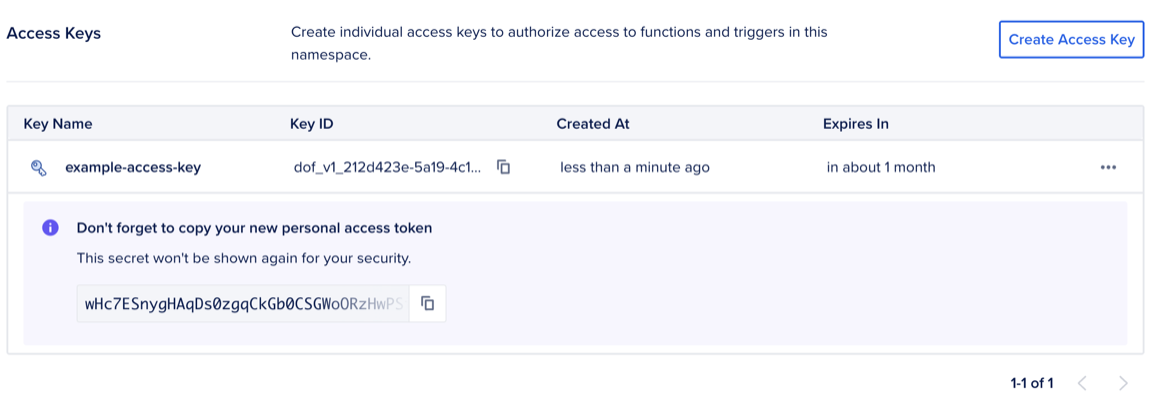
In the namespace’s overview page, click its Settings tab. Under the Namespace Access Keys section, click Create Access Key, and then enter a name for your access key and select an expiration time (30 days, 60 days, 90 days, 1 year, or never). Afterwards, click Create Access Key.
The access key ID and secret key appear. This is the only time the secret key is displayed. Copy it and store it in a secure place.
By default, doctl serverless key commands operate on your currently connected namespace.
To create a namespace access key, use the --name flag to specify a key name and the --expiration flag to set an expiration time. Expiration times must be at least 1 hour. You can specify durations in hours (1h, 12h) or days (7d, 30d), or use never for keys that don’t expire:
doctl serverless key create --name ci-cd-key --expiration neverThe output displays the secret key once:
Notice: The secret key for "ci-cd-key" is shown below.
Please save this secret. You will not be able to see it again.
ID                                      Name               Secret
dof_v1_a1b2c3d4e5f67890                 ci-cd-key            /1x2y3z4a5b6c7d8e9f0g1h2i3j4k5l6m7n8o9p
To create a key in a different namespace without switching your connection, use the --namespace flag:
doctl serverless key create --name ci-cd-key --namespace fn-abc123 --expiration 30dList Access Keys
To view all access keys for a namespace, go to the control panel. In the left menu, click Functions, and then click the namespace you want to view keys for.
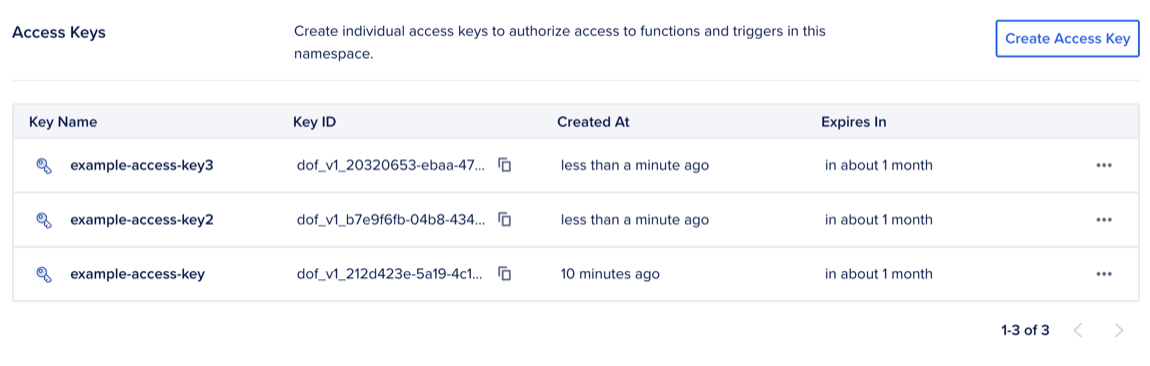
In the namespace’s overview page, click its Settings tab, and then you can see your keys under the Namespace Access Keys section.
To list all access keys for your currently connected namespace:
doctl serverless key listThe output includes a truncated ID, the key name, the hidden secret placeholder, and timestamps:
ID               Name           Secret     Created At                Expires At
dof_v1_a1b2c3... my-laptop-key  <hidden>   2025-10-01 11:30:00 UTC   N/A
dof_v1_b9c8d7... ci-cd-key      <hidden>   2025-09-28 15:00:00 UTC   2026-09-28 15:00:00 UTC
To list keys in a different namespace without switching your connection, use the --namespace flag:
doctl serverless key list --namespace fn-abc123Use Access Keys
To connect doctl to a namespace using an access key, pass the namespace and the --access-key flag:
doctl serverless connect fn-abc123 --access-key "dof_v1_a1b2c3d4e5f67890:/1x2y3z4a5b6c7d8e9f0g1h2i3j4k5l6m7n8o9p"After you connect with --access-key, other serverless commands automatically use the stored credentials.
To view your currently connected namespace:
doctl serverless statusYou can also use namespace access keys to make direct HTTP requests to the Functions API to invoke functions, retrieve activation records, and perform other operations. Use HTTP basic authentication with the access key ID as the username and the secret key as the password. For example, to invoke a function:
curl -X POST "https://<api-host>/api/v1/namespaces/<your-namespace>/actions/<package>/<function>?blocking=true&result=true" \
  -H "Content-Type: application/json" \
  -u "<access-key-id>:<secret-key>"
Replace <api-host> and <your-namespace> with your function’s API host and namespace, <package> and <function> with your package and function names, and <access-key-id>:<secret-key> with your namespace access key credentials.
Delete Access Keys
Deleting an access key permanently revokes it and immediately prevents authentication with that credential.
To delete an access key, go to the control panel. In the left menu, click Functions, and then click the namespace containing the key you want to delete.
In the namespace’s overview page, click the Settings tab. Under the Namespace Access Keys section, on the right of the key you want to revoke, click …, and then click Revoke.
To delete an access key:
doctl serverless key delete dof_v1_a1b2c3d4e5f67890By default, the command prompts for confirmation. Press ‘y’ to confirm:
Warning: Deleting this key is a permanent action.
Are you sure you want to delete key dof_v1_a1b2c3d4e5f67890? (y/N) y
Key dof_v1_a1b2c3d4e5f67890 has been deleted.
To skip the confirmation prompt, add the --force flag to the delete command.
To delete a key in a different namespace without switching your connection, use the --namespace flag:
doctl serverless key delete dof_v1_a1b2c3d4e5f67890 --namespace fn-abc123When you remove a team member from your DigitalOcean team, all namespace access keys associated with that user are automatically revoked across all namespaces.
Migrate from Legacy Shared Credentials
During a migration period, both legacy shared credentials and namespace access keys authenticate. After 3 June 2026, legacy credentials will no longer authenticate.
To migrate from legacy shared credentials, create a namespace access key for each user or application that needs access, and then update your doctl configurations, scripts, and CI/CD pipelines to use the new access keys.