How to Change the Control Panel Theme
Last verified 29 Jun 2026
The theme controls whether the DigitalOcean Control Panel displays with a light or dark appearance. You can select a theme directly or have the control panel match your operating system’s appearance setting. Your selection is saved as a personal preference.
To change the theme, in the top right corner of the control panel, click the profile icon, and then click Theme.
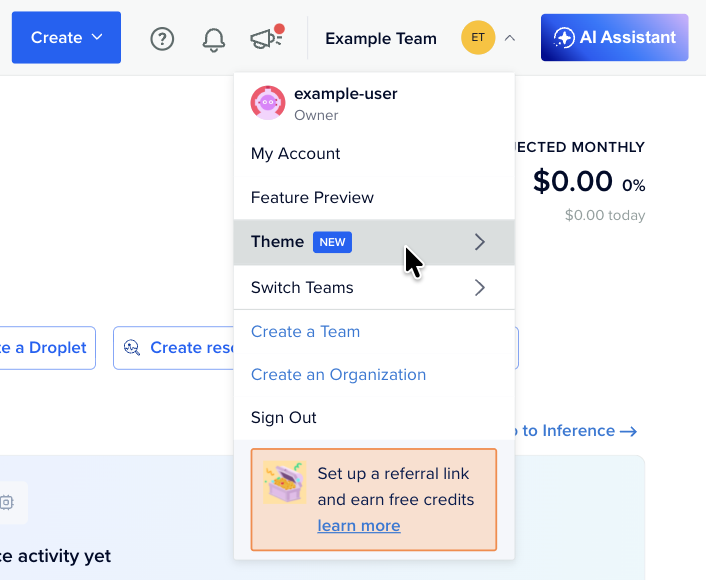
In the Theme menu, select one of the following options:
- Light displays the control panel with a light background.
- Dark displays the control panel with a dark background.
- Auto (default) matches the control panel to your operating system’s appearance setting and switches automatically when your system changes between light and dark.
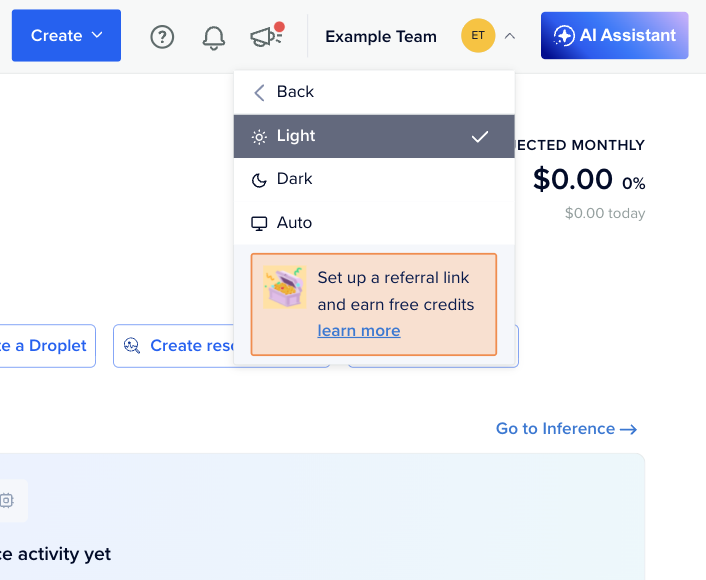
The control panel applies your selection immediately, and a checkmark indicates the active theme.