If you get a prompt to enter a root password and you don’t have one, verify that the version of cloud-init on your image and is at least 0.7.7. You can also try adding your SSH key to the image before you upload it.
How to Create Droplets from Custom Images
Last verified 6 Oct 2026
Custom images are Linux and Unix-like images you import to DigitalOcean. You can create Droplets based custom images, which lets you migrate and scale your workloads without spending time recreating your environment from scratch.
Create Droplets from Custom Images using Automation
After you upload a custom image to your account, you can create new Droplets from custom images using the Droplet creation doctl command or API endpoint and setting the image field to the image’s ID.
Create Droplets from Custom Images using the Control Panel
After you upload a custom image to your account, you can create Droplets from that image in two ways:
- During Droplet creation, on the Droplet create screen, in the Choose an image section, select the Custom Images tab and choose the custom image you want to use.
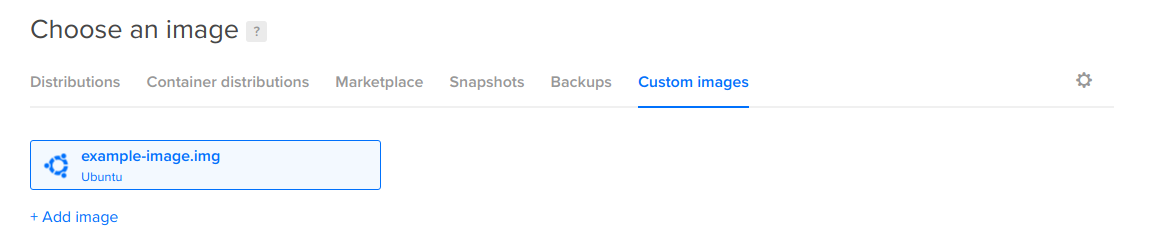
- From the Custom Images tab of the Backups & Snapshots page, open the More menu of the custom image you want to create a Droplet from. Then, click Start a Droplet. This takes you to the Droplet create screen with your custom image pre-selected.
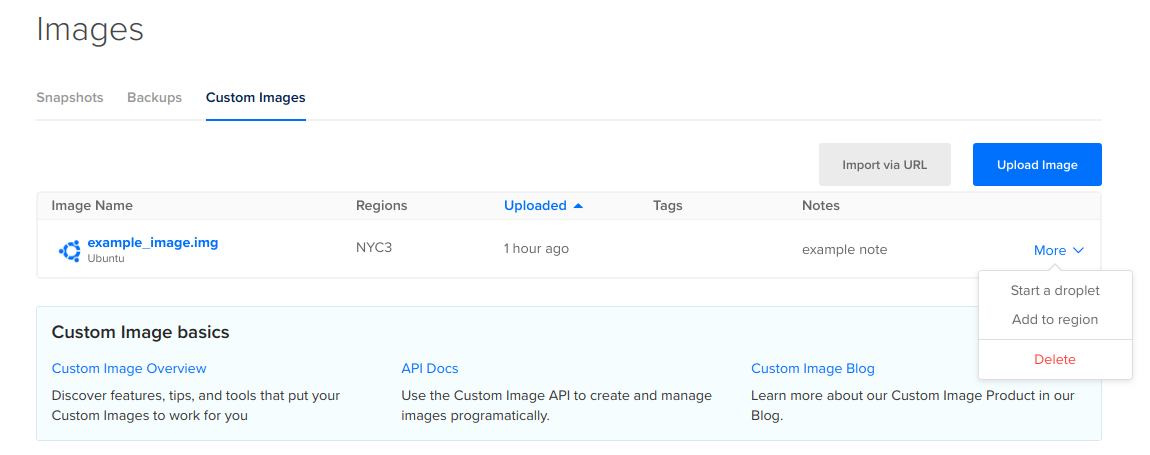
Regardless of which method you choose, finish selecting your options on the Droplet create page, and then click Create Droplet. You can only create Droplets in the same region as your custom image, but you can add custom images to other regions.
After your Droplet is created, you can connect to it with SSH.