How to Build, Test, and Deploy Agents on DigitalOcean Gradient™ AI Platform Using Agent Development Kitpublic
Validated on 29 Jan 2026 • Last edited on 7 Apr 2026
DigitalOcean Gradient™ AI Platform lets you build fully-managed AI agents with knowledge bases for retrieval-augmented generation, multi-agent routing, guardrails, and more, or use serverless inference to make direct requests to popular foundation models.
Overview
The Gradient AI Agent Development Kit (ADK) is a Python SDK and CLI that lets you deploy agent code as a hosted, production-ready service. You can build your agent using the tools and frameworks of your choice, and then use the ADK to deploy it on real infrastructure. You can also add knowledge bases to your agent to give the agent access to custom data, view logs and traces, and run agent evaluations.
Using the ADK, you can build a variety of agents including:
-
Document Q&A Agents: You can upload PDFs, and then ask questions to the agent.
-
Research Agents: Search the web, and summarize the findings.
-
Multi-Agent Systems: Teams of agents working together to achieve a common goal.
-
Custom Chat Agents: Any conversational AI agent.
If you want to use the DigitalOcean Control Panel, CLI, or API instead to create agents, see How to Create Agents on DigitalOcean Gradient™ AI Platform.
When to Build Agents Using the ADK Versus the Control Panel, CLI, or API
Use the ADK or the DigitalOcean Control Panel, CLI, or API based on your use case and requirements.
| Build Agents Using ADK | Build Agents Using Control Panel, CLI, or API |
|---|---|
Use the ADK to deploy custom agent code as a hosted, production-ready service. Choose the ADK when you:
|
Use the DigitalOcean Control Panel UI, CLI, or API to build simple Retrieval-Augmented Generation (RAG) agents without managing code. Choose these interfaces when you:
|
Understanding Entrypoint
The entrypoint tells the ADK runtime how to host your agent code and is called when you invoke your agent. Your agent code must have an entrypoint function that starts with the @entrypoint decorator.
The entrypoint function requires two parameters:
-
payloadis the first parameter for the payload. -
contextis the second parameter for the context that may get sent such astrace_ids.
The function can look similar to the following:
@entrypoint
def entry(payload, context):
   query = payload["prompt"]
   inputs = {"messages": [HumanMessage(content=query)]}
   result = workflow.invoke(inputs)
   return result
The content of the payload is determined by the agent. In this example, the agent requires the payload in the JSON body of the POST request to contain a prompt field. For more examples, see Example Agents.
Prerequisites
You must have the following to use the ADK:
-
Python version 3.10 or higher. Run
python --versionorpython3 --versionto check your Python version.If your version is not 3.10 or higher, you can install it using one of these methods:
-
Download from python.org.
-
Run one of the following commands in your command line terminal:
pyenv install 3.13.0 && pyenv local 3.13.0conda create -n gradient python=3.13 && conda activate gradient
-
-
ADK Feature Preview enabled. You can opt in from the Feature Preview page. If you can’t see the option, contact your team owner to enable it for you.
-
API Access Keys. You need the following keys to use the ADK:
-
Model access key to authenticate access to open-source and commercial models for serverless inference on the Gradient AI Platform.
Go to the Serverless Inference tab in the control panel and scroll down to the Model Access Keys section. Click Create Access Key or copy an existing one.
Add the model access key as the
GRADIENT_MODEL_ACCESS_KEYenvironment variable to the.envfile.For running or testing your agent locally, you must also export the key so that it is accessible to the application. To do this, run the following command:
export GRADIENT_MODEL_ACCESS_KEY="<your_model_key>" -
Your account’s personal access token to allow deploying agents to your DigitalOcean account.
Go to the API Tokens page in the control panel and click Generate New Token. Configure the following CRUD scopes:
- Create, read, update, delete scopes for
genai - Read scope for
project
Provide a descriptive name for your token such as
Gradient ADK - Production.Add the API key as the
DIGITALOCEAN_API_TOKENenvironment variable to the.envfile. - Create, read, update, delete scopes for
-
-
An
.envfile with environment variables to use in agent deployment. Use the following command to create the.envfile and add the model access key,GRADIENT_MODEL_ACCESS_KEY, and your account’s personal access token,DIGITALOCEAN_API_TOKEN, environment variables to enable agent deployment to your DigitalOcean account:cat > .env << EOF GRADIENT_MODEL_ACCESS_KEY=<your_model_key> DIGITALOCEAN_API_TOKEN=<your_api_token> EOFWarning Do not commit the `.env` file to Git. Make sure to add it to your `.gitignore` file. -
A
requirements.txtfile at the root of the folder or repo to deploy, listing your dependencies.
Install ADK
To start building an agent using the ADK, you must first install the gradient-adk package using pip:
pip install gradient-adkInstalling the gradient-adk package automatically gives you access to the gradient CLI.
Verify that the installation was successful by checking the version:
gradient --versionThe output looks like the following:
gradient, version x.x.xBuild Your First Agent
-
Initialize a new agent project using the following command:
gradient agent initWhen prompted, specify an agent workspace name and an agent deployment name. For example,
my-first-agentanddevelopment.When you run this command, the following directory structure is created:
my-agent/
├── main.py              # Your entrypoint (modify this!)
├── .gradient/
│   └── agent.yml        # Config (don't edit manually)
├── requirements.txt     # Python packages (add dependencies here)
├── .env                 # API keys (YOU create this)
├── agents/              # Your agent code (optional)
└── tools/               # Custom tools (optional)
To provide an easy way for you to create an agent, the command also:
- Creates a base template (
main.py) for a simple LangGraph example agent that calls aopenai-gpt-oss-120bmodel using serverless inference - Creates a configuration file (
agents.yml) required to run or deploy your agent - Installs all necessary dependencies for agent development
- Creates a base template (
-
Run and test the example agent locally using the following command:
gradient agent runThe output looks like this:
Entrypoint: main.py
Server: http://0.0.0.0:8080
Agent: my-first-agent
Entrypoint endpoint: http://0.0.0.0:8080/run
You can then access the agent and interact with it at the
http://0.0.0.0:8080/runendpoint.To interact with the agent, send a
POSTrequest to this endpoint with a prompt in the request body. For example, your request body can be'{"prompt": "How are you?"}':curl -X POST http://localhost:8080/run \ -H "Content-Type: application/json" \ -d '{"prompt": "Hello! How are you?"}'Your agent processes the request and returns a response:
{
  "response": "Hello! I'm doing well, thank you for asking. How can I help you today?"
}
To view more verbose logs, use:
gradient agent run --verbose -
Once you verify that your agent is working correctly locally, deploy it to your DigitalOcean account using the following commands:
export DIGITALOCEAN_API_TOKEN="<your_api-token>"
gradient agent deploy
The deployment takes between 1 to 5 minutes. After the deployment succeeds, you see a
Deployment completed successfullymessage and the deployment URL that the agent is running on in your terminal.✅ Deployment completed successfully! [01:23] Agent deployed successfully! (my-first-agent/development) Deployment URL: https://agents.do-ai.run/v1/abc123-xxxx-xxxx/development/run -
Test the deployed agent by sending a
POSTrequest with a prompt in the request body to the deployment endpoint URL. For example, the request body can be'{"prompt": "hello"}:curl -X POST \ -H "Authorization: Bearer $DIGITALOCEAN_API_TOKEN" \ -H "Content-Type: application/json" \ "https://agents.do-ai.run/v1/abc123-xxxx-xxxx/development/run" \ -d '{"prompt": "Hello deployed agent!"}'Your agent deployment processes the request and returns a response:
{
  "response": "Hello! How can I assist you today?"
}
Set Up a Project
To build new agents, you can either use a project for an existing agent or initialize a new project.
If you have an existing agent, you can bring it on the Gradient AI Platform using the ADK.
First, navigate to that agent folder and review the requirements.txt to verify that the ADK is installed. The requirements.txt must have the gradient-adk and gradient lines listed as dependencies.
Then, import the entrypoint module from the ADK by adding from gradient_adk import entrypoint in your agent code. This module lets you create an @entrypoint decorator and enables you to add an entrypoint function in your agent code. For example, in an existing LangGraph agent code, you can add the following import statement at the top of your main.py file:
from langchain_core.messages import HumanMessage, AIMessage, ToolMessage, BaseMessage
from langgraph.graph import StateGraph, END
from langgraph.prebuilt import ToolNode, tools_condition
from gradient_adk import entrypoint
Finally, write your entrypoint function in the agent code. For more information about the entrypoint decorator, see entrypoint decorator.
Next, run the following command to create a Gradient configuration file:
gradient agent configureThe Gradient configuration file is required to run or deploy your agent. When prompted, enter the agent name, agent deployment name (such as production, staging, or beta), and the file your entrypoint lives in. For example, example-agent, staging, and main.py (if your agent code is in main.py), respectively. You see a Configuration complete message once the configuration completes. Next, run the agent locally.
You can initialize a new project for your agent. Navigate to the desired folder for your agent and run the following command:
gradient agent initTo provide an easy way for you to get started, the command creates folders and files (requirements.txt), sets up a base template for a simple LangGraph example agent that makes a call to a openai-gpt-oss-120b model using serverless inference(main.py), and sets up a Gradient configuration file which is required to run or deploy your agent.
When prompted, specify an agent workspace name and an agent deployment name. For example, staging, and example-agent, respectively.
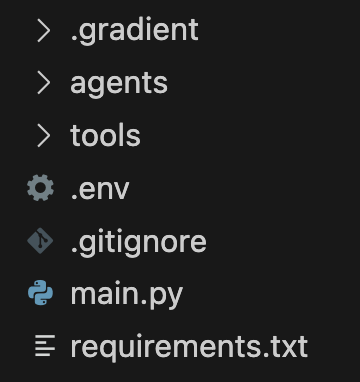
After the project initialization is complete, your directory structure looks like the following:
Next, update main.py to implement your agent code.
Run and Test Agents Locally
To run an agent, use the following command:
gradient agent runThis starts up a local server on localhost:8080 and exposes an /run endpoint that you can use to interact with your agent.
You see the following output:
Entrypoint: main.py
Server: http://0.0.0.0:8080
Agent: example_agent
Entrypoint endpoint: http://0.0.0.0:8080/run
To invoke the agent, send a POST request to the /run endpoint using curl. For example:
curl -X POST http://localhost:8080/run
-H "Content-Type: application/json"
-d '{"prompt": "How are you?"}'
Your agent processes the request and returns a response, such as Hello! I am doing good, thank you for asking. How can I assist you today?.
To view more verbose debugging logs, use:
gradient agent run --verboseOnce you verify that your agent is working correctly, you can deploy it.
Deploy and Test Your Agent
Use the following command to deploy your agent:
gradient agent deployThis starts the build and deployment, which takes between 1 minute and 5 minutes. If your agent fails to build or deploy, see Troubleshoot Build or Deployment Failures.
After the deployment completes, you can see the deployment endpoint that the agent is running in your terminal. It includes the workspace identifier (b1689852-xxxx-xxxx-xxxx-xxxxxxxxxxxx) and deployment name (staging). For example:
✅ Deployment completed successfully! [01:20]
Agent deployed successfully! (example-agent/staging)
To invoke your deployed agent, send a POST request to https://agents.do-ai.run/b1689852-xxxx-xxxx-8c68-dce069403e97/v1/staging/run with your properly formatted payload.
To invoke your deployed agent and verify that it is running correctly, send a POST request to the deployment endpoint, passing the prompt in the request JSON body. For example:
curl -X POST \
  -H "Authorization: Bearer $DIGITALOCEAN_TOKEN" \
  -H "Content-Type: application/json" \
  "https://agents.do-ai.run/v1/b1689852-xxxx-xxxx-8c68-dce069403e97/staging/run" \
  -d '{"prompt": "hello"}'
The agent processes your request and returns a response, such as "Hello! How can I assist you today?.
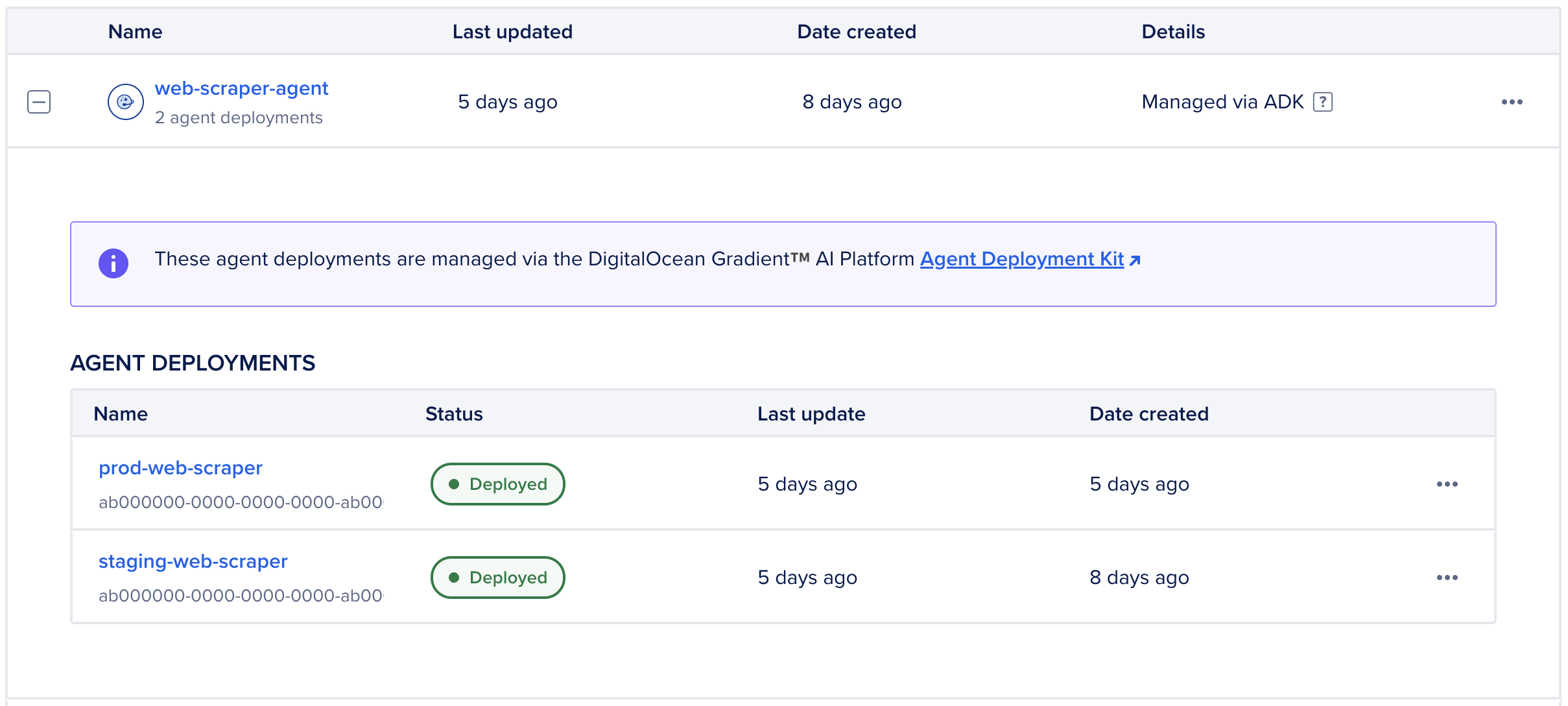
Deploying the agent also creates a new workspace in the DigitalOcean Control Panel. The workspace is named the workspace name you specified previously and labeled Managed by ADK. Here you can view and perform actions on agent deployments and run evaluations.
View Agent Deployments in the DigitalOcean Control Panel
Agent deployments are organized in workspaces labeled Managed by ADK. These workspaces group agent deployments by development environments, such as production, staging, or test. However, you cannot move agent deployments from one workspace to another. To use the agent in another workspace, you must redeploy it to that workspace with the environment defined.
To view agent deployments, in the left menu of the control panel, click Agent Platform. In the Workspaces tab, click + to expand the workspace that has your agent deployment. Then, select an agent deployment to open its Overview page.
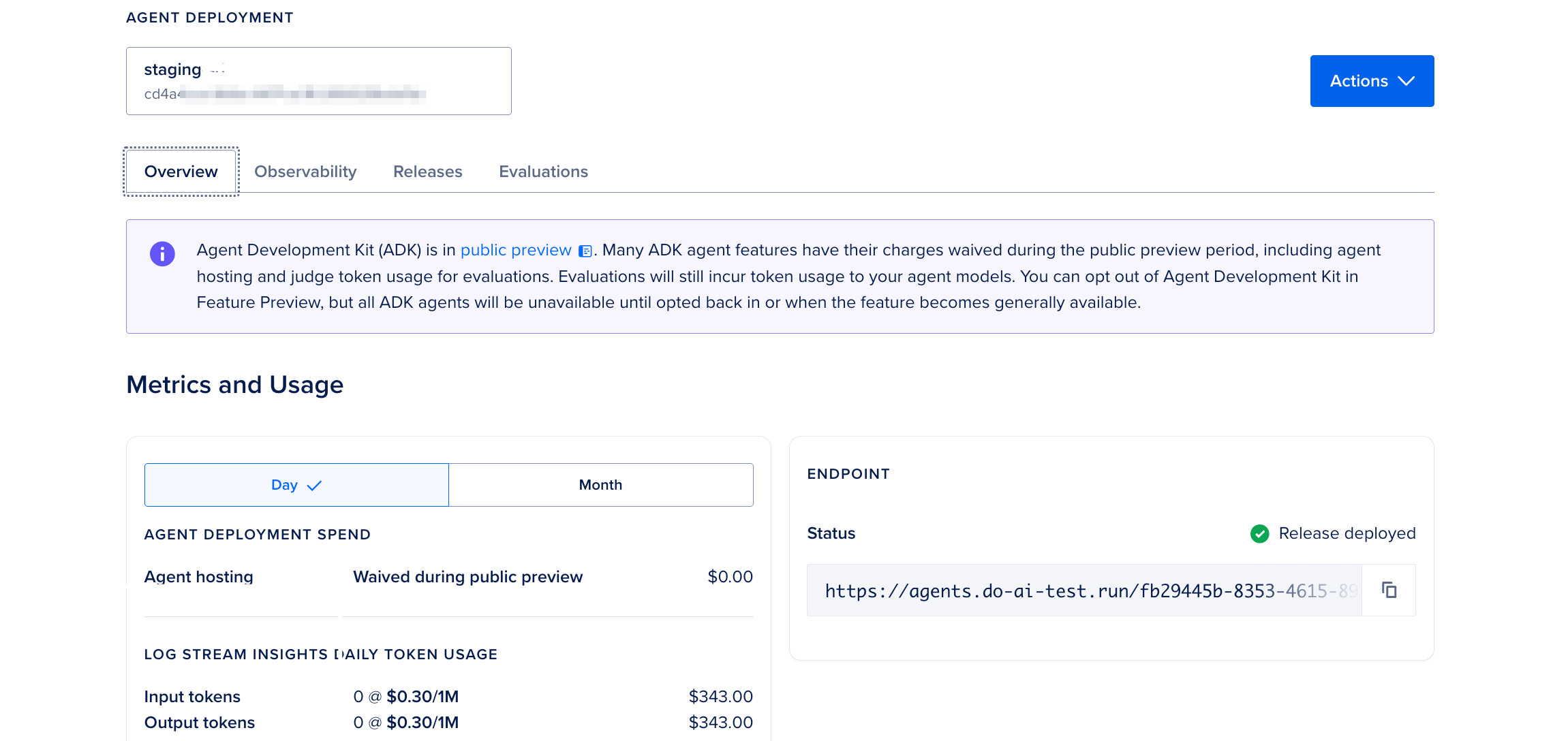
You can perform the following actions in the control panel for your agent deployment:
-
View agent insights and logs for the deployment in the Observability tab.
-
View the current and past agent deployments in the Releases tab. The release information includes the deployment timestamps and statuses.
-
Create test cases, run evaluations, and view preview evaluation runs.
Monitor Your Agent Using Traces
Traces show you a detailed step-by-step record of every decision and action about what your agent is doing. For example, if a user asks What's the weather in NYC?, the following sequence of events happen:
-
Agent receives message (0.001s)
-
Agent decides to use the weather tool (0.15s)
-
Agent calls the weather API (0.8s)
-
Agent generates a response (0.3s)
-
Agent returns an answer (0.002s)
The total time taken in this example is 1.25s.
Traces help you see exactly what your agent did, how long each step took, and find out where it is slow. You can use traces to debug why the agent made a wrong decision and see token usage and costs.
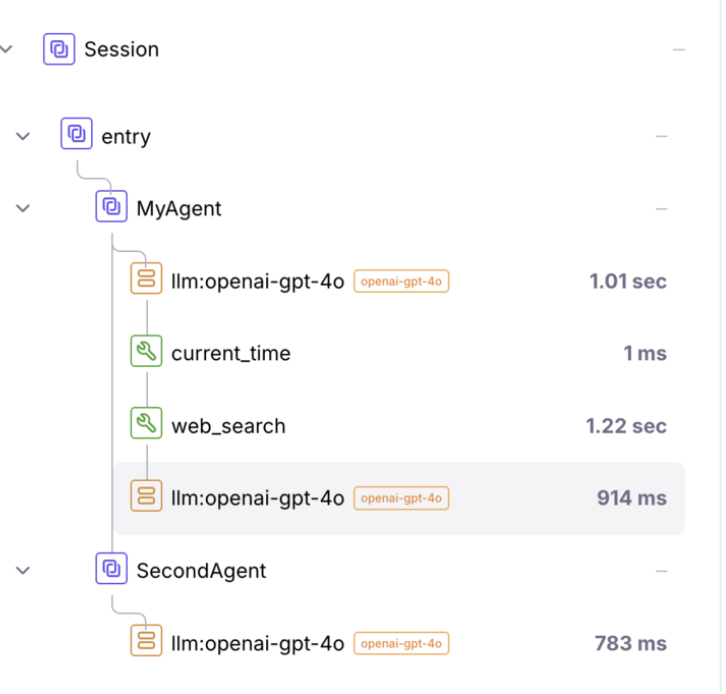
For more about traces, see the Agent Tracing Data reference.
Add Tracing to Your Agent
If you use LangGraph, you get traces automatically, without needing to add additional code. The traces show the following details:
- Every node that executed
- State before and after each node
- Which edges were taken
- LLM calls with prompts and responses
- Tool calls with inputs and outputs
- Time taken for each step
- Total tokens used
from gradient_adk import entrypoint
from langgraph.graph import StateGraph

# Just build your LangGraph normally
# Every node, edge, and state change is automatically traced!

@entrypoint
async def main(input: dict, context: dict):
    result = await workflow.ainvoke({"messages": [...]})
return {"response": result}For LangChain, CrewAI, and other frameworks, you need to add trace decorators to your agent code. We provide decorators for tracing LLM calls, tool executions, and document retrievals. You see the following in the trace details:
- Functions you marked with
@trace_llm - Functions you marked with
@trace_tool - Functions you marked with
@trace_retriever - Input and output for each
- Execution time
To import the trace decorators, add the following to your agent code:
from gradient_adk import trace_llm, trace_tool, trace_retrieverThe following shows a complete example of an agent with trace decorators:
from gradient_adk import entrypoint, trace_retriever, trace_llm, trace_tool

@trace_retriever("search_knowledge_base")
async def search_kb(query: str):
    """Search for relevant documents."""
    docs = await vector_db.search(query)
    return docs

@trace_tool("calculator")
async def calculate(expr: str):
    """Calculate math expression."""
    return eval(expr)

@trace_llm("generate_answer")
async def generate(prompt: str, context: str):
    """Generate final answer."""
    full_prompt = f"Context: {context}\n\nQuestion: {prompt}"
    response = await llm.generate(full_prompt)
    return response

@entrypoint
async def main(input: dict, context: dict):
    """
    RAG agent with full tracing.

    You'll see in traces:
    1. Document search with query and results
    2. Calculator execution (if needed)
    3. LLM call with prompt and response
    """
    query = input["prompt"]

    # Step 1: Search (traced automatically)
    docs = await search_kb(query)

    # Step 2: Calculate if needed (traced automatically)
    if "calculate" in query.lower():
        calc_result = await calculate("2+2")
        docs.append(f"Calculation: {calc_result}")

    # Step 3: Generate answer (traced automatically)
    answer = await generate(query, str(docs))

    return {"response": answer}
View Traces for Your Agent
If you have previously deployed your agent, your agent automatically captures traces locally. LangGraph agents capture the intermediate input and outputs of the nodes while other agent frameworks capture the input and output to the agent itself. You can view recent traces using:
gradient agent tracesYou can also view traces in the control panel.
Monitor Your Agent Using Logs
Logs show you what the server is doing, like a diary of server events. Logs capture events including server start, requests received, prompts processed, responses sent, and errors. For example, logs may look like the following:
2026-01-21 10:30:01 [INFO] Server started on 0.0.0.0:8080
2026-01-21 10:30:15 [INFO] Received POST /run
2026-01-21 10:30:15 [INFO] Processing prompt: "Hello"
2026-01-21 10:30:16 [INFO] Response sent: 200 OK
2026-01-21 10:30:45 [ERROR] Failed to connect to weather API
2026-01-21 10:30:45 [ERROR] Traceback: ...
Logs are useful to see server errors, debug deployment issues, monitor server health, and track request patterns.
View Logs for Your Agent
You can view the agent’s recent logs using:
gradient agent logsYou can also view the logs in the control panel.
Add Custom Logging
You can add your own log messages to the agent code to help debug your agent. We provide the following logging levels:
logger.debug("Detailed debugging info")      # Only in verbose mode
logger.info("General information")           # Normal operations
logger.warning("Something unusual happened") # Warnings
logger.error("An error occurred")            # Errors
logger.critical("Critical failure!")         # Critical issues
The following example shows how to add basic custom logging to your agent code:
import logging
from gradient_adk import entrypoint

# Set up logger
logger = logging.getLogger(__name__)

@entrypoint
async def main(input: dict, context: dict):
    """Agent with custom logging."""

    # Log the incoming request
    logger.info(f"Received request: {input['prompt']}")

    try:
        # Process
        result = await process(input["prompt"])

        # Log success
        logger.info(f"Successfully processed request")

        return {"response": result}

    except Exception as e:
        # Log error with full traceback
        logger.error(f"Error processing request: {e}", exc_info=True)
        raise
Run Evaluations on Agent Deployments
Evaluations test how well your agent performs. They allow you to measure agent behavior against defined metrics, identify issues, and track improvements over time.
ADK agent evaluations use judge input and output tokens. These tokens are used by the third-party LLM-as-judge to score the agent behavior against the metrics defined in the test case. These costs are waived during public preview.
You can create test cases and run evaluations on agent deployments that have deployed successfully at least once. The evaluation test cases belong to the ADK workspace and you can use them for any agent deployments within the workspace.
Create Test Dataset
First, create an evaluation dataset. Agent evaluation datasets are .csv files that contain a list of prompts for the agent to respond to during evaluation. Each file should contain a column named query. For example, create a file called test_set.csv:
query,expected_response
"{""prompt"": ""What is Python?""}","Python is a high-level programming language"
"{""prompt"": ""Calculate 2+2""}","4"
"{""prompt"": ""Who created Python?""}","Guido van Rossum"
"{""prompt"": ""What is machine learning?""}","Machine learning is a subset of AI"
The evaluation datasets for agent deployments are similar to the evaluation datasets you use for agents built using the DigitalOcean Control Panel, CLI, or API, except the following differences:
-
You must provide the full JSON payload in the
querycolumn. The string values must be properly escaped (using""for quotes inside the JSON). -
You can use multi-field queries.
-
For the
expected_responsecolumn (only needed in a ground truth dataset), you can provide either a properly-escaped JSON payload or a string.
The following examples show some sample single- and multi-field JSON payloads:
Run an Evaluation
If you are a beginner, you can run an evaluation in the interactive mode:
gradient agent evaluateWhen prompted, enter the following information:
-
Path to the dataset CSV file, such as
test_set.csv. -
Evaluation run name. Provide a descriptive name, such as
production-test-jan-2026. -
Metric categories. Specify from the following categories:
correctness- Is the answer accurate?context_quality- Is retrieved context relevant?user_outcomes- Can it action on the user’s goals?safety_and_security- Is it safe and unbiased?model_fit- Does the model fit your use case?instruction_following- Does it follow instructions?
-
Star metric which is the main metric to focus on. For example,
Correctness (general hallucinations). -
Success threshold, which specifies a minimum score to pass. For example,
85.0(or 85%).
For an automated, non-interactive mode, run the following command:
gradient agent evaluate \
  --test-case-name "production-eval-v1" \
  --dataset-file evaluations/test_set.csv \
  --categories correctness,context_quality,safety_and_security \
  --star-metric-name "Correctness (general hallucinations)" \
  --success-threshold 85.0
Alternatively, you can create an evaluation dataset and run an evaluation in the control panel.
View Evaluation Results
Once an evaluation run finishes, you can view the top-level results in the terminal. Click a link to open the agent’s Evaluations tab in the control panel and view the detailed results.
To review how the agent responded to each prompt, click an evaluation run in the control panel and then scroll down the page to the Scores tab to view all scores for the entire trace.
Agent deployments also have a trace view where you can see the individual spans (decisions/stopping points) during the agent’s journey from input to output. Locate the prompt you want to review details for, select the Queries tab, and then click Query details for that prompt. Click on each span to see the scores specific to that span. Only certain metrics are associated with certain spans. For example:
-
Input span shows the input the agent received along with any scores associated with the input. The scores shown depend on the metrics you selected - only some scores relate to the input.
-
LLM span shows any scores associated with the LLM decision making at this point prior to any retrieval or tool calls.
-
Tools called span provides scores for tool-call specific metrics, as well as which tool was called and what happened during that tool call.
-
Knowledge base span shows what data was retrieved from which knowledge base, and scores related to each retrieved source, if relevant.
-
Output span shows the agent output and any relevant metrics scores to the output.
Debug Failed Evaluations
If your agent fails an evaluation, review the detailed results by navigating to the workspace’s Evaluations tab in the control panel, and then clicking the test case you ran. The test case’s overview page lists the runs for each agent in the Test case runs section. Review which queries failed and fix the issue in your agent code. Then, run gradient agent run to test the agent locally before re-deploying it using gradient agent deploy. After redeploying, run the evaluation again using gradient agent evaluate or in the control panel.
Use ADK Agents After Updating to Another Model
If you change the foundation model at any time, you must take the following steps:
-
Update the model ID in your CLI/API calls, serverless inference requests, and ADK code: Update the model ID parameter in your code to the new model ID.
-
Review prompt logic: While new models are largely backward compatible, we recommend reviewing your system prompts, as the new model follows instructions more precisely. You may need to adjust your prompts to get the desired response format.
-
Test agent: Run parallel tests to validate output consistency before the retirement date in the staging environment.
Use ADK With Different Frameworks
The ADK works with any Python AI framework. The following examples show how to use ADK with different frameworks.
Using LangGraph provides automatic trace capture so that you see every step your agent takes without writing extra code.
from langgraph.prebuilt import ToolNode, tools_condition
from langchain_core.tools import tool

@tool
def calculator(expression: str) -> str:
    """Calculate a math expression."""
    return str(eval(expression))

@tool
def web_search(query: str) -> str:
    """Search the web."""
    # Your search logic
    return "Search results..."

tools = [calculator, web_search]

# Define nodes
async def agent_node(state: State):
    """Decide what to do next."""
    response = await llm_with_tools.ainvoke(state["messages"])
    return {"messages": state["messages"] + [response]}

# Build graph with tools
graph = StateGraph(State)
graph.add_node("agent", agent_node)
graph.add_node("tools", ToolNode(tools))

# Add routing
graph.set_entry_point("agent")
graph.add_conditional_edges(
    "agent",
    tools_condition,
    {"tools": "tools", END: END}
)
graph.add_edge("tools", "agent")

workflow = graph.compile()

@entrypoint
async def main(input: dict, context: dict):
    result = await workflow.ainvoke({
        "messages": [HumanMessage(content=input["prompt"])]
    })
return {"response": result["messages"][-1].content}For LangChain (without LangGraph), use trace decorators to see the steps your agent takes. You can use one of the following trace decorators depending on what you want to trace:
from gradient_adk import trace_llm, trace_tool, trace_retriever

@trace_llm("name")        # For LLM calls
@trace_tool("name")       # For tool executions
@trace_retriever("name")  # For document retrieval
The following example shows a RAG agent:
from gradient_adk import entrypoint, trace_llm, trace_retriever
from langchain_openai import ChatOpenAI
from langchain_core.prompts import ChatPromptTemplate

# Set up LLM
llm = ChatOpenAI(temperature=0)

@trace_retriever("vector_search")
async def search_documents(query: str):
    """Search for relevant documents."""
    # Your vector search logic
    docs = await vectorstore.asimilarity_search(query, k=3)
    return "\n".join([doc.page_content for doc in docs])

@trace_llm("answer_generation")
async def generate_answer(question: str, context: str):
    """Generate answer from context."""
    prompt = ChatPromptTemplate.from_template(
        "Context: {context}\n\nQuestion: {question}\n\nAnswer:"
    )
    chain = prompt | llm
    response = await chain.ainvoke({
        "context": context,
        "question": question
    })
    return response.content

@entrypoint
async def main(input: dict, context: dict):
    """RAG agent with traces."""
    question = input["prompt"]

    # Step 1: Search documents (traced)
    relevant_docs = await search_documents(question)

    # Step 2: Generate answer (traced)
    answer = await generate_answer(question, relevant_docs)

return {"response": answer}Use trace decorators to monitor CrewAI agents.
from gradient_adk import entrypoint, trace_tool
from crewai import Agent, Task, Crew

@trace_tool("research_crew")
def run_research(topic: str):
    """Run research crew."""
    # Create researcher
    researcher = Agent(
        role='Senior Researcher',
        goal=f'Research {topic} thoroughly',
        backstory='Expert at finding and analyzing information',
        verbose=True
    )

    # Create task
    research_task = Task(
        description=f'Research everything about {topic}',
        agent=researcher,
        expected_output='Comprehensive research report'
    )

    # Run crew
    crew = Crew(
        agents=[researcher],
        tasks=[research_task],
        verbose=True
    )

    result = crew.kickoff()
    return result

@trace_tool("writing_crew")
def run_writer(research: str):
    """Run writing crew."""
    writer = Agent(
        role='Content Writer',
        goal='Write engaging articles',
        backstory='Professional writer',
        verbose=True
    )

    write_task = Task(
        description=f'Write article based on: {research}',
        agent=writer,
        expected_output='Well-written article'
    )

    crew = Crew(agents=[writer], tasks=[write_task])
    return crew.kickoff()

@entrypoint
async def main(input: dict, context: dict):
    """Multi-agent crew system."""
    topic = input["prompt"]

    # Research phase
    research = run_research(topic)

    # Writing phase
    article = run_writer(research)

return {"response": article}Build your own agent from scratch with full tracing.
from gradient_adk import entrypoint, trace_llm, trace_tool, trace_retriever

class MyCustomAgent:
    """Your custom agent."""

    @trace_retriever("memory_search")
    async def search_memory(self, query: str):
        """Search conversation memory."""
        # Your memory search logic
        return ["relevant", "memories"]

    @trace_tool("calculator")
    async def calculate(self, expression: str):
        """Perform calculation."""
        try:
            result = eval(expression)
            return {"success": True, "result": result}
        except Exception as e:
            return {"success": False, "error": str(e)}

    @trace_llm("reasoning")
    async def think(self, prompt: str, context: list):
        """Reasoning step."""
        full_prompt = f"Context: {context}\n\nTask: {prompt}"
        response = await your_llm_api.generate(full_prompt)
        return response

    @trace_llm("respond")
    async def respond(self, reasoning: str):
        """Generate final response."""
        response = await your_llm_api.generate(
            f"Based on: {reasoning}\n\nGenerate friendly response:"
        )
        return response

    async def process(self, user_input: str):
        """Main processing logic."""
        # Step 1: Search memory
        memories = await self.search_memory(user_input)

        # Step 2: Use tools if needed
        if "calculate" in user_input.lower():
            calc_result = await self.calculate("2 + 2")
            memories.append(f"Calculation: {calc_result}")

        # Step 3: Think
        reasoning = await self.think(user_input, memories)

        # Step 4: Respond
        final_response = await self.respond(reasoning)

        return final_response

# Initialize agent
agent = MyCustomAgent()

@entrypoint
async def main(input: dict, context: dict):
    """Custom agent entrypoint."""
    response = await agent.process(input["prompt"])
    return {"response": response}
Example Agents
The following examples show how to connect your ADK agent to DigitalOcean knowledge bases for RAG and a LangGraph RAG agent using the ADK.
Enable Enhanced Knowledge Base Feature
Enhancements to knowledge bases such as new chunking options and an endpoint for retrieval are in public preview. You can opt in the Knowledge Base Enhancements from the Feature Preview page.
Add Knowledge Base Identifier As Environment Variable
To add your knowledge base to your agent, you first need the identifier of the knowledge base. To get your knowledge base UUID from the DigitalOcean Control Panel, navigate to the Knowledge bases tab in the control panel. Copy the UUID from the URL your browser:
https://cloud.digitalocean.com/agent-platform/knowledge-bases/{UUID}Alternatively, send the following request to get your knowledge base UUID:
curl -X GET https://api.digitalocean.com/v2/genai/knowledge_bases \
  -H "Authorization: Bearer $DIGITALOCEAN_API_TOKEN"
The response includes the UUIDs of all your knowledge bases:
{
  "knowledge_bases": [
    {
      "id": "kb-abc123-xxxx-xxxx",
      "name": "My Knowledge Base",
      "created_at": "2026-01-20T10:00:00Z"
    }
  ]
}
Next, add the UUID to your .env file:
# Add to your .env file
DIGITALOCEAN_KB_UUID=<your_knowledge_base_uuid>
Build Agent with Knowledge Base
from gradient_adk import entrypoint
from gradient import Gradient
import os

client = Gradient()

@entrypoint
async def main(input: dict, context: dict):
    """
    Simple RAG agent using Knowledge Base.
    """
    query = input.get("prompt", "")

    # Step 1: Retrieve relevant documents
    response = client.retrieve.documents(
        knowledge_base_id=os.environ.get("DIGITALOCEAN_KB_UUID"),
        num_results=5,
        query=query,
    )

    # Step 2: Extract content from results
    context_docs = []
    if response and response.results:
        context_docs = [result.content for result in response.results]

    # Step 3: Generate answer with context
    context_text = "\n\n".join(context_docs)
    prompt = f"Context:\n{context_text}\n\nQuestion: {query}\n\nAnswer:"

    # Your LLM call here
    answer = await your_llm.generate(prompt)

    return {
        "response": answer,
        "sources": len(context_docs)
}from gradient_adk import entrypoint
from langgraph.graph import StateGraph, END
from langgraph.prebuilt import ToolNode, tools_condition
from langchain_core.messages import HumanMessage, AIMessage
from langchain_core.tools import tool
from typing import TypedDict, List
from gradient import Gradient
import os
# Initialize client
client = Gradient()
# Define Knowledge Base tool
@tool
def query_digitalocean_kb(query: str, num_results: int = 5) -> str:
"""
Search the DigitalOcean Knowledge Base for relevant documentation.
Use this when you need specific information from our knowledge base.
"""
response = client.retrieve.documents(
knowledge_base_id=os.environ.get("DIGITALOCEAN_KB_UUID"),
num_results=num_results,
query=query,
)
if response and response.results:
# Format results as text
formatted_results = []
for i, result in enumerate(response.results, 1):
formatted_results.append(
f"Result {i} (Score: {result.score:.2f}):\n{result.content}"
)
return "\n\n".join(formatted_results)
return "No relevant information found in the knowledge base."
# Define state
class State(TypedDict):
messages: List[HumanMessage | AIMessage]
# Create tools list
tools = [query_digitalocean_kb]
# Define agent node
async def agent_node(state: State):
"""Agent decides what to do next."""
messages = state["messages"]
response = await llm_with_tools.ainvoke(messages)
return {"messages": messages + [response]}
# Build the graph
graph = StateGraph(State)
graph.add_node("agent", agent_node)
graph.add_node("tools", ToolNode(tools))
# Set up routing
graph.set_entry_point("agent")
graph.add_conditional_edges(
"agent",
tools_condition,
{
"tools": "tools",
END: END
}
)
graph.add_edge("tools", "agent")
# Compile workflow
workflow = graph.compile()
@entrypoint
async def main(input: dict, context: dict):
"""
RAG agent with LangGraph and Knowledge Base tool.
The agent will automatically use the Knowledge Base when needed.
"""
result = await workflow.ainvoke({
"messages": [HumanMessage(content=input["prompt"])]
})
return {"response": result["messages"][-1].content}Destroy an Agent Deployment
You can destroy an agent deployment only using the DigitalOcean Control Panel. To destroy an agent deployment from the control panel, in the left menu, click Agent Platform. From the Workspaces tab, select the workspace that contains the agent you want to destroy and select the agent. Then, select Destroy agent deployment from the agent’s Actions menu. In the Destroy Agent Deployment window, type the agent’s name to confirm and then click Destroy.
Once all agent deployments within the workspace are destroyed, the workspace is also destroyed.
Best Practices
We recommend the following best practices for your deployment workflow when building agents using the ADK, improving agent latency, and improving agent accuracy.
Optimal Deployment Workflow
For your deployment workflow when building agents using the ADK:
-
Start with a template. Don’t start from scratch. Use one of the official agent templates.
-
Test the agent locally first by always running
gradient agent runbefore deploying. -
Use Git to version control your code.
-
Never commit the
.envfile to Git by adding it to.gitignore. -
Deploy the agent to staging first and test before you deploy to the production environment. For example:
gradient agent deploy --deployment staging  # Deploy to staging
# Test staging thoroughly
gradient agent deploy --deployment production  # Deploy to production
Improve Agent Latency
Choose the Right Model for the Right Use Case
LLMs are available with different parameters suited for a variety of use cases. It takes some experimentation to get the right balance of accuracy and latency for your use case. In general, if you want faster response times, choose non-reasoning models and smaller parameter models as these will return responses faster.
Stream Responses Back
Waiting for the entire response can add several seconds of latency. Streaming the final response is preferred. This lets the user using the agent to start seeing the response from the agent as soon as it starts responding. For example, the following code snippet shows how to stream responses back to the client using the ADK:
from gradient_adk import entrypoint
from gradient import AsyncGradient
from typing import Dict, AsyncGenerator
import os

async def call_model(prompt: str) -> AsyncGenerator[str, None]:
    """
    Stream tokens from Gradient and yield each chunk.
    """
    client = AsyncGradient(
        inference_endpoint="https://inference.do-ai.run",
        model_access_key=os.environ.get("GRADIENT_MODEL_ACCESS_KEY"),
    )
    stream = await client.chat.completions.create(
        messages=[{"role": "user", "content": prompt}],
        model="openai-gpt-oss-120b",
        stream=True,
    )
    async for event in stream:
        delta = event.choices[0].delta.content
        if delta:
            yield delta

@entrypoint
async def main(input: Dict, context: Dict):
    """
    Streaming entrypoint.
    Every `yield` here is flushed to the client.
    """
    user_query = input.get("query", "")
    full_response_parts = []

    # Stream from LLM AND stream outward
    async for chunk in call_model(user_query):
        full_response_parts.append(chunk)
        yield chunk
Decrease the Number of Input Tokens to LLM Calls
Sending tens of thousands of tokens worth of context to a LLM call can produce more accurate responses but it comes at the cost of a slower response. LLMs take longer in general when given more input tokens.
There are several strategies you can take to lower the amount of input tokens including:
- Reranking and dropping of results from a knowledge base call
- Using a smaller, quicker LLM to compact and summarize content prior to sending to the final response generation LLM
Improve Agent Accuracy
There are several strategies you can use to improve your agent’s accuracy:
Choose Another Model
- Reasoning models come with a higher cost and longer response time but typically produce better results than non-reasoning models.
- In general, third party models like the ones from OpenAI and Anthropic produce higher quality results than open-source models at the tradeoff of a higher cost per token.
- You can create several ADK agents that are exactly the same except for using a different foundation model, and then run evaluations on those agents to determine which model produces the best results for your use case.
Give the Right Context to the LLMs
- Making a single call to a knowledge base or a web search tool may be the fastest way to retrieve information but it comes at a tradeoff of less context being sent to the LLM.
- Consider making multiple retrieval calls or using more sophisticated retrieval strategies to provide better context.
Troubleshoot Build or Deployment Failures
Builds or deployments can fail if you have issues. You receive one of the following error messages:
| Error Message | What It Means | How to Fix |
|---|---|---|
Python version mismatch |
Not using Python 3.13 | Install Python 3.10+: pyenv install 3.13.0 |
Missing requirements.txt |
No dependency file | Create file: echo "gradient-adk" > requirements.txt |
Port 8080 not exposed |
Entrypoint issue | Check @entrypoint decorator is present |
Missing .env file |
No environment variables | Create .env with your keys |
Authentication failed |
Wrong/missing API keys | Check keys in .env and verify they’re correct |
Incorrect token scopes |
Token lacks permissions | Regenerate token with all CRUD for genai + read for project |
Module not found: gradient_adk |
ADK not installed | Run pip install gradient-adk |
Module not found: X |
Missing dependency | Add to requirements.txt, run pip install -r requirements.txt |
Agent fails health check |
Code error in entrypoint | Test locally with gradient agent run --verbose |
Deployment timeout |
Too many/large dependencies | Optimize requirements.txt, remove unused packages |
Connection refused |
Server not running | Run gradient agent run first |
5xx error: invoking deployed agent |
Error in code | Run gradient agent logs to debug |
Check the Python version, the requirements.txt file, the entrypoint function defined, and all required environment variables in the .env file. Then, try building or deploying the agent again.
CLI Command Reference
| Task | Command |
|---|---|
| Project setup | gradient agent init: Create new project gradient agent configure: Configure existing project |
| Local development | gradient agent run: Run locally gradient agent run --verbose: View detailed logs |
| Agent deployment | gradient agent deploy: Deploy agent |
| Agent monitoring | gradient agent logs: View logs gradient agent traces: View traces |
| Agent evaluation | gradient agent evaluate: Run an interactive evaluation |
| Utilities | gradient --version: Check version gradient agent --help: Get help |