To use serverless inference from resources in a VPC network, you must enable the VPC-local DNS resolver on those resources.
How to Create and Manage Model Access Keys
Last verified 6 Oct 2026
Inference provides a single control plane for managing inference workflows. It includes a Model Catalog where you can view available foundation models, including both DigitalOcean-hosted and third-party commercial models, compare model capabilities and pricing, use routing to match inference requests to the best-fit model, and run inference using serverless or dedicated deployments.
You can authenticate to the serverless inference API with either a model access key or a personal access token. Model access keys are separate from agent endpoint access keys, which authenticate requests to a specific agent’s endpoint, and from DigitalOcean personal access tokens, which authenticate requests across the DigitalOcean API.
We recommend using model access keys when you want per-application scoping, VPC network restriction, or credentials dedicated to inference workloads. You can scope each key to specific foundation models, and enable batch inference.
To create and manage model access keys, go to the Model Access Keys page.
Create Keys
Creating a model access key generates a new secret key with the specified model scope and VPC restriction. You cannot edit the scope or VPC after creation.
To create a model access key, on the Manage Model Access Keys page, click Create model access key to open the Create model access key window. In the Access Key Name field, enter a name for your key.
Select Models
Choose the scope of the key on the Foundation models tab, the Inference routers tab, or both:
- Foundation models: Click All models to grant access to every available foundation model, or Select models to grant access to specific foundation models. With All models selected, you can select the Enable batch inferencing for OpenAI and Anthropic text models checkbox to allow the key to call batch inference endpoints in addition to the standard inference endpoints.
- Inference routers: Click All routers to grant access to every available inference router, or Select routers to grant access to specific inference routers.
Click Continue to select a VPC network.
Select VPC
Under VPC Network, select one of the following options:
-
No VPC network: Allow the key to authenticate without VPC restrictions.
-
Custom team VPCs: Restrict the key to a VPC network so that only requests originating from that VPC network can authenticate.
Warning
For inference routers, the VPC list shows only VPC networks in the regions attached to that router. To use model access keys across multiple VPCs, create a separate key for each VPC.
Click Add model access key. Your new model access key appears in the Model Access Keys table. Copy the secret key and store it securely. You can hover over the Models column to see the list of models the key can access, and the Routers column shows the inference routers the key can access. Keys with batch inferencing enabled show Batch Inference in the Models column.
The secret key is visible only once, immediately after creation. Copy and store it securely before closing the window.
Treat model access keys as secrets. Requests authenticated by them incur usage-based charges. Do not share them or expose them in front-end code. We recommend storing them in a secrets manager (for example, AWS Secrets Manager, HashiCorp Vault, or 1Password) or a secure environment variable in your deployment configuration.
Manage Keys
The keys a team member can see and manage depend on their role. Team owners see three tabs on the Manage Model Access Keys page:
- My keys: Keys you create.
- Legacy keys: Keys created before model and VPC scoping were available. Legacy keys grant access to all foundation models and have no VPC restriction. You can continue to authenticate with these keys, but you cannot edit their scope.
- Team’s keys: Keys created by other team members. Each row shows the creator’s name and the key name, not the secret key value. You can rename or delete these keys, but you cannot regenerate them. Only the member who created a key can regenerate it.
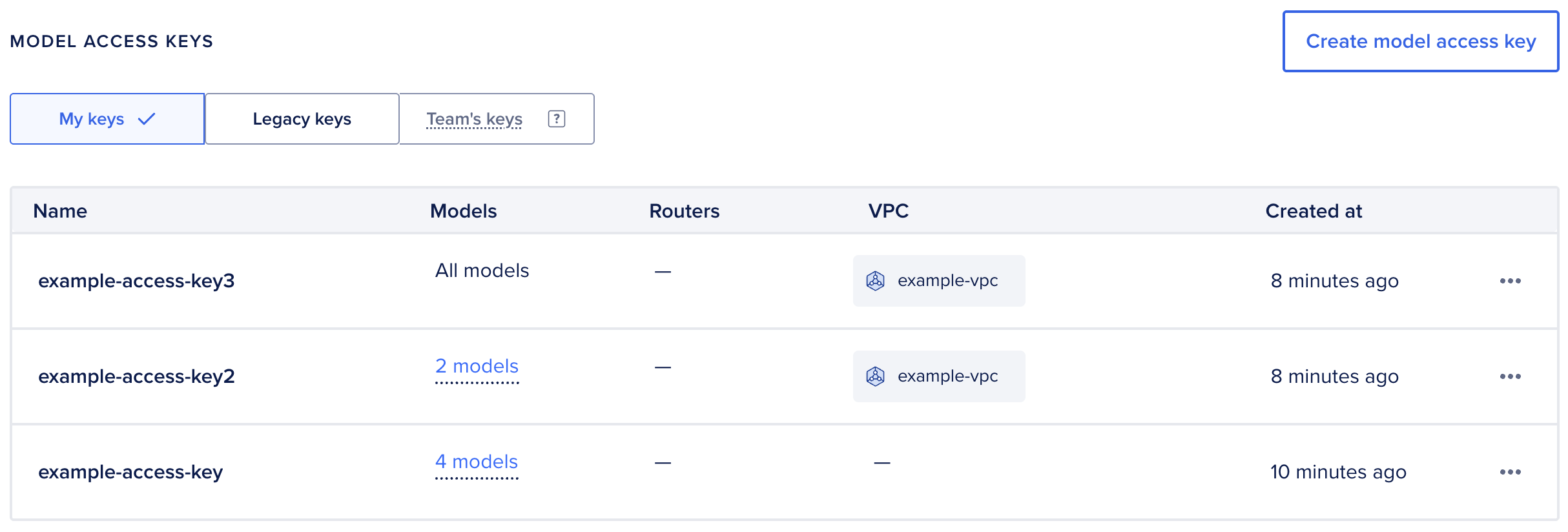
Members with other team roles see only My keys and Legacy keys.
There is one kind of model access key. The tabs group keys by who created them, relative to you. A key you create appears under My keys for you and under Team’s keys for team owners.
Rename Keys
Renaming a model access key changes the name shown in the Model Access Keys list. The secret key value is unchanged, and applications using the key continue to work without updates.
To rename a key, click … to the right of the key, then select Rename to open the Rename model access key window. In the Key name field, enter a new name, then click Update.
Regenerate Keys
Regenerating a model access key creates a new secret key and permanently invalidates the previous one. If a key is compromised or you want to rotate keys for security, regenerate it, then update any application that uses the old key.
Regeneration takes effect immediately, with no grace period during which both the old and new keys are valid. To avoid service interruptions, update any application that uses the key as soon as you regenerate it.
To regenerate a key, click … to the right of the key, then select Regenerate to open the Regenerate model access key window. Enter the key name to confirm, then click Regenerate access key. Your new secret key is displayed for you to copy.
The new secret key is visible only once, immediately after regeneration. Copy and store it securely before closing the window.
Delete Keys
Deleting a model access key permanently destroys it. Any applications using the deleted key lose access to the serverless inference API.
To delete a key, click … to the right of the key, then select Delete to open the Delete model access key window. Enter the key name to confirm, then click Delete access key.